You paste two script tags, the chat widget loads, and that's supposed to be the whole integration. Except it never is. Your design team wants to hide the launcher on checkout. Your analytics team needs to fire GA4 events when someone adds a product to cart through the chat. Your backend team wants to pass a session token so the chatbot can pull order data without asking shoppers to re-enter their email. Alhena's Website SDK handles all of that. It's exposed as window.gleenWidget (yes, gleen is a legacy name), and it goes well past what you'd expect from a chat widget API. Below is every method, event, and integration hook your team needs to know.
How the Alhena Chatbot SDK Boots
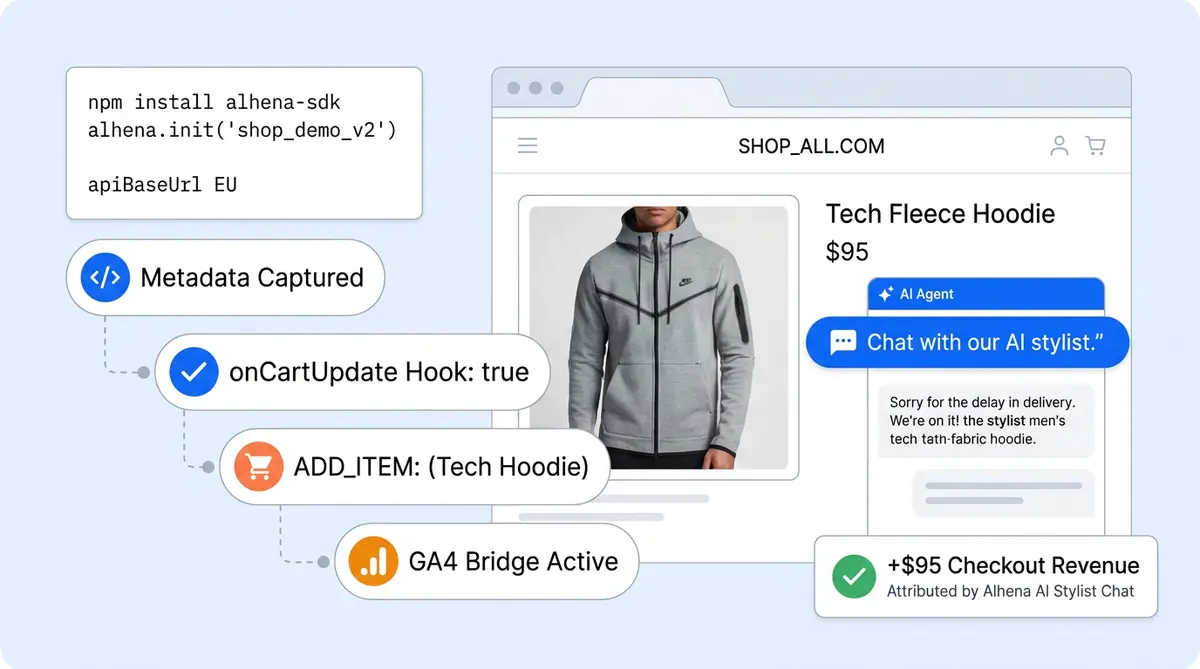
Drop this before your closing </body> tag:
<script>
document.gleenConfig = {
  company: 'your-company-key',
  apiBaseUrl: 'https://app.alhena.ai',
  userMetadata: {
    email: '[email protected]',
    plan: 'premium'
  }
};
</script>
<script src="https://app.alhena.ai/sdk/gleenWidget.js"></script>
EU accounts swap both URLs to https://eu.alhena.ai.
When that snippet runs, the SDK loads and exposes window.gleenWidget. Any calls you make before it's ready get queued automatically. Once the widget finishes loading, Alhena fires widget:loaded.
You can safely call gleenWidget.on('widget:loaded', fn) or gleenWidget.open() anywhere in your page load and nothing will break. We covered where this fits inside a headless commerce stack in our architecture guide.
Widget Visibility and Launcher Control
Seven methods handle what the shopper sees on screen:
gleenWidget.open()opens the chat panel. Pass{ expanded: true }to skip the compact view and go straight to the full-size window.gleenWidget.close()closes it. Launcher button stays unless you remove it separately.gleenWidget.toggle()flips open/closed. Accepts{ expanded: true }too.gleenWidget.hideLauncher()pulls the floating button off the page entirely. Good for checkout flows where you want zero distractions but still want to trigger chat from your own button.gleenWidget.showLauncher()puts it back.gleenWidget.showNudge()andgleenWidget.hideNudge()manage the proactive message bubble. Trigger a nudge when someone lingers on a product page for 30 seconds, or dismiss it after they interact. More on nudge targeting in the launcher and nudge config guide.
Say you're building a luxury fashion store. You don't want a generic chat bubble floating over your hero image. Instead, you place a "Talk to our stylist" button in the product detail sidebar and wire it to gleenWidget.open({ expanded: true }). Same chatbot, branded entry point, no floating UI.
Messages, Tickets, and Conversations
Four methods let you start, read, and end conversations without the shopper typing a word.
gleenWidget.sendMessage(message, options) opens the widget and sends a message on the visitor's behalf. Picture a "Help me pick a size" button on a sneaker page:
gleenWidget.sendMessage('What size should I get in the Air Max 90?');Alhena's Shopping Assistant checks the product catalog and replies with sizing guidance. No typing required from the shopper.
gleenWidget.closeTicket() ends the conversation and starts a fresh session. Handy after order confirmation or when a user switches between support and shopping flows.
gleenWidget.getTicketId() returns the current ticket ID. You'll need this when syncing with Zendesk, Gorgias, or any helpdesk that tracks conversations by ID.
gleenWidget.getMessages() pulls the full transcript. Treat it as async since messages might still be loading. Teams pipe this into CRM records, post-chat surveys, or internal dashboards.
Passing User Data with Metadata
If you only read one section of this guide, make it this one. Metadata is what separates a chatbot that asks "What's your email?" from one that already knows the answer.
gleenWidget.setUserMetadata(key, value) sets a key-value pair on the visitor's session. Alhena's agents can read these values and act on them. The same metadata also flows into Conversational Search and Product FAQ widgets if they're on the page.
Public Keys
Keys like email, name, plan, locale, current_cart, and abVariant are visible to the Alhena agent. When a logged-in shopper asks "Where is my order?" and you've already set their email, Alhena's Order Management Agent looks up tracking info immediately. No back-and-forth asking for identification.
You can set metadata at page load through the config object:
document.gleenConfig = {
  company: 'your-company-key',
  apiBaseUrl: 'https://app.alhena.ai',
  userMetadata: {
    email: '[email protected]',
    plan: 'vip',
    locale: 'en-GB',
    current_cart: 'SKU-1234,SKU-5678'
  }
};
Or update it later with setUserMetadata() after login or cart changes.
Private Keys
Prefix any key with an underscore and it becomes hidden from the AI prompt. _user_id, _session_id, _order_ref are invisible to the chatbot. Server-side tools that Alhena calls on the shopper's behalf can still access them. An order-lookup tool can authenticate using _session_id without that token ever showing up in the conversation.
One thing to keep in mind: these values are still set from the browser. Don't pass long-lived admin secrets or master API keys. Stick to short-lived, user-scoped tokens that expire with the session. We go deeper on how metadata connects to CDPs and personalization engines in the SDK metadata to CDP sync guide.
Events You Can Listen To
Subscribe to any event with gleenWidget.on(eventName, callback). Callbacks receive a data object with fields specific to that event. There are over 20 events split across six groups.
Lifecycle
widget:loadedfires when the widget is fully ready. Wait for this before calling methods that depend on widget state.widget:openedandwidget:closedfire when the chat panel opens or closes.
Conversation
ticket:message_submittedfires when the visitor sends a message. Callback gets the text.ticket:bot_response_finishedfires after Alhena finishes streaming a reply.ticket:closedfires when the conversation ends.ticket:link_clickedfires on any link click inside the chat. Pipe this to your click tracker.ticket:input_focusedfires when the visitor taps the message input.ticket:attachment_addedfires on file upload.ticket:quiz_options_renderedfires when quiz-style buttons show up in the chat.
Agent Handoff
ticket:agent_handoff_initiatedfires when Alhena starts routing to a human agent.ticket:email_submittedfires when the visitor gives their email for follow-up.ticket:agent_handofffires when the handoff finishes.
Ecommerce
product:displayedfires when Alhena shows a product card in chat.product:page_openedfires when a visitor clicks through to a product page from chat.product:added_to_cartfires for single-item cart adds.products:added_to_cartfires for multi-item cart adds.
On add-to-cart events, return true from your callback to tell the SDK you handled the cart action. If nothing returns true and you're running Shopify, the SDK falls back to its built-in Shopify cart logic. So you get both options: custom control on headless stores, or zero-config cart behavior on Shopify.
Product FAQ and Search
faqs:question_clicked,faqs:message_submitted,faqs:bot_response_finished, andfaqs:link_clickedmirror the conversation events, just for the Product FAQ widget.
Experimentation
experiment:loadedfires when an A/B test runs. Callback data tells you whether the visitor gottestorcontrol. Feed this into GA4 or your CDP to segment results. Our chatbot A/B testing guide walks through the strategy.
Icebreakers
icebreaker_question:postbackfires when a visitor clicks one of the pre-set conversation starters.
Want to chain events together? Listen for ticket:bot_response_finished, pull the transcript with getMessages(), and push a custom GA4 event. Brands like Tatcha do exactly this to connect chat-assisted sessions with their conversion models.
Changing Widget Styles at Runtime
gleenWidget.setStyles(styles) updates the widget's look without a page reload. Three style sources get merged: dashboard settings (lowest priority), document.gleenConfig.styles (middle), and runtime setStyles() calls (highest).
What you can change:
- Position: desktop spacing, mobile spacing, left/right/center alignment
- Layering:
zIndexfor the chat panel,launcherZIndexfor the button - Size: widget width, border radius
- Look: background color, font family
Fonts are the one gotcha. The SDK applies the font family you pass in, but it won't download the font files for you. If you specify Inter and your site hasn't loaded Inter, the browser falls back to its system font. Make sure any custom font is already loaded via Google Fonts, Adobe Fonts, or a self-hosted @font-face rule.
Dark mode is a good example of where setStyles() shines. Listen for prefers-color-scheme changes and call setStyles({ backgroundColor: '#1a1a2e' }). Everything else about the chatbot stays the same. Dashboard styling options like colors, logos, and avatars are covered in our widget customization guide.
Cart and Checkout Tracking for Revenue Attribution
Shopify stores get automatic tracking out of the box. No code needed. For WooCommerce, Salesforce Commerce Cloud, and custom platforms, two methods handle everything.
Cart Events
sendCartEvent(cart) reports what changed in the cart. Supported actions:
ITEM_ADDEDQUANTITY_INCREASEDandQUANTITY_DECREASEDITEM_REMOVED
Checkout Events
sendCheckoutEvent(checkout) reports a completed order. Pass in the order value, currency code, order ID, and line items with SKUs and quantities.
Why Queuing Matters
Revenue events persist through page navigation. If a checkout event fires on a thank-you page and the shopper closes the tab a moment later, Alhena still captures that data. More on how that attribution chain works in the revenue attribution deep dive.
Alhena ties each visitor's chat activity, cart actions, and checkout data into a single attribution chain. That's what powers Alhena's built-in revenue analytics.
Working with SPAs (React, Next.js, Vue)
In a single-page app, DOM containers for Alhena's widgets might not exist when the SDK first loads. Your router adds and removes them as users navigate. Three initialization methods handle this:
gleenWidget.initializeFAQWidget()mounts the Product FAQ widget. Call it after your router renders a product detail page with the FAQ container.gleenWidget.initializeInlineChatWidget()mounts an inline chat (not the floating bubble). Good for dedicated "Contact Us" or support pages.gleenWidget.initializeConversationalSearch()mounts the search widget after its container appears.
gleenWidget.unload() tears down all mounted widget roots. On route change, call unload() if the outgoing page had Alhena widgets, then call the right initialize method once the new page's containers are in the DOM. Note: the floating chat persists across route changes on its own. You only need to manage inline widgets, FAQs, and search this way.
Search Controls
gleenWidget.openSearch(query), gleenWidget.closeSearch(), and gleenWidget.toggleSearch(query) control Conversational Search. Wire them to your search bar to hand off from traditional keyword matching to Alhena's product discovery.
Other Utility Calls
gleenWidget.getFingerprint()returns a visitor identifier you can pass to your analytics tools.gleenWidget.getFAQFingerprint()returns a separate identifier for Product FAQ interactions.gleenWidget.setConvertPriceHook(fn)lets you adjust product prices before they appear in the chat. Common uses: currency conversion for international stores and tax-inclusive pricing for EU regions. The GDPR consent controls guide covers the compliance angle.
Three Patterns from Production
Most of these methods become much more interesting when you combine them. Here are three patterns we see in live stores.
Authenticated Shopper Flow
After login, push the user's identity into Alhena so the chatbot knows who it's talking to:
// After login
gleenWidget.setUserMetadata('email', user.email);
gleenWidget.setUserMetadata('name', user.firstName);
gleenWidget.setUserMetadata('plan', user.loyaltyTier);
gleenWidget.setUserMetadata('_session_id', user.sessionId);
Now "What's my order status?" gets answered with actual tracking data. Alhena's Support Concierge authenticates against your API with the private _session_id and returns real-time info. No "please enter your email" loop.
Custom Cart on a Headless Store
Running a custom cart on a non-Shopify storefront? Intercept the add-to-cart event and route it through your own logic:
gleenWidget.on('product:added_to_cart', function(data) {
  myCart.addItem(data.productId, data.variantId, data.quantity);
  return true; // tells the SDK you handled it
});
Returning true stops the SDK from trying its default Shopify cart behavior. Your cart, your rules.
Piping Events to GA4
Send Alhena conversation events straight into your analytics:
gleenWidget.on('ticket:bot_response_finished', function() {
  gtag('event', 'alhena_response', {
    ticket_id: gleenWidget.getTicketId()
  });
});

gleenWidget.on('experiment:loaded', function(data) {
  gtag('set', 'user_properties', {
    alhena_variant: data.variant // 'test' or 'control'
  });
});
Pair this with Alhena's revenue attribution and you can compare chat-influenced sessions against organic traffic directly in your existing GA4 reports.
Every method and event in this guide is live today. If you want to test them against your own site before rolling anything out, the Alhena Playground gives you a sandbox to experiment without touching production.
Want to walk through your integration with our engineering team? Book a demo, or grab a free account with 25 conversations to try the SDK on your own.
Frequently Asked Questions
What is the Alhena Website SDK and how is it different from a basic chat embed?
Alhena's Website SDK is a browser-side JavaScript layer exposed as window.gleenWidget. Most ai chatbot tools give you a script tag and nothing else. Alhena goes further: the SDK gives developers direct control over widget visibility, message sending, user metadata, 20+ event callbacks, runtime styling, cart tracking, and SPA lifecycle. It's not a generic chat component. It's an interface that turns a chat bubble into a configurable ai layer for your storefront.
How do I set up and deploy the Alhena SDK on my website?
Setup takes two script elements before the closing body tag. The first sets document.gleenConfig with your company key and api base URL (app.alhena.ai for US, eu.alhena.ai for EU). The second loads the SDK from the same domain. You can deploy it on any platform, whether your store runs on Shopify, a custom server, or a headless stack. Pre-configured snippets are in the Alhena dashboard under Integrations, Website, Installation.
Can I use the Alhena SDK with React, Next.js, Vue, or other SPA frameworks?
Yes. The SDK ships methods built for single-page apps: initializeFAQWidget(), initializeInlineChatWidget(), initializeConversationalSearch(), and unload(). If you're writing your app in TypeScript or using tsx files, the SDK works the same way. Call unload() on route transitions and the right initialize method once new containers mount in the DOM. The floating chat widget persists across routes automatically, so you only manage inline components, FAQ widgets, and search.
What events does the Alhena SDK fire, and how do I listen to them?
The SDK fires over 20 events across six groups. Lifecycle events like widget:loaded tell you when the chat UI is ready. Conversation events stream data on each message, bot response, link click, and file upload. Handoff events track agent routing. Ecommerce events cover product display and add-to-cart. There are also Product FAQ and experiment events. Subscribe with gleenWidget.on(eventName, callback) and use the data object to feed your analytics or trigger custom logic.
How does private metadata work, and is the token safe?
Keys starting with an underscore (like _user_id or _session_id) stay hidden from the ai model prompt. The ai never sees those values, but server-side api tools configured in Alhena can read them for authenticated requests. Since metadata is set from the browser, don't pass long-lived secrets. Use short-lived, user-scoped tokens that expire with the session. Think of it as a hook: the chatbot can fetch data from your backend server without exposing credentials in the conversation text.
Does the Alhena SDK support revenue attribution on non-Shopify platforms?
Yes. Shopify stores get automatic cart and checkout tracking. For WooCommerce, Salesforce Commerce Cloud, and custom platforms, call sendCartEvent() and sendCheckoutEvent() manually. The SDK queues events fired before the widget is ready and persists them through page navigation. If a checkout event fires on a thank-you page and the shopper closes the tab, the data still reaches the Alhena server.
How do I handle the add-to-cart event on a custom storefront?
Register a hook with gleenWidget.on("product:added_to_cart", callback). Inside the callback, run your own cart logic using sendMessage or a direct api call to your backend, then return true. That return tells the SDK you handled the action. If nothing returns true and the site runs Shopify, Alhena falls back to its built-in cart behavior. This use case is common on headless stores where the cart is a custom React or Vue component.
Can I change the widget's appearance at runtime without a page reload?
Call gleenWidget.setStyles(styles) to update positioning, z-index, width, border radius, background color, and font family on the fly. Runtime setStyles() calls take priority over dashboard settings and config-level styles. If your store uses a modal overlay or chat state that should match a dark mode toggle, setStyles() handles it without touching the DOM yourself. The ui stays consistent across desktop and mobile.
How does the Alhena SDK compare to building a chatbot with OpenAI or open source tools?
Building your own ai chatbot with OpenAI, a generative ai model, and an open source framework from GitHub like LangChain means you own the setup but also own the server costs, the stream handling, image generation for product cards, input validation, gateway api routing, and ongoing maintenance. Alhena's SDK gives you a ready-to-use chat api with ecommerce features baked in: cart tracking, metadata, revenue attribution, agent handoff, and conversational search. You can build ai features on top of it using the event hooks and sendMessage method without managing the underlying infrastructure.
Is there a way to configure the SDK for A/B testing or experiments?
When an experiment is active, the SDK fires an experiment:loaded event with either test or control as the variant. You can configure the test in the Alhena dashboard and listen for the event in your code to generate text, swap UI elements, or adjust the chat flow. Feed the variant into GA4 or your CDP to unify reporting across Alhena-influenced sessions and organic traffic. No extra env variables or tsx files needed on your side.