What Are AI Profiles? The Smarter Way to Manage Multiple AI Agents Across Brands
Managing one AI assistant is easy. Managing AI across multiple brands, storefronts, regions, and support teams is where things get complicated.
Many ecommerce businesses today operate multiple Shopify stores, regional storefronts, product lines, or brands under a single parent company. As AI shopping assistants, AI customer service agents, and conversational commerce tools become central to customer experience, businesses face a growing challenge: how do you keep each AI agent accurate, brand-specific, and isolated without creating operational chaos? That's exactly what AI Profiles solve.
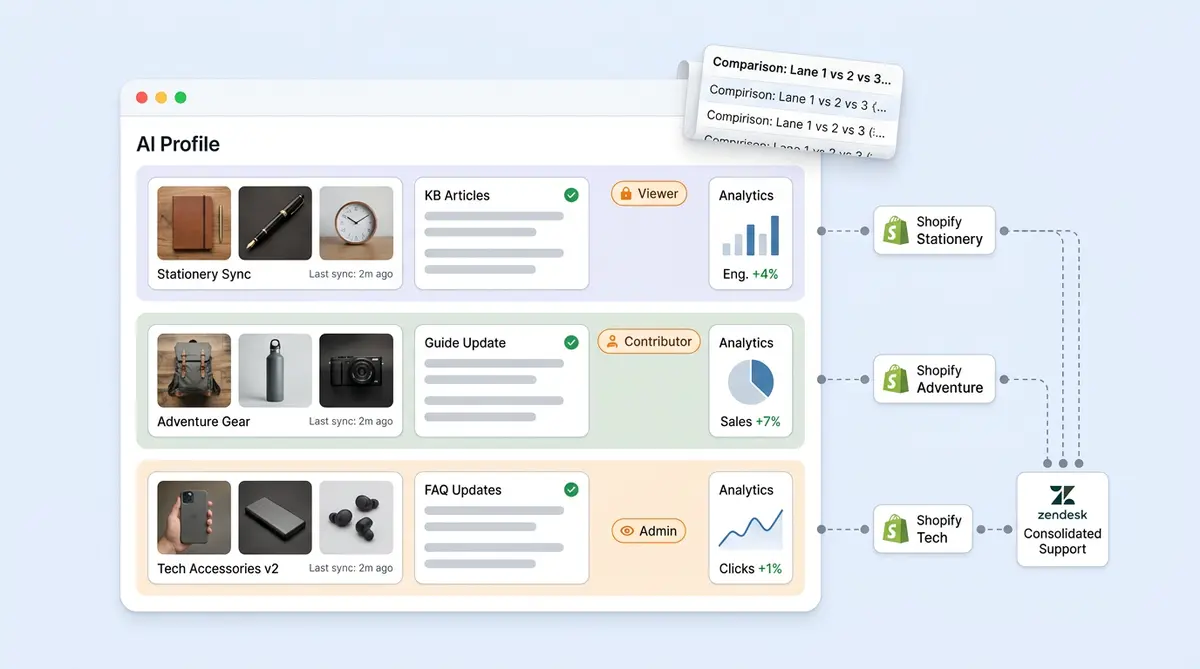
Alhena AI Profiles let e-commerce teams run separate AI agents for each brand, store, region, or business unit from a single workspace. Every profile maintains its own knowledge base, integrations, conversations, analytics, permissions, and AI behavior. Nothing overlaps. Nothing leaks between brands.
Whether you're deploying an AI shopping assistant, AI customer support agent, or e-commerce chatbot across multiple stores, AI Profiles provide the structure needed to scale AI without sacrificing accuracy.
What Is an AI Profile in Alhena?
An AI profile is a self-contained environment inside your Alhena AI account. You can think of it as a dedicated AI agent identity for a specific brand, storefront, region, or support function.
Each profile has its own:
- Knowledge base: URLs, uploaded documents, FAQ entries, product data
- Bot personality: name, tone, behavior rules, escalation logic
- Integrations: connected Shopify store, helpdesk, social channels
- Conversations: fully separated chat history and tickets
- Analytics: revenue attribution, CSAT, deflection rate tracked independently
- Team access: members scoped to just this profile with specific permissions
Every profile is tracked internally so the right widget, the right helpdesk tickets, and the right AI responses always connect to the right brand. Rename the profile all you want. That internal reference stays the same, so nothing breaks.
How Is an AI Profile Different from a Workspace?
Your workspace is the top-level account. It holds your billing, your team roster, and all of your AI Profiles. Think of it as the parent container.
A profile lives inside that workspace. It's the layer where AI actually does its job. When a shopper chats with your brand on your website, they're interacting with a specific profile, not the whole workspace.
You don't need separate Alhena accounts for each brand. One workspace. One invoice. One admin panel. As many specialized bots as your business needs.
What Can You Use AI Profiles For?
The most common setups we see:
- Brand separation: Brand A Support, Brand B Support, Brand C Support
- Regional stores: US Store, EU Store, APAC Store
- Channel-specific bots: one for web chat, another for Instagram DMs, another for WhatsApp
- Function-specific agents: a returns bot, a product recommendation bot, a wholesale support bot
- Testing: a production profile alongside a sandbox copy
A skincare line and a supplements line under the same parent company have different return windows, different compliance requirements, and completely different product catalogs. Profiles make sure each bot only knows what it should know.
How Do You Create an AI Profile?
Any admin can create a new profile from the Alhena dashboard. It takes about two minutes. No code, no developer tools, no tickets to engineering.
You have two options:
Option 1: Start Fresh
Pick this when the new profile has nothing in common with your existing ones. Brand-new knowledge base, brand-new training sources, everything built from the ground up.
- Open the profile switcher in the sidebar
- Click "Create New AI Profile"
- Name it (something like "EU Skincare Store")
- Invite teammates if needed
- You land in the onboarding flow for the new profile
From there, you add your training content (product pages, help articles, policy docs), tweak the bot's personality, connect your Shopify or WooCommerce store, and drop the widget on your site.
Option 2: Duplicate an Existing Profile
Pick this when the new profile shares a lot with something you've already built. Maybe it's a second regional store, or a new brand with similar support policies.
- Open the profile switcher
- Click "Create New AI Profile"
- Choose which existing profile to copy from
- Select which URLs, docs, and FAQs to bring along
- The new profile launches with all that content already loaded
Duplication copies the knowledge structure, not the live data. Conversations and analytics don't carry over. The new profile starts with a clean slate on metrics but a head start on training.
What Happens When You Hit Create?
Alhena handles the technical setup automatically. Your new profile gets created, any duplicated training content carries over, and everything is ready for you to start customizing. The whole thing wraps up quickly.
How Do You Edit an AI Profile?
There are two layers to editing: the basics and the AI behavior.
The Basics
The profile settings screen lets you update the display name and description. The display name is what your team sees across all dashboard features in the profile switcher, team management, analytics filters, and everywhere else profiles are listed.
Important detail: changing the name doesn't affect anything technical. Widget embeds, helpdesk connections, and analytics are all tied to the profile itself, not the display name. Rename it as often as you want.
The AI Behavior
This is where the real customization lives:
- Bot name and persona: what your customers actually see
- Tone: formal for luxury, friendly for DTC, whatever fits the brand
- Behavior rules: things like "never mention competitor products" or "always suggest the travel-size first"
- Escalation triggers: when and how the bot hands off to a human agent
- Training sources: URLs, uploaded files, help center content, product data feeds
- FAQ pairs: curated Q&A that the AI treats as ground truth
- Active agent tools: which shopping assistant features and order management actions are turned on
- E-commerce config: order lookup, returns handling, checkout flow
- Connected platforms: Zendesk, Freshdesk, Gorgias, and others
Everything you change applies only to this profile. The other profiles in your workspace don't notice.
How Do You Switch Between AI Profiles?
Switching is fast and has no side effects.
Desktop: Click the profile dropdown in the sidebar and pick the one you want. You're in.
Mobile: tap "Switch AI Profile" from the nav menu.
The dashboard reloads with that profile's conversations, settings, integrations, analytics, and training data. You're just changing which lens you're looking through.
Does Switching Move or Copy Data?
No. Switching is a view change. You're telling the dashboard, "Show me this brand's world right now." Conversations stay where they are. Settings don't migrate. Analytics stay tied to their profile.
Can Multiple People Work on Different Profiles at the Same Time?
Absolutely. One person can be editing Brand A's tone guidelines while someone else reviews Brand B's deflection numbers. Profiles are independent, so there's no conflict.
How Do Profiles Connect to the Rest of the Platform?
Profiles aren't just a label in the dashboard. They're the thread that ties every part of Alhena together.
Chat Widget
The widget on your website is tied to a specific profile. When shoppers on Brand A's site open the chat, they get Brand A's bot, Brand A's product knowledge, and Brand A's escalation rules. Nothing from Brand B leaks in.
Helpdesk Routing
If you run Zendesk, Freshdesk, Gorgias, Kustomer, or Zoho, each connection maps to a profile. When two brands share one helpdesk instance, Alhena's brand-tag mapping routes tickets to the right profile based on the incoming support address, brand tag, or channel.
Two brands, one Zendesk. Each brand still gets its own AI responses from its own knowledge base.
Ecommerce Platforms
Shopify, WooCommerce, Magento, BigCommerce, and Salesforce Commerce Cloud are all configured per profile. Product catalogs, order lookups, and return policies stay tied to the correct store.
Team Permissions
Admins see everything across all profiles. But members can be locked to a single profile with specific permissions. A freelance support lead for Brand B doesn't see Brand A's conversations, analytics, or customer information.
Analytics
The analytics dashboard works at both levels. Filter down to one profile to see that brand's performance. Or zoom out to compare resolution rates, revenue impact, and conversation trends across all your brands side by side.
Why Does This Matter for Multi-Brand Teams?
Without this kind of separation, companies running multiple brands face a choice nobody wants:
- Use one bot for everything. Product knowledge gets tangled. A customer asking about Brand A's refund window gets Brand B's answer. Trust tanks.
- Use separate accounts for each brand. Billing splits. You can't compare metrics. Launching a new brand means building from scratch.
Profiles give you a third path. Isolate the AI. Unify the management.
Faster Launches
Duplicating a profile means a new brand or region can go live in hours instead of weeks. Copy the structure, tweak what's different, deploy. Tatcha saw a 3x conversion rate with their Alhena-powered shopping assistant. Profile duplication makes it practical to roll that kind of result across a whole brand portfolio.
Smarter Ticket Routing
It's common for enterprise retail brands to funnel multiple brands through one helpdesk instance. Profiles paired with brand-tag mapping route each ticket to the correct bot automatically. No manual sorting. No wrong-brand answers. No confused customers.
Tighter Access Control
Regional managers, agency partners, and brand-specific support staff only see their own profile. Their own conversations, their own analytics, their own settings. They don't accidentally stumble into another brand's data. That matters for compliance and for keeping things clean operationally.
Per-Brand Performance Tracking
When each profile tracks its own numbers, you can actually answer questions like "which brand has the highest deflection rate?" or "which region's bot is driving the most revenue?" Crocus hit an 86% deflection rate and 84% CSAT. Now imagine being able to benchmark that across five brands instead of guessing from blended averages.
How Does This Compare to Other Platforms?
Most chatbot tools treat multibrand as an edge case. Most retail and ecommerce tools weren’t designed for it. Here's where they fall short:
- Zendesk AI supports multiple brands at the ticket routing level, but the AI doesn't maintain separate knowledge per brand. You can organize articles by brand in Guide, but the AI doesn't maintain fully isolated knowledge contexts the way dedicated profiles do.
- Intercom Fin is strong for single-brand support. For multi-brands, you need separate Intercom workspaces, which means separate bills, separate teams, and no cross-brand analytics.
- Tidio handles multi-site deployments but shares training data across all of them. There's no built-in way to isolate AI knowledge per brand within one account.
- Gorgias routes tickets well across multi-brand Shopify setups, but the AI automation layer doesn't keep brand knowledge separate.
Alhena built profiles specifically for this problem. Each one is a fully independent bot with its own training, its own rules, and its own metrics. The separation goes all the way through the stack, not just the dashboard.
What Does the Actual Setup Look like?
Say a parent company runs three DTC brands on Shopify, all using one shared Zendesk account for support.
Step 1: Create the Profiles
The admin creates three profiles inside one Alhena workspace: "Brand A", "Brand B", and "Brand C". Brands B and C get duplicated from A since they share similar support policies.
Step 2: Train Each One Separately
Brand A's profile gets Brand A's product pages, shipping policy, and voice guidelines. Brand B and C get their own URLs and docs. Each knowledge base is walled off from the others.
Step 3: Wire Up the Integrations
Each profile connects to its own Shopify store for product and order data. All three map to the same Zendesk instance, but brand-tag mapping makes sure tickets land in the right profile based on the support address.
Step 4: Set Permissions
Brand A's team lead gets member access to Brand A's profile only. The VP of CX gets admin access across all three. Everyone sees exactly what they need and nothing they don't.
Step 5: Compare Results
After launch, the analytics rollup shows deflection rate, CSAT, revenue per brand, and conversation volume side by side. One dashboard. Three brands. Full visibility.
Key Takeaways
- An AI profile is a self-contained bot environment inside your Alhena workspace, with its own knowledge, rules, integrations, and analytics.
- Create new profiles from scratch or duplicate existing ones for faster rollout.
- Renaming a profile doesn't break anything technical. The underlying identifier stays stable.
- Switching profiles is just a view change. No data moves.
- Profiles route through everything: chat widget, helpdesk, e-commerce platforms, team permissions, and analytics.
- Competitors like Zendesk AI, Intercom Fin, Tidio, and Gorgias don't offer this level of knowledge isolation per brand.
- Multi-brand teams get faster launches, cleaner routing, tighter access control, and real per-brand performance comparison.
Want to see how profiles work for your brand setup? Book a demo with Alhena AI or try it free with 25 conversations to test it yourself.
Frequently Asked Questions
What is an AI Profile in Alhena?
An AI Profile is a fully isolated operating environment inside your Alhena workspace. Each profile has its own knowledge base, AI settings, integrations, conversations, analytics, and team permissions. It's how AI in ecommerce works for companies that need separate bots to help different audiences without mixing things up.
Can I run multiple AI Profiles for different brands in one workspace?
Yes. One Alhena workspace can hold as many AI Profiles as you need. Each profile operates independently with its own training data, tone, integrations, and analytics. Multi-brand companies commonly run one profile per brand while managing everything from a single admin view.
How do I create a new AI Profile?
Open the profile switcher in the Alhena dashboard sidebar and select "Create New AI Profile." You can start from scratch with a fresh knowledge base, or duplicate an existing profile to copy its URLs, documents, guidelines, and FAQ entries. The process takes under two minutes with no developer involvement.
Does editing an AI Profile name break my integrations?
No. The underlying reference stays the same even when you rename it. Your widget embeds, helpdesk connections, and all other integrations keep working after a name change. Only the display name in the dashboard updates.
How does switching between AI Profiles work?
Switching changes your active context in the dashboard. Click the profile dropdown on desktop or use the Switch AI Profile page on mobile. The dashboard loads that profile's conversations, settings, integrations, and analytics. No data moves or copies between profiles when you switch.
How do AI Profiles route helpdesk tickets to the right brand?
Alhena uses brand-tag mapping to route incoming tickets to the correct AI Profile. When two brands share one Zendesk or Freshdesk instance, tickets are routed based on support email, brand tag, WhatsApp number, or integration metadata. Each brand gets separate AI responses from its own knowledge base.
Can team members be restricted to one AI Profile?
Yes. Admins have workspace-level access across all profiles, but members can be scoped to a single AI Profile with specific feature permissions. An agency contractor or regional team lead only sees their brand's conversations, analytics, and settings.
How do AI Profiles compare to Zendesk AI or Intercom Fin for multi-brand setups?
Zendesk AI supports multiple brands for ticket routing but doesn't isolate AI knowledge per brand. Intercom Fin requires separate workspaces for each brand. Alhena AI Profiles provide full knowledge isolation, per-brand analytics, and scoped team access within a single workspace. For multi-brand ecommerce, that makes Alhena the best AI chatbot option if brand separation matters to you.
What is the difference between duplicating and creating a profile from scratch?
Creating from scratch gives you a blank profile with no training data. Duplicating copies an existing profile's URLs, documents, guidelines, and FAQ entries into the new profile. Duplication is faster when the new brand shares similar support policies or documentation. Conversations and analytics are never copied.
Can each AI Profile run on different channels like web chat, Instagram, WhatsApp, and Messenger?
Yes. Each profile connects to its own set of multiple channels. One brand might use web chat and Instagram DMs on your ecommerce site while another handles WhatsApp and Messenger. Your AI chatbots respond with the right knowledge on every channel, so website visitors and social media followers always get the right AI help from the correct brand.
Do AI Profiles support personalization and product discovery separately per brand?
Yes. Each profile runs its own product discovery, recommendation logic, and upselling flows based on that brand's catalog. Customer engagement and customer retention strategies stay brand-specific. A shopper on Brand A gets AI-powered personalization from Brand A's data, not a mix of your other stores. That's one of the most common use cases for profiles.
Can AI Profiles automate different workflows for each brand?
Yes. Each profile has its own conversational AI rules, so you can automate repetitive tasks differently per brand. One brand might connect to a CRM and handle order updates in real time, while another uses machine learning to run agentic product recommendations. The generative AI tool adapts to each brand's workflow without mixing anything up.