Why AI Dashboards Need Access Control
Most access management incidents trace back to people, not code. Misused credentials, careless clicks, someone toggling the wrong setting. When your AI dashboard controls how customers experience your brand, the stakes behind every decision get higher. One wrong toggle in AI settings can change how your chatbot answers thousands of shoppers. One accidental integration disconnect can break your helpdesk workflow mid-shift.
Most e-commerce businesses don't think about AI dashboard access control until something goes wrong. A support agent edits the knowledge base, and the AI starts giving incorrect product answers. An intern with full admin access disconnects a Shopify integration. A contractor sees billing details they shouldn't.
These aren't hypothetical scenarios. They happen when every teammate gets the same level of access by default. Alhena AI's Team Management feature exists to prevent exactly this. It gives you real control over who can enter your workspace, which AI profile they can work on, and which dashboard features they can see or change.
This post walks through how team management works inside Alhena, who should have access to what, and how to set it up for your team.
How Alhena's AI Team Management Works
Alhena's permission management model is built on three core concepts: the workspace, the AI profile, and the role.
The workspace (also called the organization) is your top-level account, created when you first sign up. It's the container for everything: AI profiles, integrations, billing, analytics, and team members. A single workspace can hold multiple AI profiles.
An AI profile is an individual AI setup within your workspace. Think of it as a separate brain. Larger organizations that run three brands might have three AI profiles, each trained on different product catalogs, each connected to different e-commerce platforms, each with its own conversation history and support settings.
The role determines what a role can do and what a person can see. Alhena keeps this simple with two roles:
- Admin: Full workspace control. Admins see every AI profile, every feature, every setting. They can add, invite, delete, or remove users, create groups, manage billing, configure integrations, and edit AI behavior across the entire organization.
- Member: Scoped access. Members are attached to a specific AI profile, and within that profile, they only see the features an admin grants them.
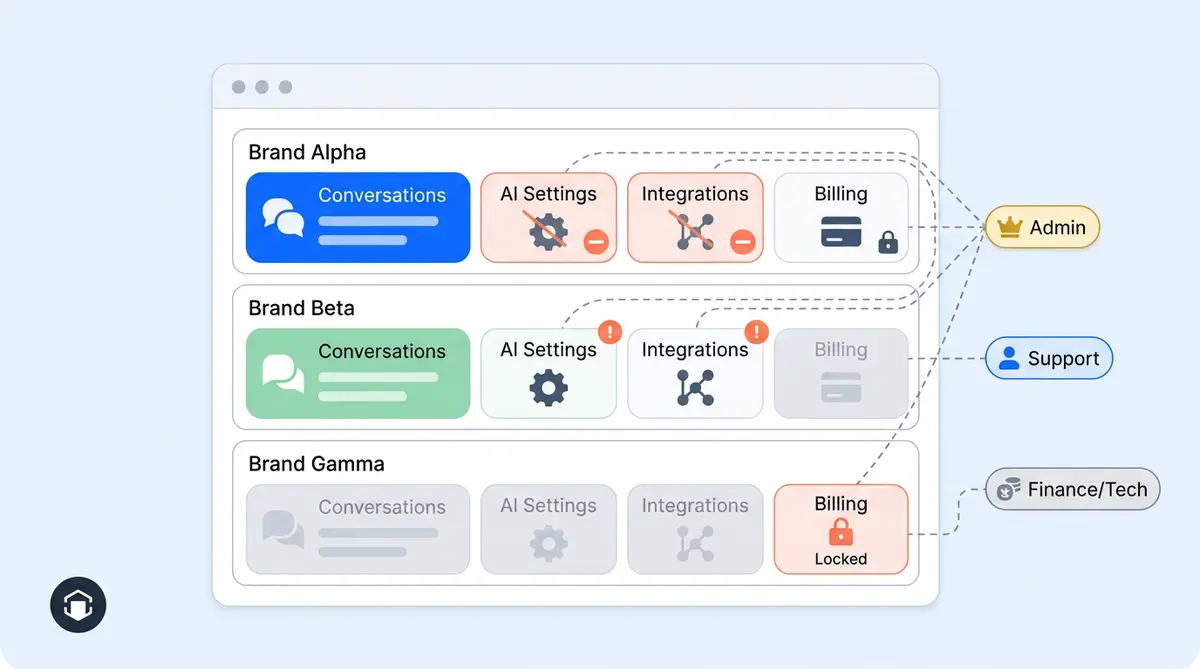
That's the whole model. Admin means full control to modify any setting. Member means controlled access with assigned roles scoped to their profile. No complicated tier structure, no confusing permission matrices. Just two roles with clear, well-defined boundaries.
The Seven Feature Permissions (And Who Needs Each One)
When an admin invites a member, they pick exactly which dashboard areas that person can access. Alhena breaks the dashboard into seven permission areas:
AI Settings
This covers the knowledge base, guidelines, AI agent configuration, and training data. Anyone with this permission can change how your AI thinks, what it knows, and how it responds to customers. Give this to your AI operations team or knowledge base managers. Keep it away from support agents who don't need to touch AI behavior.
AI Visibility
Controls where and when the AI shopping assistant appears to end users. This includes widget placement, page-level controls, and display rules. Your marketing or CX team typically owns this.
Analytics
Opens up performance metrics, conversation analysis, and AI effectiveness data. Support leads, CX managers, team leaders, and executives need this. Individual support agents usually don't.
Conversations
Gives access to live and historical customer conversations. This is the most commonly granted permission for support teams. Agents can view, respond to, and manage customer conversations without seeing anything else in the dashboard.
Integrations
Covers helpdesk connections (Zendesk, Freshdesk, Gorgias), e-commerce platform links (Shopify, WooCommerce), and other connected services. Disconnecting or misconfiguring an integration can break live workflows, so limit this to your technical team or integration owners.
Social Conversations
Manages conversations from social commerce channels like Instagram DMs, WhatsApp, and Facebook Messenger. Your social media team or social support agents need this, but your general support team might not.
Billing
Shows plan details, invoices, subscription management, and pricing information. This is financially sensitive from a security standpoint. Restrict it to finance leaders, operations leads, or founders. There's no reason a support agent or AI trainer needs to see billing data.
Real Permission Setups by Team Role
Here's how real e-commerce teams typically configure access in Alhena. These aren't rigid templates. They're starting points you can adjust based on how your team operates.
Support agent: Conversations only. They handle customer chats and emails without any exposure to AI configuration, billing, or integrations. This is the most common setup for frontline support staff.
Support lead or CX manager: Conversations plus Analytics. They can track deflection rates, spot patterns in customer feedback, and review conversation quality alongside daily support work. For teams that have adopted more mature AI operations, leads might also get Social Conversations access.
AI operations specialist: AI Settings and AI Visibility. This person manages the knowledge base, writes guidelines, trains the AI, and controls where the widget appears. They don't need to see customer conversations or billing details.
Integration or DevOps owner: Integrations only. They handle the technical connections between Alhena and your e-commerce platform, helpdesk, or communication tools. Keeping this separate from AI settings prevents accidental changes to AI behavior during integration work.
Finance or operations lead: Billing only. They manage the subscription, review invoices, and handle cost tracking using the ROI calculator. Nothing else cluttering their view.
Founder or executive: Admin role. Full workspace access across all AI profiles, all features, all settings. This is the right choice for anyone in the organization who needs complete visibility and control.
Multi-Brand Access: One Workspace, Scoped Profiles
This is where Alhena's permission model really earns its keep. If you run multiple brands, storefronts, or regional stores, you likely have multiple AI profiles inside one workspace.
Each member is attached to a specific AI profile. A support agent working on Brand A only sees Brand A's conversations, analytics, and settings. They can't accidentally (or intentionally) access Brand B's information.
This matters for several reasons:
- Data isolation: Support conversations from one brand don't leak into another team's view
- Configuration safety: A knowledge base update for one brand can't accidentally affect another
- Contractor access: If you hire a freelance support team for one brand, they get scoped access to that brand only
- Compliance: For brands operating across regions with different data privacy requirements, profile-level scoping helps keep data boundaries clean
Admins, by contrast, see everything across all profiles. They can switch between AI profiles, compare performance, and manage cross-brand settings from a single view.
How Alhena Enforces Permissions (Not Just Hides Buttons)
A common shortcut in SaaS platforms is to hide menu items from restricted users but still let those same users reach restricted areas if they know the right URL. That's cosmetic security, not real access control.
Alhena enforces permissions at two layers:
What you see: The dashboard dynamically adjusts navigation based on each user's permissions. If a member doesn't have Analytics access, the analytics section doesn't appear in their sidebar. The UI is clean and focused, showing only what that person needs.
What happens behind the scenes: Every request is checked against the user's permissions before anything happens. When a request comes in, Alhena checks who the user is, what role they hold, and whether they have permission for the specific feature they're trying to reach. A member without integration access simply can't get through. The server rejects the request regardless of how it's made.
So access control runs deep, not just at the surface. It's the same philosophy Alhena applies to its AI agents: check permissions on every request, not just hide buttons and hope for the best.
Setting It Up: A Five-Minute Walkthrough
Getting your team permissions configured in Alhena takes minutes, not days. Here's the workflow:
Step 1: Go to Settings in your Alhena dashboard, then click Manage Team.
Step 2: You'll see your current team list with each person's role, access scope, and status. From here, you can search teammates, edit access, resend invites, or remove users.
Step 3: Click Invite Teammate. Enter their email address.
Step 4: Choose the role. For full workspace control, pick Admin. For scoped access, pick Member.
Step 5: If you picked Member, select which AI profile they should access, then check the specific features they need (Conversations, Analytics, AI Settings, Integrations, Billing, AI Visibility, Social Conversations).
That's it. The invited user gets an email, accepts the invite, and lands in a dashboard that shows only what you've granted. No setup calls. No dev resources. No config files. It works the same way whether you have 3 teammates or 30.
If someone's role changes, edit their access from the same Manage Team screen. If someone leaves the company, remove them instantly. Access changes take effect right away, everywhere.
What’s New: Recent Team Management Upgrades
Alhena shipped a batch of team management updates in early 2026. If you set up your team before these changes rolled out, here’s what’s different now.
Smarter Defaults When Inviting
New member invites now default to zero permissions. When you invite someone as a Member, no features are pre-selected. You have to explicitly check each permission you want them to have. This prevents the common mistake of accidentally granting broad access because “select all” was the default.
The invite modal itself was redesigned. You pick the role, the AI profile, and the specific feature permissions all in one step. Permission options are shown as clear, selectable chips so you can see at a glance what you’re granting.
Role Switching and Safety Rails
Admins can now promote a Member to Admin or demote an Admin to Member in a single action. When someone is promoted to Admin, their profile-specific permissions are automatically replaced by full workspace access. When demoted back to Member, the admin picks which profile and permissions they should keep.
There’s also a self-protection rule: you can’t demote or remove yourself from the team management screen. This prevents the “locked out of my own account” scenario that plagues other platforms.
Audit Trail for Access Changes
Every permission change is now logged. When an admin invites a teammate, changes their role, adjusts their feature access, or removes them, Alhena records what changed and who made the change. For teams that need to answer “who gave this person billing access?” during a quarterly review, the answer is one click away.
Better Experience for Restricted Members
Earlier versions of the dashboard could feel empty for members with limited permissions. That’s been fixed. Members now see a clean home screen with quick links to the features they do have access to. The sidebar only shows relevant navigation items, and settings pages respect permissions properly instead of showing cards the member can’t use.
Notification settings also got an update. Members can now manage their own notification preferences instead of that area being locked to admins only.
Want to see how notification routing works across roles and bot profiles? Our Alhena Notifications System guide covers all six categories and the permission logic behind each one.
Pending Invites and Team Overview
The Manage Team page now shows pending invitations alongside active teammates. You can see who hasn’t accepted yet, resend the invitation, or revoke it. Each teammate row displays their role and a summary of their access scope, like “Entire workspace” for admins or “Brand X | Analytics, Conversations” for scoped members.
Why This Matters More for AI Dashboards Than Regular SaaS
Regular SaaS dashboards control internal workflows. AI dashboards control end-user-facing behavior. That's a different level of risk.
Consider what happens when someone changes settings in each area of Alhena:
- AI Settings: Changes to guidelines or knowledge directly alter how the AI responds to customers. A wrong edit here means thousands of shoppers could get incorrect product recommendations or outdated return policies.
- Integrations: Disconnecting a Zendesk or Shopify connection breaks live support and order workflows.
- AI Visibility: Changing widget rules can remove the AI from your highest-traffic pages or expose it on pages where it shouldn't appear yet.
- Billing: Changing subscription tiers affects conversation limits and feature availability across the team.
In a traditional helpdesk, a misconfigured setting might slow down ticket routing. In an AI dashboard, a misconfigured setting changes what customers hear, see, and experience in real time, with no delay. That's why role-based access control isn't a nice-to-have for AI platforms. It's a requirement for running AI operations responsibly.
Brands like Tatcha, which drives 11.4% of total site revenue through AI, or Puffy, with 90% customer satisfaction scores, rely on Alhena for live customer conversations that directly affect revenue. At that scale, uncontrolled access to the AI dashboard is a real problem.
Getting Started with Alhena AI Team Management
If you're already using Alhena, Team Management is available in your dashboard right now under Settings. Start by auditing who currently has admin access and ask whether each person genuinely needs full workspace control. For most teammates, a scoped member role with specific feature permissions is the safer, cleaner choice.
If you're evaluating AI solutions for your e-commerce team and clear access control is on your checklist, Alhena's two-role model with seven specific feature permissions gives you the control you need without the complexity you don't.
Frequently Asked Questions
What roles are available in Alhena AI team management?
Alhena AI has two roles: Admin and Member. Admins have full workspace control across every AI profile, every dashboard feature, and every setting. Members are scoped to one AI profile and only see what the admin assigns them. Think of it less like a project management tool with task hierarchies, and more like a clean way to organize who on your team can touch what. You can assign each team member exactly the dashboard areas they need.
How do I invite a teammate to my Alhena AI dashboard?
Go to Settings, then Manage Team, and click Invite Teammate. Enter their email, choose Admin or Member, and if Member, select the AI profile and specific feature permissions they need. The whole process takes under a minute.
Can I restrict a team member to only see customer conversations?
Yes. When assigning the Member role, you can grant only the Conversations permission. That team member will only see the conversation interface for their assigned AI profile, with no access to AI Settings, Billing, Integrations, or other areas. It keeps their workflow focused in one place instead of showing a dashboard full of things they don't need. All access control is centralized under Manage Team, so you don't have to configure permissions across multiple screens.
How does Alhena handle permissions for multi-brand ecommerce teams?
Each Member is attached to a specific AI profile, which maps to a brand, store, or product line. A support agent for Brand A only sees Brand A data. Admins see all profiles. This keeps customer data isolated and prevents cross-brand configuration errors.
Are Alhena AI permissions enforced at the API level or just the UI?
Both. Alhena enforces permissions in two layers. The frontend hides navigation items the user shouldn't see, and the server checks permissions on every request. A restricted user can't get around the restrictions, period.
What are the seven feature permissions in Alhena AI?
The seven permission areas are: AI Settings (knowledge base, guidelines, agent config), AI Visibility (widget placement), Analytics (performance data), Conversations (customer chats), Integrations (helpdesk and ecommerce connections), Social Conversations (social channel messages), and Billing (subscription and invoices).
How quickly can I change or revoke a teammate's access in Alhena?
Instantly. From the Manage Team screen, you can edit any teammate's role, change their feature permissions, or remove them entirely. Changes take effect immediately across both the dashboard UI and server-side checks.
Does Alhena AI team management cost extra?
No. Team management is included on every plan, including the free plan. You get the same roles, permissions, and invite workflow whether you're on a free or paid plan. The only difference between plans is conversation volume, not team management features. There's no per-seat fee and no add-on charge. Check the pricing page for the full breakdown of what each plan tier includes.
Is Alhena team management the same as project management software like Asana, Trello, or Wrike?
No, they solve different problems. Project management software like Asana, Trello, and Wrike is built for task management: tracking deadlines, organizing work on kanban boards, planning sprints, and mapping out gantt charts or project timelines. Alhena's team management is about controlling who can access which parts of your AI dashboard. It handles roles and permissions for your ecommerce AI, not task assignments or project tracking. If your team uses Asana or Wrike for workflow planning and Alhena for AI-powered support, they sit side by side without overlap.
Can I use Alhena alongside Jira, Slack, or other collaboration tools?
Yes. Alhena integrates with Slack as a support channel and works alongside whatever collaboration tools your team already uses. Your team can keep using Jira for sprint planning and task tracking, Slack for real-time team communication, or any other apps for daily collaboration. Alhena centralizes your AI access control in one place so every team member knows which dashboard features they can use, while your existing tools handle project plans and team coordination.
Can I track team activity and automate access workflows in the Alhena dashboard?
Alhena logs every permission change with an audit trail, so you can track who made access changes and when. For customer-facing automation, Alhena handles routing, deflection, and AI responses without manual effort. But it's not a kanban board or calendar-based project management tool. If you need to manage tasks, set deadlines, or organize sprints with dependencies and roadmaps, pair Alhena with a dedicated tool like Asana, Trello, Wrike, or Jira. Alhena keeps your AI operations organized while your PM tool handles the rest of the workflow.
How does Alhena compare to team collaboration tools for managing ecommerce support?
Traditional collaboration tools like spreadsheets, shared docs, or general-purpose project management software weren't built to manage AI behavior. They can help you collaborate on schedules or track tasks, but they can't control who edits your AI's knowledge base or who sees customer conversations. Alhena gives you a purpose-built, intuitive dashboard where you assign roles, set permissions, and manage team access to your AI in real time. It's customizable per team member and per AI profile, which generic teamwork tools simply don't support.