Ninety percent of customers had to repeat information to a chatbot within the past year, according to Kayako's 2026 support friction report. A big reason? The customer can see the problem, but the chatbot can't. A cracked screen, a wrong color, a shipping label with the wrong address. Describing visual issues in text wastes everyone's time. Alhena's Attachments in Chat changes that. Customers can now upload screenshots, photos, videos, and documents directly inside the chat widget, giving both the AI and your support team the visual context they need to resolve issues on the first try.
Why Text-Only Chat Falls Short
Think about the last time you tried to describe a visual problem over text. "The color looks off" doesn't tell a support agent much. Neither does "the package arrived damaged." Without seeing what the customer sees, agents ask clarifying questions. Customers repeat themselves. The conversation stretches from two messages to ten.
The average support ticket takes 3 replies to resolve. For visual issues like product defects, sizing mismatches, or shipping errors, that number climbs higher because the agent is working blind. Every extra reply adds friction, and 96% of customers become disloyal after high-effort support experiences.
The fix isn't faster typing. It's letting customers show you the problem instead of describing it. That's exactly what Alhena's Support Concierge now supports with in-chat file attachments.
What Customers Can Attach
Alhena's chat widget supports three categories of file uploads:
- Images (up to 5 MB): screenshots, product photos, shipping labels, damaged item photos, sizing comparison images, error messages
- Documents (up to 10 MB): PDFs, Word files, Excel spreadsheets, PowerPoint presentations, plain text files
- Videos (up to 25 MB): short clips showing a defective product, a broken feature, or a step-by-step walkthrough of an issue
Customers can send one attachment per message, either paired with a text message or on its own. There's no app to download, no separate upload portal, and no email follow-up required. The file goes straight into the conversation where it belongs.
For ecommerce brands, this covers the most common visual support scenarios: a customer photographs a damaged item for a return claim, screenshots an error during checkout, or shares a product label to confirm compatibility. All of it stays inside the Alhena chat widget instead of bouncing to email. For a full walkthrough of widget settings, see our chat widget customization guide.
How Attachments Work in Alhena's Chat Widget
When your team enables file uploads, the chat input area shows an attachment icon next to the message field. The customer taps or clicks it, selects a file, and sees a preview before sending.
Behind the Scenes
Before the message leaves the customer's browser, Alhena uploads the file to secure storage and generates a unique file URL. That URL gets saved directly on the chat message, so the attachment stays tied to the exact point in the conversation where the customer sent it. No orphaned files. No broken links.
How Attachments Render
The conversation view handles different file types differently:
- Images render as inline thumbnails. Clicking opens a full-size view so agents (and the AI) can see every detail.
- Documents and videos render as clickable file previews with the file name and type visible.
- Attachment-only messages (no text) display the file without awkward placeholder text. The UI focuses on what the customer actually sent.
Every attachment stays in the conversation history. If a customer returns to the chat later, or if the conversation gets escalated to a human agent, the file is still right there, in context, at the exact message where it was shared.
AI Vision: When Your Chatbot Actually Sees the Problem
Most AI chatbots treat file uploads as dumb attachments. The file gets stored, maybe forwarded to an agent, but the AI itself has no idea what's in it. Alhena works differently.
How Alhena Processes Image Attachments
When a customer uploads an image, Alhena's AI server can process the file in real time. Depending on the bot profile configuration, the system does one or more of the following:
- Generates an image description that summarizes what's visible in the photo
- Extracts visible text from labels, error messages, receipts, or product packaging using OCR
- Passes the image as direct vision input for agentic bot profiles with native vision enabled, letting the AI reason over the image itself
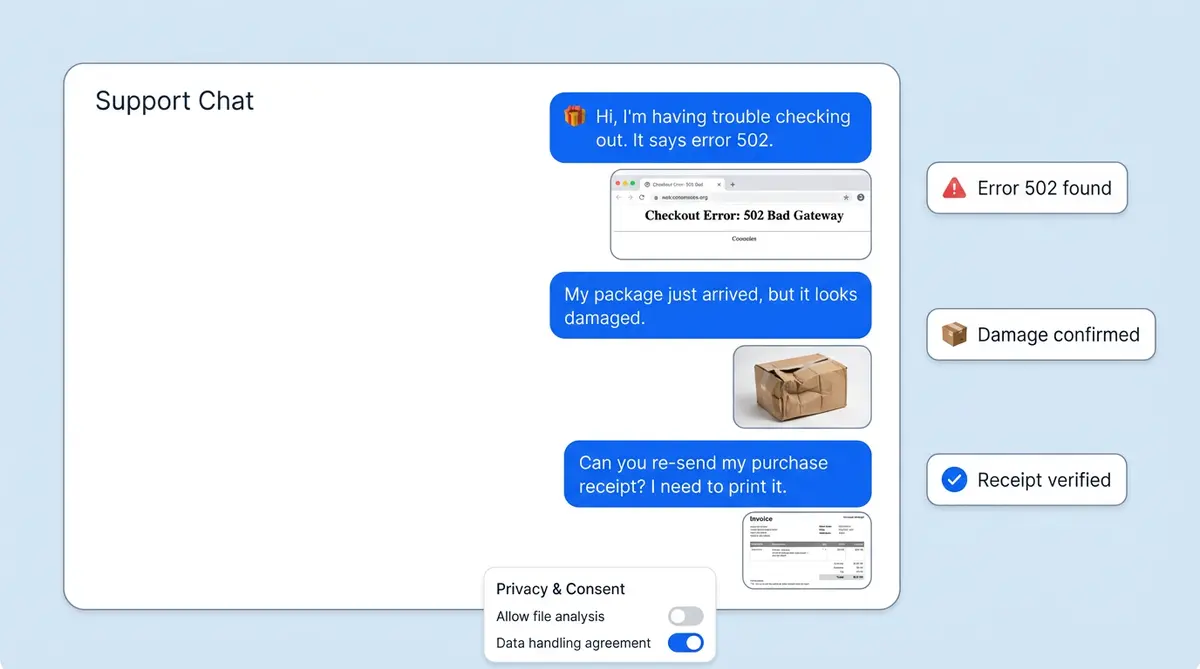
This isn't theoretical. A customer uploads a screenshot of a checkout error, and the AI reads the error code from the image. A shopper photographs a product label, and the AI extracts the ingredients list. Someone shares a photo of a damaged package, and the AI describes the visible damage to help route the claim.
The result? Better first responses, fewer clarifying questions, and faster resolutions. The AI isn't guessing based on text alone. It's working with the same visual evidence the customer has.
Documents and Videos: Context for Humans
For document and video attachments, Alhena stores and forwards the file as part of the conversation thread. These files are especially valuable when the conversation escalates to a human agent or gets handed off to your helpdesk (via Zendesk, Freshdesk, Gorgias, or any connected platform).
One important distinction: chat attachments are conversation context, not knowledge base documents. A PDF uploaded during a support chat won't get ingested into your AI's training data. It stays scoped to that specific conversation, which is exactly what you want for privacy and accuracy.
Consent, Privacy, and Admin Controls
File uploads touch sensitive territory. Customers might share personal photos, financial documents, or medical information. Alhena gives your team full control over how this feature works.
Toggle It On or Off
Attachments are configurable per bot profile. Your team can enable or disable customer file uploads from the website chat settings in the Alhena dashboard. When disabled, the attachment icon disappears from the widget entirely. No confused customers tapping a grayed-out button.
Optional Consent Gate
For brands that need explicit consent before accepting files (common in healthcare, finance, and beauty and skincare), Alhena supports an attachment consent step. The first time a visitor tries to upload a file, a consent dialog appears with your custom text and accept/deny buttons. Once accepted, consent persists for that visitor and bot profile, so returning customers don't see the prompt again.
This pairs with Alhena's existing Privacy Consent Gate for AI disclosure. Together, they give you a layered consent framework: one for chatting with AI, another for sharing files. Both are fully customizable and meet the transparency requirements of the EU AI Act and GDPR.
Five Support Workflows That Get Faster With Attachments
Attachments aren't just a checkbox feature. They change how specific support workflows play out. Here are five scenarios where in-chat file uploads cut resolution time significantly.
1. Damaged Item Returns
Old way: customer describes damage in text, agent asks for photos, customer emails photos separately, agent matches email to chat ticket. New way: customer uploads a photo of the damaged item right in the chat. The AI describes the visible damage, confirms the order, and starts the return process. Brands like Puffy, which already see 63% automated inquiry resolution with Alhena, can push that number higher when the AI has visual confirmation of the issue.
2. Checkout and Payment Errors
When a customer hits a payment error or sees a broken page, a screenshot tells the support team exactly what happened. No more "Can you describe what you see on the screen?" The AI reads the error from the image and suggests a fix or routes the issue to your technical team with the screenshot attached. This kind of automated self-service workflow is where attachments save the most time.
3. Product Compatibility Questions
"Is this charger compatible with my laptop?" A photo of the laptop's charging port answers the question faster than a model number lookup. For brands selling accessories, parts, or add-ons, image uploads turn guessing games into confident product recommendations.
4. Sizing and Fit Issues
Fashion and apparel brands know that sizing drives a huge share of support tickets. A customer can upload a fit photo and ask, "Does this look like I should size up?" With vision-enabled AI, Alhena can factor that visual context into its recommendation alongside the brand's size chart data.
5. Warranty and Proof-of-Purchase Claims
Customers can upload receipts, warranty cards, or order confirmation screenshots directly in the chat. The AI extracts order details from the image, cross-references with your order management system, and validates the claim without the customer needing to dig through old emails. For more on how AI handles post-purchase workflows, see our guide on how AI automates returns and refunds in ecommerce.
What Happens When the AI Can't Solve It
Not every issue is AI-resolvable, and that's fine. What matters is what happens during the handoff.
When Alhena escalates a conversation to a human agent, the agent receives the full conversation thread, including every attachment the customer shared. The photo of the damaged item, the screenshot of the error, and the receipt for the warranty claim. It's all there, in order, at the exact message where the customer sent it.
This is a significant improvement over the typical handoff, where agents ask customers to "please re-send the photo you mentioned." Manawa cut their agent workload by 43% with Alhena, and a major factor was reducing the repetitive back-and-forth that happens when context gets lost during escalation.
For teams using integrated helpdesks like Intercom, HubSpot, or Zoho Desk, the attachments travel with the ticket. Your agent opens the escalated ticket and sees the full picture (literally) without switching tools or asking the customer to start over.
Why This Feature Matters More Than It Looks
Attachments in chat might sound like a small addition. Every live chat tool has some form of file sharing. But the difference with Alhena is what happens after the file is uploaded.
Most platforms store the file and wait for a human to look at it. Alhena's AI actually processes images, extracts text, generates descriptions, and uses visual context to improve its responses. That turns attachments from a passive storage mechanism into an active part of the resolution process.
Combined with Alhena's hallucination-free AI (grounded in your verified product data, not generic training data), visual context makes the AI's responses both more accurate and more relevant. The AI isn't just guessing what the customer might mean. It can see what they see.
For ecommerce brands already using Alhena for social commerce on Instagram DMs and WhatsApp, attachments extend naturally to those channels too. A customer on WhatsApp can snap a photo and send it in the same thread where they're chatting with the AI. Same experience, same AI processing, no channel switching. Beauty brands, for instance, already use this for virtual makeup try-on powered by selfie uploads.
Ready to give your AI the ability to see what your customers see? Book a demo with Alhena AI to see how attachments work in your store, or start free with 25 conversations and test it yourself.
Frequently Asked Questions
Frequently Asked Questions
What file types and file sizes does the Alhena chatbot support for file upload?
Alhena's chatbot file upload feature supports images in JPG, PNG, and other common format types (up to 5 MB), documents like PDFs, Word docs, Excel, PowerPoint, CSV, and plain text files (up to 10 MB), and videos (up to 25 MB). Each file type has its own file size limit to keep uploads fast. Customers can upload document files, upload image attachments, or send a video clip, one attachment per message, with or without accompanying text.
Does Alhena's AI chatbot actually analyze uploaded images, or does it just store them?
Alhena goes beyond basic file storage. The chatbot uses multimodal AI to process image file uploads in real time. It can generate a description of what's visible, extract text from labels or error messages using OCR, and for bot profiles with native vision enabled, reason directly over the image as visual input. This document processing capability means the AI assistant can read a receipt, interpret a screenshot, or describe product damage from a photo, not just hold the file for a human agent.
Can I turn off file upload in the Alhena chatbot widget?
Yes. File upload is a configurable tool in the Alhena dashboard. Your team can enable or disable the file upload feature per bot profile from the website chat settings. When turned off, the upload icon disappears from the chat widget embed entirely. You can also control which file types are accepted, giving you full flexibility over how the chatbot handles customer uploads.
Does Alhena require customer consent before accepting a file upload?
Alhena supports an optional file upload consent gate. When enabled, the first time a visitor tries to upload a file in the conversational chat interface, a consent dialog appears with your custom text and accept/deny buttons. Once accepted, consent persists for that visitor and bot profile. This sits alongside Alhena's Privacy Consent Gate for AI disclosure, creating a layered consent framework that supports automation-friendly compliance with GDPR and the EU AI Act.
Do file uploads carry over when a chatbot conversation is escalated to a human agent?
Yes. When the AI chatbot escalates a conversation, the human agent or assistant receives the full thread with every file upload intact, whether it's a document, image, or video. The files stay tied to the exact message where the customer sent them. For teams using helpdesk tools like Zendesk, Freshdesk, Gorgias, Intercom, or Zoho Desk, the file uploads travel with the ticket. Agents don't need to ask the customer to re-upload a document or re-send a screenshot.
How do chatbot file uploads help with ecommerce returns and damage claims?
Instead of asking customers to describe damage in a chat and then email photos separately, the chatbot file upload lets them upload a photo right inside the conversation. The AI assistant can describe visible damage from the uploaded image, confirm the order, and start the return workflow. For document-heavy claims like warranty document verification or proof-of-purchase, customers upload document evidence like the receipt directly. This cuts the typical back-and-forth from five or more messages to one or two, which is why brands using Alhena see faster resolution times and higher CSAT.
Are chat file uploads used to train the AI chatbot or added to the knowledge base?
No. File uploads in chat are conversation context only. A document uploaded during a support conversation stays scoped to that specific chat thread. No document gets shared beyond the original conversation. It is not ingested into the AI chatbot's training data, knowledge base, or document store. This matters for privacy: a customer's uploaded document, image, or file won't appear anywhere outside the conversation where it was shared. Chat file uploads are for real-time support context. Alhena can document process each uploaded file within that session, not for long-term AI training.
Does the chatbot file upload feature work on WhatsApp and Instagram DMs?
Yes. For brands using Alhena's social commerce channels, the chatbot file upload feature works natively on WhatsApp and Instagram DMs. Customers can send photos, documents, and files in the same conversational thread, and the AI shopping assistant processes them the same way it does on the web chat widget. The file upload experience stays consistent across every channel, so your support automation doesn't break when customers switch from web chat to social messaging.
How does Alhena's file upload compare to ChatGPT's file upload feature?
ChatGPT's file upload is designed for general-purpose document analysis, like summarizing a PDF document or analyzing a CSV doc, inside a standalone ChatGPT session. Alhena's chatbot file upload is purpose-built for ecommerce customer support. When a customer uploads a file in the Alhena chat widget, the AI assistant uses it as real-time support context: reading an error from a screenshot, extracting order details from a document, or describing product damage from a photo. Unlike ChatGPT, Alhena ties each file upload to a specific conversation, connects it to your product catalog and order data, and passes it to human agents during escalation. ChatGPT, built by OpenAI, is a general AI search tool for document analysis. Alhena is a customer-facing chatbot that uses file uploads to resolve support issues faster.
What setup or documentation is needed to enable chatbot file uploads?
Minimal. If your Alhena chat widget is already embedded on your site, enabling file upload is a single toggle in the dashboard. No API call required, no code changes. Alhena's setup documentation walks through the configuration in under five minutes. You can customize the consent text, choose which file types to accept, and set the upload limits. For teams using Alhena's API integration, file upload events are included in the conversational assistant's event stream, so any automation or helpdesk tool connected via API receives the uploaded files automatically.