Train Your AI from Google Drive Without Moving Your Content
Many ecommerce teams already have their most valuable knowledge stored in Google Drive. Product specifications live in Google Sheets, return policies sit inside Google Docs, onboarding guides are stored in Slides, and internal processes are spread across shared folders.
The challenge is that most AI chatbots and customer support tools cannot access that information directly. As a result, customers receive incomplete answers, outdated information, or responses that don't reflect the knowledge your team has already created.
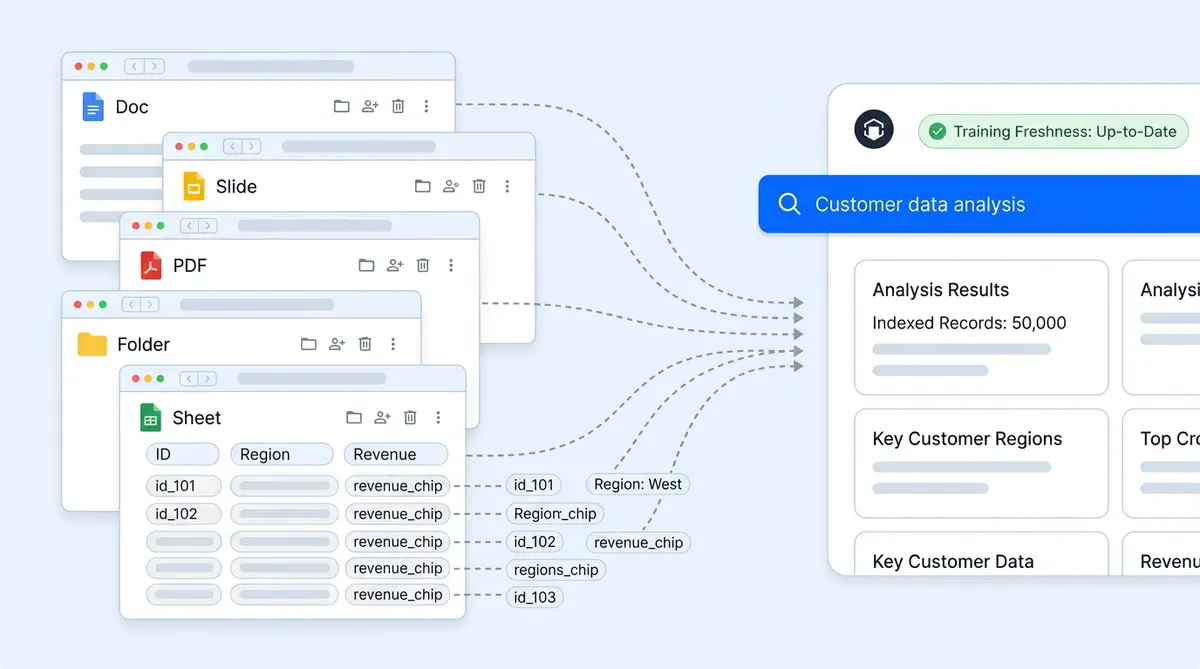
With Alhena AI's Google Drive integration, businesses can connect Google Docs, Sheets, Slides, PDFs, and folders directly to their AI knowledge base. Instead of manually copying content into a chatbot, Alhena reads and processes the information already stored in Google Drive, helping e-commerce brands deliver more accurate customer support, product recommendations, and shopping assistance.
This guide explains how the integration works, what file types are supported, and how to use Google Drive as a reliable AI knowledge source.
Can You Train an AI Chatbot Using Google Drive?
Yes. Alhena AI allows businesses to connect Google Docs, Google Sheets, Google Slides, PDFs, and shared folders directly to an AI knowledge base. Once connected, the platform processes the content and uses it to answer customer questions using information stored in your Google Drive rather than relying on generic responses.
This improves:
- Customer support accuracy
- Product recommendation quality
- AI shopping assistance
- Knowledge base coverage
- Customer self-service experiences
Your Team Already Has the Knowledge Base. It's sitting in Google Drive.
Here's a pattern we see with almost every e-commerce business we talk to. They've got great documentation. Refund policies in a Google Doc. Product specs in a spreadsheet. Onboarding steps in a slide deck. Pricing tiers in another Sheet. All of it is useful, all of it is maintained, and none of it is connected to the chatbot that talks to their customers.
So what happens? A customer asks about the warranty policy, and the AI gives a vague, generic answer because it's never seen the actual policy your team wrote three months ago. Or worse, it makes something up.
Alhena AI now connects directly to Google Drive. You share a doc, sheet, slide, or even a whole folder, and Alhena reads it, processes it, and uses that real content and information to answer customer questions.
No copying content into another tool. No reformatting. No rebuilding your knowledge base from scratch.
Just point Alhena at what you've already got.
How the Google Drive Connection Works
Connecting Google Drive to your AI knowledge base takes only a few minutes. Alhena is designed to work with the documents your team already uses every day, making it one of the easiest ways to train an AI chatbot with business-specific information.
The setup lives inside Alhena's Knowledge Base settings, the same place where you'd add a website URL or upload a PDF.
You paste a Google Drive link, and Alhena automatically identifies what it's looking at:
- A Google Doc
- A Google Sheet
- A Google Slide deck
- A standalone file
- A shared folder
If the file is private, which most business documents are, Alhena lets you know it needs access. You simply share the document with Alhena's service account the same way you would share a file with a coworker.
Once shared, Alhena reads the content, processes it, and makes it available to your AI assistant.
A few things worth knowing:
- You don't need to make documents public
- You choose exactly which files or folders to share
- Alhena doesn't request access to your entire Google Workspace
- No APIs, coding, or IT support are required
- Setup typically takes only a few minutes
Because Alhena's answers are grounded in your actual content, the responses trace back to what's in your documents. If the AI doesn't have a good answer from your files and information, it says so instead of guessing.
What Alhena Can Read from Google Drive
Alhena AI supports multiple Google Drive file types, allowing businesses to build a centralized AI knowledge base using documents, spreadsheets, presentations, PDFs, and shared folders. Each file type is processed differently to preserve the structure and context needed for accurate AI responses.
Google Docs
Google Docs is the simplest format to ingest.
Alhena reads the document, removes unnecessary formatting noise, and stores the content as structured knowledge that can be referenced during customer conversations.
This works particularly well for:
- Help center articles
- SOPs
- Troubleshooting guides
- Product documentation
- Internal policies
- Training materials
If your team already maintains written documentation inside Docs, there's nothing extra you need to do.
Google Sheets
Sheets are where it gets interesting. Instead of treating a spreadsheet like one big block of text, Alhena reads it row by row with the headers intact. Each row becomes its own piece of knowledge with labels that match your column headers.
So if you have a pricing sheet with columns for plan name, monthly cost, features included, and usage limits, your AI can answer "What's included in the Pro plan?" by pulling the right row. Same goes for product comparison matrices, sizing charts, or inventory trackers.
There are a few rules that help Sheets work well:
- Use standard shared links, not "Publish to web" links
- Keep headers clear and descriptive
- Stick to one record per row; no merged cells
- Hidden tabs get skipped automatically, which is handy if you want to exclude certain data
Google Slides
Alhena pulls the text out of slide decks and treats it like a document. Sales decks, product training presentations, and onboarding slides all work as training data. But slides that rely mostly on images, screenshots, or charts without any explanatory text won't give the AI much to work with. If a slide is visual-heavy, add some notes or a text description so the AI has something to read.
Other Drive Files and Folders
Beyond Google's native formats, Alhena handles PDFs, Word docs, Excel files, CSVs, and other text-based files stored in Drive. And if you share a folder link instead of individual files, Alhena goes through the folder and processes every supported file inside it. Handy when your team keeps 30 documents in one shared folder and you don't want to paste 30 separate links.
Why Ecommerce Teams Care About This
The old way of getting company knowledge into an AI chatbot was tedious. You'd manually copy content from internal docs into FAQ builders, training portals, or chatbot platforms. That takes hours. And the moment someone updates the original doc, your chatbot's version is already out of date.
With the Drive integration, you skip that entire step. Your team keeps maintaining documents where they always have, in Google Drive, and Alhena reads from the source.
Different teams use this differently:
- Support teams connect refund policies, escalation procedures, and troubleshooting runbooks so the AI handles first-line questions using the same playbooks agents follow.
- Sales and marketing teams share pricing matrices, product comparison sheets, and objection-handling guides so the AI can help shoppers make buying decisions.
- Ops teams add shipping guidelines, warehouse checklists, and process docs so the AI can answer "Where's my order?" or "How long does delivery take?" with real data.
The difference shows up in the customer experience. When someone asks "Can I return this after 30 days?", Alhena pulls the answer from your actual return policy document instead of giving a generic non-answer. Brands like Tatcha saw a 3x jump in conversion rate and 82% of chats handled without a human after connecting their real knowledge to Alhena.
Google Sheets are especially useful here. A product compatibility spreadsheet becomes something the AI can search through and recommend from. A pricing table becomes a lookup the AI references in real time when a customer asks about plans.
What You Control (and What to Watch Out For)
Security questions come up a lot with this kind of integration, so here's how Alhena handles it.
You pick which files Alhena sees. Share a specific doc, a specific folder, or whatever makes sense. Alhena doesn't get blanket access to your Google account. You share files one at a time (or one folder at a time), and you can revoke that access whenever you want by removing the knowledge source from Alhena or unsharing the file.
Some practical things to keep in mind:
- Hidden tabs in Sheets are ignored. If there's a tab with internal margin data you don't want the AI to know about, just hide it.
- Sharing permissions need to stay active. If someone unshares a file or deletes it from Drive, Alhena won't pick up changes on the next refresh.
- Be thoughtful about what you connect. Supplier contracts, internal salary data, or confidential memos probably shouldn't feed a customer-facing AI. Only share what you'd be comfortable with a customer hearing back in an answer.
This is especially relevant for brands dealing with sensitive pricing, vendor agreements, or regulated product categories like beauty and skincare where claims need to be precise.
Keeping Things Fresh: What Happens When Docs Change
Your return policy today might not be your return policy next quarter. Products get discontinued. Pricing changes. Shipping zones expand. The AI needs to keep up.
Alhena's Training Monitor shows you exactly which sources your AI has learned from and when each one was last refreshed. When a Google Doc gets updated with a new version, you trigger a re-read from the dashboard, and the AI model picks up the new version.
There's also a conflict detection layer that catches contradictions. Say your returns doc now says "45-day returns", but an older FAQ entry still says "30-day returns". Alhena flags that before a customer gets two different answers. Most chatbot tools don't catch this kind of thing, and it's one of the reasons stale knowledge causes real damage.
After adding new Drive files, use the Alhena Playground to throw some test questions at the AI. Ask things you know the answer to and make sure the AI pulls from the right source.
Google Drive vs. Other Knowledge Sources
Drive isn't your only option for feeding knowledge into Alhena. Where your content already lives should drive which options you pick:
- Google Drive makes sense when your working documents are in Docs, Sheets, and Slides. It's the fastest way to get internal knowledge into the AI.
- Website crawling is better for public-facing content, your help centre, product pages, or FAQ sections.
- Helpdesk tickets from Zendesk, Freshdesk, or Gorgias help the AI learn patterns from how your team actually handles customer issues.
- Notion works for teams using it as their internal wiki.
- Slack captures the informal knowledge that lives in team channels but never makes it into formal docs.
- File uploads cover one-off PDFs or spreadsheets that aren't stored anywhere else.
Most teams end up combining several of these. A typical business setup might pull product descriptions from the website, SOPs from Google Drive, and past ticket resolutions from Zendesk. Alhena merges everything into one knowledge layer the AI searches across.
How to Set It Up
You don't need engineering help for this. The whole thing works through the Alhena dashboard.
- Go to your knowledge base settings in the Alhena dashboard.
- Paste a Google Drive link (Doc, Sheet, Slide, file, or folder).
- Share the file with Alhena if it's private. The dashboard walks you through it.
- Let Alhena process it. Takes a few minutes depending on file size.
- Test with the Playground. Ask the AI questions you know the answers to and check.
If you're already running Alhena's Support Concierge or Shopping Assistant, adding Google Drive sources makes the AI more accurate without needing to create any new content. You're just connecting what already exists.
Want to see how your Drive content would work with Alhena? Book a quick demo or try it free with 25 conversations.
Frequently Asked Questions
What Google file types can Alhena AI ingest from Google Drive?
Alhena reads and processes Google Docs, Google Sheets, Google Slides, PDFs, Word documents (.docx), Excel files (.xlsx), CSVs, and other text-based file formats stored in Google Drive. You can also share entire Drive folders, and Alhena will process all supported files inside.
Do I need to make my Google Drive files public for Alhena to access them?
No. You share specific files or folders with Alhena's service account using standard Google sharing permissions. Your files stay private and are never made publicly accessible. Alhena gets viewer-level access to only the files you choose to share.
How does Alhena handle Google Sheets differently from Docs?
Google Sheets are read through the Sheets API and saved as structured CSV-style content. Each row becomes a separate piece of knowledge with your column headers as labels. This means the AI can look up specific rows and cells to answer questions about pricing, product specs, or plan comparisons, rather than treating the sheet as a flat block of text.
Can Alhena ingest an entire Google Drive folder at once?
Yes. When you share a Drive folder link, Alhena lists all accessible files inside and processes each supported file type. This saves time compared to adding individual file links, especially for teams with large shared documentation folders.
How do I keep my AI knowledge base current when Drive documents change?
Alhena's Training Monitor lets you track which sources have been ingested and when each was last refreshed. You can trigger re-ingestion when a document changes. The system also includes FAQ Conflict Detection, which flags contradictions between sources before they reach customers.
What happens if I revoke Google Drive sharing permissions?
If the sharing permission is revoked or the file is deleted, Alhena won't be able to re-ingest that source on the next update cycle. The previously ingested content remains in the knowledge base until you remove the source from the Alhena dashboard.
Can I use Google Drive alongside other knowledge sources in Alhena?
Yes. Alhena merges content from multiple sources into a single knowledge index. A typical business setup might combine Google Drive for internal SOPs, website crawling for product pages, Zendesk tickets for support context, and Notion pages for team wikis. The AI searches across all sources when answering questions.
How long does it take to set up the Google Drive integration?
Adding a Google Drive source takes minutes. You paste the Drive URL, share the file with Alhena's service account, and Alhena processes the content automatically. No API keys, OAuth configuration, or developer resources are needed. You can test the results immediately in the Alhena Playground.