Every online shopper hits the same question, usually a few seconds before the cart: how would this actually look on me? Product photos show the item on a model. Reviews describe it in someone else’s words. Neither one answers the question the shopper is really asking.
That’s the gap our newest feature is built for.
What is Alhena Live Try-On?
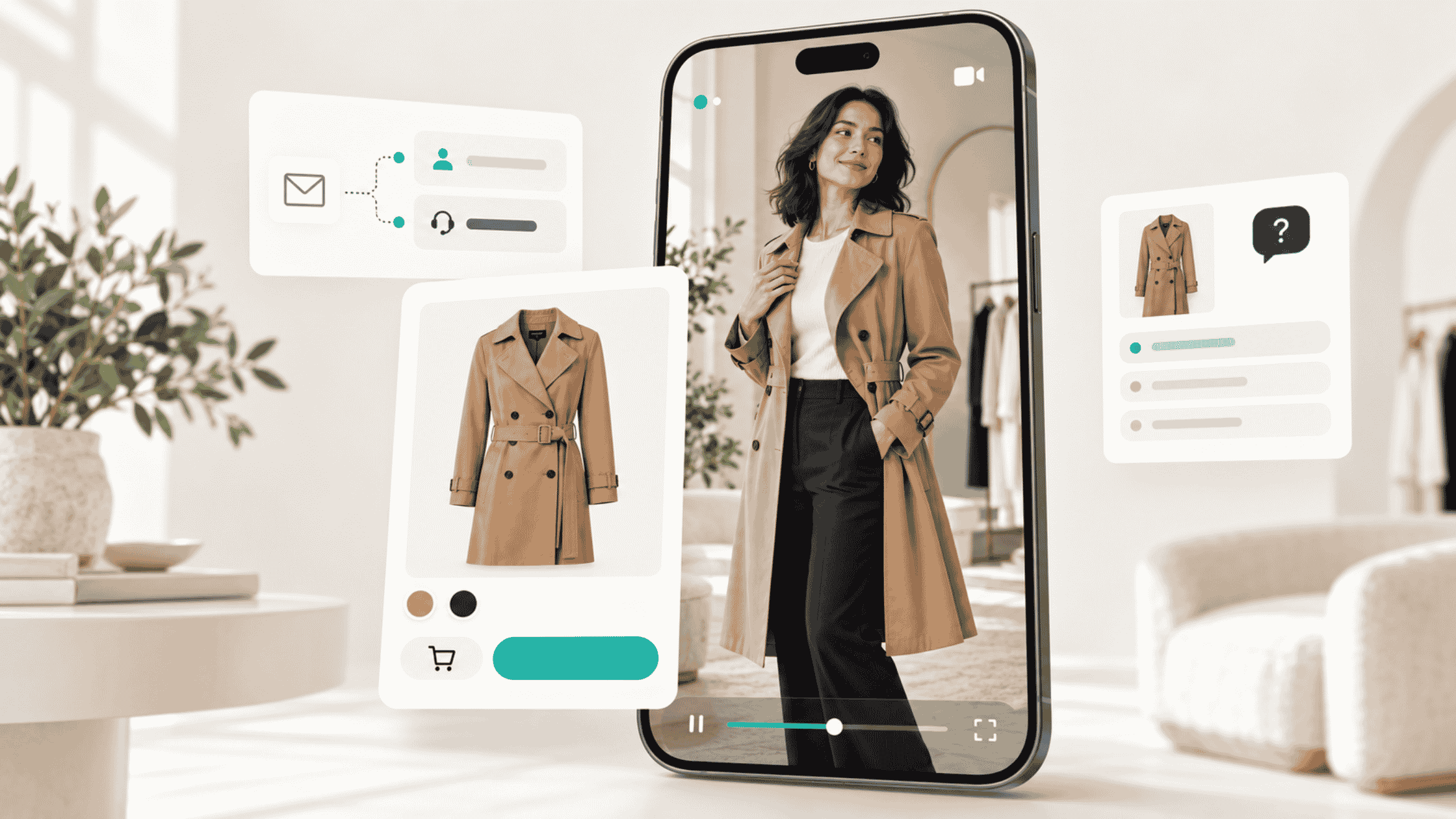
Alhena Live Try-On is a live camera mode inside Alhena Virtual Try-On. A shopper opens it on a product page, allows camera access, and sees an AI-generated preview of themselves wearing that product as live video. There’s no photo to upload first, and the shopper never leaves the page they were browsing.
Live Try-On sits beside the photo-based try-on that Alhena already offers. Shoppers now get two ways in: Choose photo turns an uploaded picture into a still preview, and Try on live uses their camera instead.
Below, we cover how Live Try-On works, which products it supports, and how merchants turn it on. After that, you’ll find five more updates from across the Alhena AI shopping assistant and support platform: Email Triage, two-level tag analytics, redesigned product cards, button-launched quizzes, and product FAQs that work beyond the product page.
Why live virtual try-on matters for online shopping
Shoppers deciding on clothing or accessories are usually weighing two separate questions. One is fit: will this size work for my body? The other is appearance: does this color suit me, does this silhouette feel like me, and will this bag look right with how I dress? Size charts handle the first question reasonably well. The second one is where online shopping has always been thin.
Photo-based try-on was a big step toward answering it. But it asks the shopper to do something first: find a well-lit, front-facing, full-body photo and upload it. Plenty of people don’t have that photo on hand, and some would rather not go looking for one in the middle of browsing.
Live Try-On removes that step. The shopper taps once, allows the camera, and the preview starts. Because it runs as video rather than a single frame, it feels closer to standing in front of a mirror than to flipping through a lookbook.
For merchants, that puts an interactive moment right where purchase decisions happen: on the product page, beside the price and the size selector. Live Try-On is designed to reduce uncertainty about appearance. Its effect on conversion or return rates will vary by store and catalog, so we recommend measuring it against your own baseline rather than assuming a number.
How Alhena Live Try-On works
A shopper can go from product page to live preview in five steps, all without leaving the page.
- Open Virtual Try-On on the product page. Alhena uses the product being viewed as the starting point, so the shopper never has to search for the item again inside a separate tool.
- Select “Try on live” and allow camera access. The browser asks for permission. Once it’s granted and the session connects, the live preview appears in the try-on panel.
- See the product on themselves. Alhena uses the product’s catalog imagery and details to prepare the visualization, which streams as live video.
- Switch variants during the session. Where a product has options, the shopper can change the selection mid-session. If a different color has matching product imagery, the preview updates to it without starting a new session.
- Finish, expand, or switch to photo. Shoppers can end the session, close the panel, go full screen where the browser supports it, or return to photo-based try-on.
A quick example: the trench coat
A shopper is looking at a camel trench coat. They open Virtual Try-On, choose Try on live, allow the camera, and see the coat on themselves. Curious about the navy version, they switch colors and the preview follows. Then they end the session, check the size chart, and keep shopping from the same page.
Prefer a photo?
The photo option is still there. Shoppers choose Choose photo, then upload a JPG or PNG up to 5 MB. A well-lit, front-facing, full-body photo gives the best starting point for the still preview.
Which products and devices does Live Try-On support?
Live Try-On currently supports clothing, footwear, and selected accessories. Here’s the current coverage for the live mode:
Product group | Supported in Live Try-On |
|---|---|
Tops and layers | Tops, shirts, knitwear, hoodies, jackets, coats, blazers |
Dresses and sets | Dresses, jumpsuits, matching sets |
Bottoms | Trousers, jeans, skirts, shorts |
Footwear | Shoes, boots |
Accessories | Hats, caps, necklaces, bags |
Not currently supported | Eyewear, watches, rings, earrings, beauty products, swimwear, homeware |
This list applies to Live Try-On specifically. Photo-based Virtual Try-On has its own category coverage, so check the two separately when planning which products to feature.
Product imagery matters too. Alhena checks whether each product is supported and picks a suitable reference image from your catalog. Clear, uncluttered product photos give the visualization a better reference to work from.
On the shopper side, Live Try-On runs in compatible desktop and mobile browsers. It handles portrait and landscape video, including an upright phone view. It needs four things: a camera, camera permission, a secure (HTTPS) connection, and a browser that supports live video.
How merchants turn on Live Try-On
Live Try-On is switched on per placement, in four steps in the Alhena dashboard:
- Open the Embeddable Virtual Try-On configuration.
- Edit the placement you want to update.
- Go to the Customize tab and find the Photo step section.
- Enable Offer live try-on.
Two settings let you shape how live sessions are used:
Setting | What it controls | Default if left blank |
|---|---|---|
Live sessions per shopper per hour | How many live sessions one shopper can start in an hour | 20 sessions |
Longest live session | The maximum length of a single live session | 180 seconds |
Live sessions draw on your organization’s Alhena credits at your configured rate, prorated by generation time. Whether a shopper sees the live option on a given visit also depends on your placement settings, your available credits, how many sessions that shopper has left, and their browser.
A practical tip: think about how shoppers browse your catalog before you change the defaults. A store with many color variants per product may want the full three minutes so shoppers can compare. A store with simpler products might shorten sessions to keep credit use predictable during busy launches.
Camera privacy and what the preview can’t tell you
The shopper stays in control of their camera at every point. The browser asks for permission before anything starts. The camera stops when the shopper closes the live panel or exits the experience, and the session ends automatically if the browser tab is hidden.
It’s also worth being clear about what Live Try-On is. It’s an AI visualization of how a product might look on someone. It doesn’t measure the body, and it can’t show exact fit, how a fabric feels, or precisely how a garment drapes in real life.
That’s why we’d encourage shoppers to keep using size charts, measurements, and product details when they pick a size. For merchants, a simple step helps here: keep your size guide link visible near the try-on entry point, so the “does it suit me” moment flows straight into the “which size do I need” moment.
Also new in Alhena: five more updates
Live Try-On isn’t the only thing that shipped. Two of these updates save support teams time, and three make it easier for shoppers to buy.
Update | Type | Who it helps most |
|---|---|---|
Email Triage | New | Support teams handling high email volume |
Two-level tag analytics | Improved | CX leads and support managers |
Product cards | Improved | Shoppers moving from recommendation to cart |
Embedded quizzes | Improved | Shoppers who need help choosing |
Product FAQs beyond product pages | Improved | Merchants running homepage and campaign promotions |
Email Triage: let routine emails sort themselves
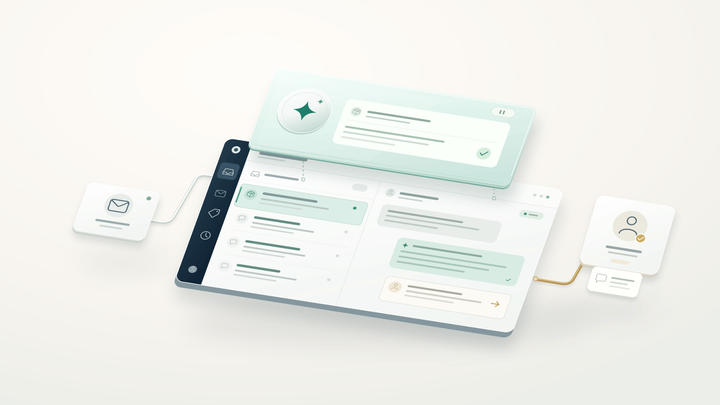
Email Triage is a screening step that runs before Alhena drafts an AI reply. You describe a situation in plain language, add example messages if it helps clarify the rule, and choose an action: Close without reply or Transfer to a human. Where your helpdesk integration supports it, you can also pick a destination team and apply matching tags. Emails that match no rule continue through normal AI processing.
In practice, an out-of-office auto-reply or a “thanks, that solved everything” note can be closed without a response. A complaint that meets your escalation criteria can go straight to a person. Each conversation records the triage outcome, so your team can always see what happened and why.
Triage needs to be enabled and configured in your email settings. It works alongside Alhena’s AI customer support agent, so routine noise gets filtered before your AI or your agents spend time on it.
Two-level tag analytics: see what’s really behind your support volume
Conversation topics now group into two levels. Level 1 is a broad category, such as “Delivery.” Level 2 holds the specific reasons inside it, such as “Late delivery,” “Tracking request,” or “Missing package.”
Teams can expand a category, select a subtopic, check its conversation-volume trend, and open the conversations behind it. The view also shows how many conversations were transferred to a human, which helps you spot where people still need to step in.
Say “Delivery” conversations spike in November. The subtopics show most of them are about tracking links. That points you to a specific fix, such as clearer tracking instructions in your order emails, instead of a vague goal to “improve delivery support.” Explore more in Alhena analytics and insights.
Product cards: fewer clicks from recommendation to cart
Product cards are the visual recommendations shoppers see in Alhena chat and embedded experiences. In the updated layouts, product images and names now link directly to the product page. Compact layouts make Add to cart the one clear primary button, without a competing “View product” button beside it when the cart action is available.
A shopper who wants more detail clicks the image or name. A shopper who’s ready to buy taps Add to cart, which starts your configured cart flow, including any variant selection the product needs. The difference is most noticeable in compact panels and on mobile. Exact appearance depends on the card layout you’ve chosen.
Embedded quizzes: start a product quiz from any button
An Alhena product quiz is a conversational way for shoppers to find suitable products by answering a few questions. You can now connect any button on your website to a quiz with a predefined starting message, and the quiz can offer clickable answer choices.
A button labeled “Find my skincare routine” opens the quiz with that context already set, then offers choices like “Dry,” “Oily,” or “Combination.” A furniture store might use “Help me choose a sofa” to ask about room size and style. Either way, shoppers tap instead of type. The quality of the results still depends on how the quiz is configured and how complete your product information is.
Product FAQs beyond product pages: answer questions wherever you promote a product
Alhena Product FAQs can now appear on pages that aren’t the product’s own page. When you install the FAQ placement, you specify the product by its URL or product ID, and Alhena pulls that product’s FAQs into the placement.
Promoting a moisturizer on your homepage? Its FAQs can sit right below the promotion. The same works for featured-product sections and campaign landing pages, where shoppers often have questions before they click through. One thing to remember: when the featured product changes, update the product reference in the placement too.
How these updates fit together
Look at this release as a whole and one pattern stands out: each update shortens the distance between a question and its answer.
On the shopping side, every feature handles a different question a shopper has on the way to buying. “How would this look on me?” gets Live Try-On. “Which one is right for me?” gets a quiz launched from the button they just clicked. “What should I know about this product?” gets FAQs right beside the homepage promotion. “What do I do next?” gets a product card with one clear button.
On the support side, Email Triage clears out the messages that never needed an answer, and two-level tag analytics shows what’s left in enough detail to act on. Together, they’re the reason Alhena describes itself as a shopping and support concierge for online stores, not just a chatbot.
Getting started
Existing customers can talk to their Alhena team about enabling Live Try-On and the other updates for their store. Availability and setup can differ by store, configuration, and integration. If you’re new to Alhena, book a demo to see how Live Try-On and the rest of the platform could work for your store.
Preparing your catalog for AI shopping agents as well? Read about UCP onboarding for Shopify and non-Shopify brands on the Alhena blog.
Frequently asked questions
What is Alhena Live Try-On?
Alhena Live Try-On is a live camera mode in Alhena Virtual Try-On. Shoppers see an AI-generated video preview of themselves wearing a supported product, directly on the store’s product page, without uploading a photo.
How is Live Try-On different from photo-based virtual try-on?
Photo-based try-on creates a still preview from an uploaded JPG or PNG of up to 5 MB. Live Try-On uses the shopper’s camera to show a live video preview instead. Both start from the same Virtual Try-On window, through Choose photo or Try on live.
How do merchants enable Live Try-On?
In the Alhena dashboard, open the Embeddable Virtual Try-On configuration, edit a placement, and enable Offer live try-on in the Photo step section of the Customize tab.
Can Alhena show product FAQs on my homepage?
Yes. When you install an Alhena Product FAQs placement, you can specify a product by URL or product ID. That product’s FAQs can then appear on your homepage, a campaign landing page, or any other page where you feature it.
What is Alhena Email Triage?
Email Triage lets support teams write plain-language rules that close routine emails without a reply or transfer them to a person. The rules run before Alhena drafts an AI response, and emails that match no rule are processed normally.