Your Zoho SalesIQ portal handles live chat and chatbot and answer bot automation. Alhena AI handles the selling, order lookups, and smart escalations. Every answer is grounded in your verified product data. Setting up the two platforms takes about 15 minutes of admin work, no developer resources, and zero webhook configuration on your end.
This guide walks you through the full Zobot and AI setup: OAuth connection, department routing, escalation mapping, and a go-live testing checklist for marketing and support teams. If you want the strategic "why" behind this setup, read our posts on cart recovery and order lookup on SalesIQ and turning SalesIQ into a shopping assistant. This post is the hands-on "how".
How the Integration Works (Architecture)
Here's the flow in plain terms:
- A visitor on your website opens your SalesIQ live chat widget and types a question into the Zobot-powered chat.
- Zoho SalesIQ delivers that message from the visitor to Alhena's AI bots to Alhena's pre-registered webhook endpoint (registered automatically during OAuth setup).
- Alhena's Product Expert Agent generates a grounded, hallucination-free answer using your product catalog data and knowledge base resources to provide accurate answers.
- Alhena posts the answer back into the SalesIQ conversation via Zoho's API.
- If escalation triggers, Alhena creates a Zoho Desk ticket with full conversation details and context and customer data and routes it to human operators.
You don't host an endpoint. You don't write webhook handlers. You don't verify HMAC signatures. Alhena owns the entire event-handling layer.
Prerequisites Before You Start
For the best results, gather these before clicking "Connect":
- Zoho SalesIQ admin role on the target portal (you'll approve OAuth scopes)
- Zoho Desk org if you want escalation tickets routed there (optional but recommended)
- Alhena workspace with admin permission enabled for your user
- Knowledge sources ready: product catalog, FAQs, help center content, and brand voice, and supported languages configured in Alhena
Alhena requests OAuth scopes for SalesIQ read/write and Desk read/write during the consent step. No API keys required, no secrets to copy-paste, no secrets to rotate manually. Your ecommerce data stays secure.
Step-by-Step Setup in the Alhena Dashboard
The entire connection lives in Alhena's dashboard. Here's the walkthrough:
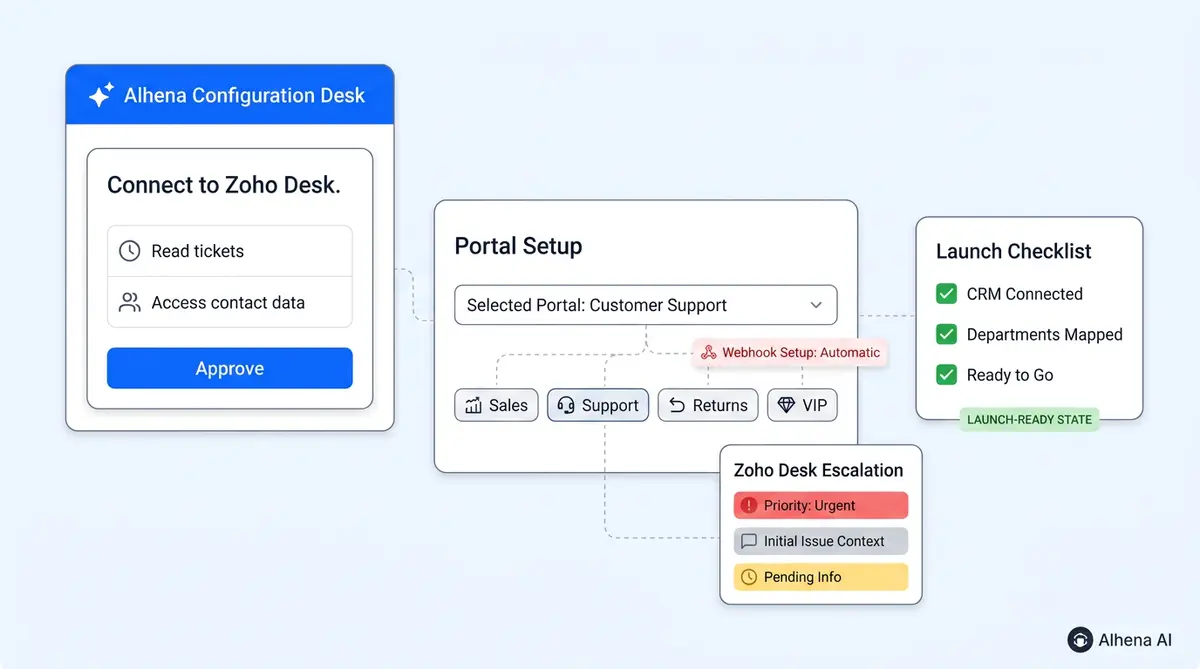
- Navigate to Integrations → Zoho → Authorize via OAuth. This opens a Zoho consent screen.
- Approve the consent screen on accounts.zoho.com. You'll see the specific scopes. Alhena needs SalesIQ conversations and Desk tickets.
- Select your SalesIQ portal and app. If you run multiple portals, choose the one where AI should respond.
- Choose which departments route to Alhena. Each SalesIQ department can be toggled on or off independently. Lead with one department to test your chatbot and expand after validation.
- Configure escalation behavior. Map which Zoho Desk department receives escalation tickets. Add trigger rules based on sentiment, explicit request, or topic match.
- Set the bot operator identity. This is the email and screen name that appears in SalesIQ when Alhena responds. Choose something like "AI Assistant" or your brand name.
After you click Save, Alhena registers its Zobot webhook with Zoho automatically. The AI chatbot goes live instantly in your selected departments, ready to answer customer questions and ready to engage prospects and customers on your website across platforms and drive customer engagement.
Department Routing and Multi-Department Portals
Most e-commerce brands run multiple SalesIQ departments: Sales, Support, Returns, and VIP. Alhena can provide granular control:
- Per-department toggle: Enable Alhena on "Sales" and "General" while keeping "VIP" human-only.
- Independent knowledge bases: Each department can pull from different product data collections or FAQ sets for its live chat answers and responses.
- Escalation rules per department: Sales might escalate after 3 unanswered questions; Support might escalate on refund requests.
If a department is disabled in Zoho's own settings, Alhena respects that flag and won't respond there regardless of your Alhena-side configuration.
Escalation: How Handoffs Work
When Alhena decides a conversation needs a human, two things happen simultaneously:
- The visitor sees a smooth transition message in SalesIQ ("Let me connect you with a specialist").
- Alhena creates a Zoho Desk ticket containing the full conversation transcript, customer context, and details about the reason for escalation.
Your operators pick up with complete context on every conversation. No "Can you repeat your issue?" moments. For a deeper look at escalation best practices, see our guide on AI-to-agent handoff without losing context.
Alhena also syncs operator replies back into its conversation record. If a human agent responds inside SalesIQ, that reply appears in Alhena's analytics to provide a unified view of the full interaction.
Go-Live Testing Checklist
Before announcing AI chat to your customers, run through this checklist:
- Basic response test: Open an incognito browser, visit your website, start a live chat on your SalesIQ widget, and ask a product question and verify the answer. Confirm Alhena answers with accurate, grounded information.
- Order lookup test: If order management is configured, ask "Where's my order?" with a test order number. Confirm the Order Management Agent returns the right status.
- Escalation test: Trigger a forced handoff (say "I want to talk to a human"). Confirm a Zoho Desk ticket appears with full context.
- Department isolation test: Chat in a department where Alhena is disabled. Confirm no AI response fires.
- Operator reply sync: Have a team member reply from SalesIQ's operator console. Confirm the reply appears in Alhena's conversation log.
For a broader validation framework, our 48-hour stress test guide covers load testing and edge-case scenarios before full rollout.
Troubleshooting Common Issues
- "Alhena isn't replying to chats" → Check that the OAuth token hasn't expired (reconnect if needed), the department is toggled on in Alhena, and the app ID matches your live portal.
- "Escalation tickets aren't appearing in Desk" → Verify your Zoho Desk org is connected and the department mapping is set. Check that the desk scopes were approved during OAuth.
- "Bot shows the wrong name" → Update the bot operator email and screen name in Alhena's Zoho integration settings.
- "Replies are slow" → Check your knowledge base size and how bots engage with product data. If you recently imported thousands of products, allow a few hours for indexing to complete.
What Happens After Go-Live
Once live, Alhena handles product questions, cart recovery prompts, lead capture, and proactive engage prompts, and order lookups autonomously. Your team focuses on complex cases, qualified leads, and conversations that need human judgment. Alhena provides the first line of customer engagement around the clock.
Track chatbot performance and customer data in Alhena's built-in analytics dashboard: deflection rate, revenue attributed to AI chatbot conversations, CSAT scores, visitor analytics, and escalation frequency. For tuning guidance during your first month, read our 30-day tuning playbook.
Ready to connect Alhena to your Zoho SalesIQ portal? Book a demo or start free with 25 conversations to see the integration in action.
Frequently Asked Questions
How long does it take to connect Alhena AI to Zoho SalesIQ?
The OAuth connection takes about 15 minutes of admin work. Once you approve scopes, select your portal, and enable departments, Alhena registers its webhook automatically and starts responding to chats within seconds.
Do I need to write any code or host a webhook endpoint?
No. Alhena handles all event processing internally. The integration is based on OAuth 2.0 for token-based authentication and Alhena registers its own webhook with Zoho during setup. You never touch webhook URLs, payloads, or verification logic.
Can I enable Alhena on some SalesIQ departments but not others?
Yes. Each department has an independent toggle in the Alhena dashboard. You can run AI on Sales and General while keeping VIP or Escalations human-only. Add or remove departments anytime without reconnecting.
How does escalation to Zoho Desk work?
When Alhena detects a conversation needs a human, it creates a Zoho Desk ticket with the full transcript and customer context. Your agent picks up without asking the customer to repeat anything. Trigger rules are configurable per department.
What Zoho OAuth scopes does Alhena request?
Alhena requests SalesIQ read/write scopes (to receive and respond to conversations) and Zoho Desk read/write scopes (to create escalation tickets). No CRM scopes are requested as part of this integration.
Does Alhena work with multiple SalesIQ portals?
You select one portal and app during setup. If you operate multiple portals, you can connect each one separately from the Alhena Integrations panel with its own department and escalation configuration.