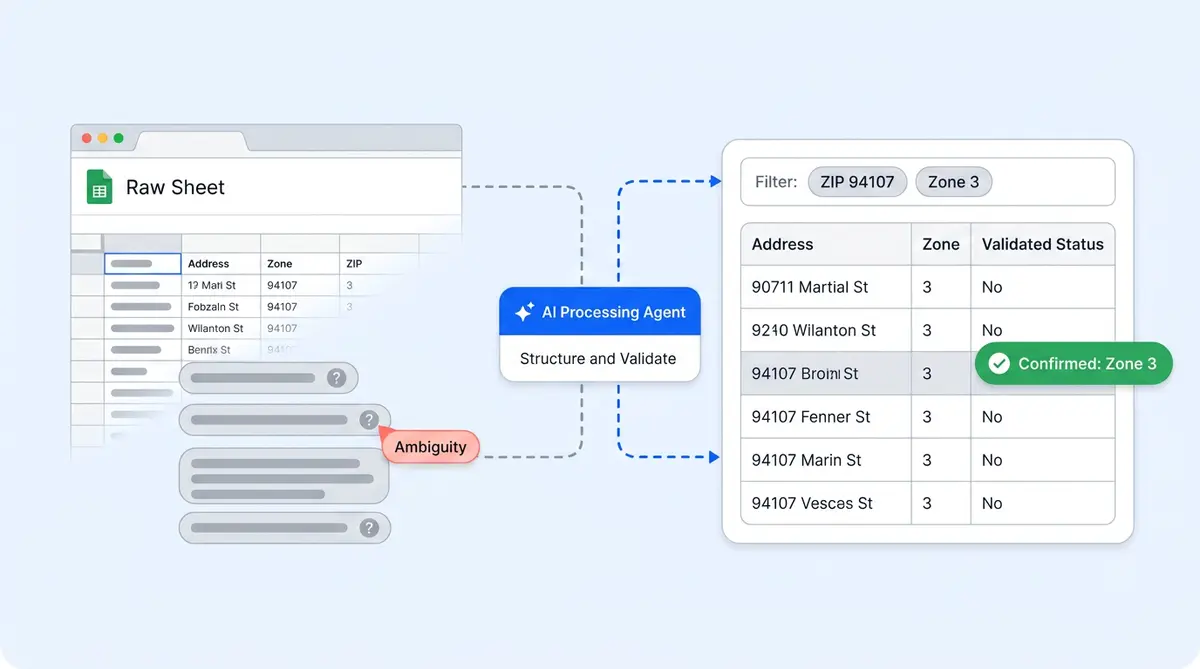
The Problem with Spreadsheets in AI Knowledge Bases
Most AI platforms treat spreadsheets the same way they treat PDFs or help articles. They treat spreadsheets like documents, flatten rows into text chunks, vectorize those chunks, and hope that semantic search returns the right answer. For broad, paragraph-style questions, that works fine. For "which replacement filter fits model X?" or "what's the shipping rate to California?", it fails quietly.
The reason is simple. A spreadsheet isn't a document. It's a table. The answer to a row-level lookup lives at the intersection of a column and a filter condition, not in a paragraph that happens to mention the right keywords. When an AI treats your product catalog or pricing table as unstructured text, it loses the very structure that makes the data useful.
According to AI21's research on RAG for structured data, standard text-based retrieval struggles with tabular information because it relies on semantic similarity rather than exact record matching. The result: vague answers, wrong SKUs, or hallucinated specifications pulled from neighboring rows.
Alhena AI built Sheet Search to solve this. Instead of treating your Google Sheet as another document, Sheet Search turns it into a dedicated agent tool with table-aware retrieval, so your AI gets the exact row it needs every time.
What Sheet Search Is (and Isn't)
Sheet Search is one of the most requested features inside Alhena's AI Shopping Assistant that turns any Google Sheet into a searchable, queryable tool for your AI agents. Think of it as giving your agent a direct line to your spreadsheet data, separate from traditional knowledge bases, with the agent knowledge it needs to filter, match, and retrieve specific records rather than guessing from text chunks.
Here's the distinction that matters: normal knowledge base ingestion reads a spreadsheet row by row and converts it to text. Sheet Search reads it as a table. It understands columns, data types, categories, and the relationships between them. When a customer asks, "Do you ship same-day to 94107?", the agent doesn't search for text that mentions "same-day" and "94107" near each other. It queries a shipping table, filters by zip code, and returns the exact policy for that region.
What Sheet Search is not
Sheet Search isn't a live database connector or a two-way sync. It doesn't write back to your sheet, trigger automations, or replace your inventory management systems. It's a read-only lookup tool (not a database connector) that gives your AI agent precise access to whatever structured data you maintain in Google Sheets. For database writes or live API calls, Alhena offers <a href="https://alhena.ai/blog/api-tools-connect-ai-agent-rest-api/">API Tools</a> and MCP integrations.
Why Structured Data Needs Its Own Search Method
Research from InfoWorld's analysis of AI agent knowledge bases shows that effective AI systems and knowledge bases need multi-modal retrieval: vector search for semantic similarity, keyword search for exact matches, and structured query methods for tabular data. No single retrieval framework covers all three.
Standard RAG (Retrieval Augmented Generation) works by converting documents into embeddings and finding the closest semantic match. This is powerful for "how do I return an item?"-type questions where the answer lives in a paragraph. But it breaks down for structured lookups because:
- Row boundaries disappear. When you chunk a 500-row product table, the AI can't tell where one product ends and another begins.
- Numeric filtering doesn't work semantically. "Under $50" requires a math operation, not a similarity search.
- Column context is lost. The number "12" might be a price, a quantity, or a model number. Without column headers preserved as metadata, the AI can't distinguish them.
- Partial matches create hallucinations. If two SKUs share similar names, semantic search might blend data from both rows into one answer.
Sheet Search solves each of these by preserving the table structure end-to-end. Unlike generic knowledge bases that treat all sources identically, this approach respects how the data was originally organized. Your agent knows it's looking at a "price" column, can filter numerically, and returns data from one verified row rather than a mash-up of similar-sounding text.
How Sheet Search Works Inside Alhena
Setting up Sheet Search takes a few minutes. Here's what happens under the hood when you connect a Google Sheet to your Alhena AI agent:
1. Add your Google Sheet as a knowledge source
In Alhena's AI Settings, paste a standard Google Sheets URL. The system automatically detects it as a sheet source (not a document). For private sheets, share viewer access with [email protected].
2. Alhena analyzes the sheet structure
The system reads your sheet and generates a table schema. It identifies column names, example values, and data types, and suggests a descriptive name for the tool. This schema is what makes table-aware search possible. It's the foundation of a proper agent knowledge layer.
3. Configure the Sheet Search tool
You turn on Sheet Search, edit the tool name and description, select which columns should be searchable, and assign the tool to the right agent. The Product Expert Agent handles product lookups; the Order Management Agent handles policy or shipping tables.
4. Alhena trains the tool
When you save, Alhena downloads the current sheet data, stores a searchable snapshot to create knowledge the agent can query, and builds a dual search index for agentic retrieval that combines semantic and structured query methods.
5. The agent uses it in live conversations
When a customer asks something that matches the sheet's purpose, the agent uses agentic reasoning to call the sheet search tool. It combines two retrieval methods: semantic search patterns for fuzzy matching (handling typos, partial names, synonyms) and structured table search for filtering by columns, numbers, dates, categories, and exact values. The tool returns the most relevant matching rows, and the agent formats a relevant, accurate final response.
Best Use Cases for Sheet Search
Sheet Search shines whenever the correct answer lives in a specific row of a specific table. Here are the common patterns where it outperforms standard knowledge base ingestion:
Product specs and compatibility tables
"Which replacement filter works with model X?" requires looking up model X in one column and returning the compatible filter from another column. Standard search patterns might find a paragraph mentioning both, but Sheet Search returns the exact match from a compatibility matrix.
SKU catalogs and variant data
When you have 500+ SKUs with size, colour, material, and price variants, a spreadsheet is the natural home for that data. Sheet Search lets your agent filter by any combination: "Show me blue cotton shirts under $40 in size medium."
Pricing and shipping tables
Regional pricing, tiered shipping rates, and bulk discount tables. These are inherently structured. "What's the shipping cost for a 5 lb package to Texas?" needs a lookup, not a semantic search.
Store locations and hours
"Which store is closest to 94107?" or "Are you open on Sundays in Brooklyn?" These patterns need geographic or schedule filtering that only works against structured data.
Internal policy and warranty matrices
When warranty terms differ by product category, purchase date, or customer tier, a decision matrix in a spreadsheet is the cleanest source of truth. Sheet Search can filter by all those conditions simultaneously.
Inventory and availability snapshots
For businesses that maintain stock-level spreadsheets, Sheet Search gives the agent access to current availability without building a full API integration. Retrain the tool when the sheet updates, and your agent always answers from the latest snapshot.
Sheet Search vs. Standard Knowledge Ingestion
Here's a practical comparison. Imagine you have a 200-row product compatibility table, and a customer asks, "Does the Pro filter work with the 2024 AirPure model?"
With standard ingestion: Alhena chunks the spreadsheet into text passages, embeds them, and searches semantically. It might find a chunk that mentions "Pro filter" and "AirPure" but could pull data from multiple rows if names are similar. The answer might be correct or might be wrong, and you'd never know which row it came from.
With Sheet Search: The agent queries the compatibility table directly. It filters the "Model" column for "2024 AirPure", finds the exact row, and reads the "Compatible Filters" column. The answer comes from one verified record. No ambiguity.
The difference isn't subtle. For broad questions like "What's your return policy?", standard ingestion works perfectly since the answer lives in a paragraph. But for row-level lookups where precision matters, Sheet Search is the right tool. This is the same principle behind Alhena's knowledge graph approach: different data types need different retrieval methods.
Setting Up Sheet Search: Requirements and Best Practices
Sheet Search works best when your spreadsheet follows clean data concepts and formatting principles. Here's what you need:
Internal sheet formatting requirements
- One clean table per sheet. No mixed layouts, no multiple files merged into one sheet, no dashboards with charts above your data.
- Clear headers in row 1. Follow these guidelines: column names should be descriptive: "Product Name", "Compatible Model", "Price (USD)", not "Col A", "Col B".
- One record per row. Each row represents one entity (one product, one internal policy, one location).
- No merged cells. Merged cells break the table structure and prevent proper column identification.
- No duplicate column names. The agent uses column names to understand what it's filtering by.
- Consistent data types. Don't mix "$49.99" and "forty-nine dollars" in the same column.
Column selection strategy
You don't need to make every column searchable. Focus on columns relevant to what customers will ask about: identifiers (SKU, product name, model number), filterable attributes (category, region, size, status), and answer columns (price, compatibility, hours, policy details).
Keeping data fresh
Sheet Search uses a trained snapshot, not a live cell-by-cell connection. If your spreadsheet data changes frequently, have your team retrain the tool after updates. If you add, rename, or remove columns, use the "Refresh columns" button before saving. For data that changes hourly, consider Alhena's API Tools instead.
Access and permissions
For private sheets, share viewer access with [email protected]. Use the standard Google Sheets URL. "Publish to web" links aren't supported since Alhena needs the native Sheets format to parse the table structure correctly.
When Not to Use Sheet Search
Sheet Search is powerful for lookups, but it's not the right tool for every data need. Skip it when you need to:
- Update records from chat. Sheet Search is read-only. For order modifications or status updates, use Alhena's Shopify or WooCommerce integrations.
- Query live inventory in real time. If stock changes every few minutes, a trained snapshot won't be current enough. Use an API integration instead.
- Join multiple complex datasets. Sheet Search works on one table at a time. For cross-referencing orders against products against customer accounts, dedicated integrations handle the joins.
- Run analytics or aggregations. "What was our best-selling product last month?" requires computation across rows. That's a reporting tool's job, not a lookup tool's.
The rule of thumb: if the answer lives in a specific row and the customer's question maps to a filter condition, Sheet Search is the right choice. If the answer requires writing, computation, or real-time data, use Alhena's other tools.
How Sheet Search Fits Into the Bigger Picture
Sheet Search is one layer in Alhena's knowledge architecture. The AI Shopping Assistant combines multiple retrieval methods depending on the question type:
- Product catalog search for browsing, recommendations, and discovery questions
- Document knowledge base for policy, brand story, and how-to content
- Sheet Search for structured lookups against tabular data
- Order management APIs for real-time order status, tracking, and modifications
- Platform integrations (Shopify, Salesforce Commerce Cloud) for live commerce data
This agentic, multi-source approach is why Tatcha saw a 3x conversion rate with Alhena. The AI always pulls from the right source for each question type, whether that's a product page, a policy document, or a compatibility table. Brands like Puffy achieved 63% automated inquiry resolution by giving their agents access to structured product data for self-service resolution that standard chatbots couldn't handle.
For teams already managing product specs, shipping tables, or compatibility data in Google Sheets, Sheet Search means you don't have to rebuild that data in another system. Keep your spreadsheet as the source of truth for self-service answers, and let Alhena's agent query it directly. No migration, no reformatting, no developer resources. Your team keeps updating the same spreadsheet that they already maintain. You can avoid the common pitfall of forcing all your data into a single format that doesn't serve every question type.
Sheet Search makes self-service product lookup possible for your customers, without your team handling repetitive questions. Ready to give your AI agent access to your spreadsheet data? Book a demo with Alhena AI to see Sheet Search in action, or start for free with 25 conversations to test it with your own data.

Frequently Asked Questions
What is Alhena Sheet Search and how does it work as an AI agent knowledge base?
Sheet Search is a feature in Alhena AI that turns any Google Sheet into a structured, queryable knowledge base for your AI agent. Unlike standard retrieval augmented generation (RAG) that treats spreadsheets as unstructured data, Sheet Search preserves the table schema so the AI agent can filter columns, match rows, and retrieve information with precision. It combines semantic search with structured query logic, giving the agent access to your spreadsheet as a proper data source rather than a flattened document.
How is Sheet Search different from standard AI knowledge base retrieval?
Standard knowledge base retrieval uses vector search to find semantically similar text chunks. That works for unstructured content like PDFs and documentation, but it loses row and column context when applied to spreadsheets. Sheet Search uses a dual retrieval approach: semantic search for fuzzy matching and structured data querying for exact lookups. The AI agent understands that it is querying a table, not searching a document repository, so it can filter by column values, compare numbers, and return verified records instead of guessing from embeddings in a vector database.
What are the best use cases for Sheet Search in ecommerce?
Sheet Search handles any use case where the correct answer lives in a specific row: product compatibility lookups, SKU catalogs with variant data, regional shipping rate tables, store location directories, warranty matrices, and pricing tables. It is also useful for internal documentation stored in tabular format, like policy grids or FAQ tables where each row maps to a specific query. Any workflow that requires your AI agent to retrieve information from structured data benefits from Sheet Search over standard knowledge base ingestion.
Does Sheet Search update in real time when my Google Sheet changes?
No. Sheet Search uses a trained snapshot of your sheet data, not a real time cell-by-cell connection. When your content evolves or data changes, retrain the tool to update the snapshot. If columns are renamed or added, use the Refresh Columns button before saving. For data sources that change every few minutes, like live inventory, use Alhena API Tools or platform integrations instead. The snapshot approach keeps retrieval fast and accuracy high without putting load on your spreadsheet.
How do I set up Sheet Search as a knowledge base for my AI agent?
Paste your Google Sheets URL in Alhena AI Settings. The AI model auto-detects the table schema, identifies column names, data types, and example values. Turn on Sheet Search, select which columns should be queryable, name the tool, and assign it to the right agent. When you save, Alhena builds the retrieval index. The whole workflow takes under five minutes, with no coding or prompt engineering required. For private sheets, share Viewer access with [email protected]. No access control changes are needed beyond that basic share.
Can Sheet Search handle typos, synonyms, and partial product names?
Yes. Sheet Search combines semantic search for fuzzy matching with structured table queries for exact filtering. If a customer types a partial name or makes a typo, the semantic retrieval layer still finds relevant rows. If they ask for a specific SKU or filter by price, the structured query handles it precisely. This dual approach means the AI agent can handle edge cases that would trip up a pure vector search or a pure keyword system. The AI model decides which retrieval path to use based on the customer need expressed in the query.
What are the formatting requirements and best practices for my Google Sheet?
Use one clean table per sheet with clear headers in row 1, one record per row, no merged cells, no duplicate column names, and consistent data types per column. Think of it like building a centralized repository: keep identifiers like SKU, product name, region, or status in selected columns. Avoid outdated or inconsistent entries that could confuse the AI system. Clean, well-structured data accelerates retrieval accuracy and reduces the chance of the AI agent returning wrong matches. Good documentation of what each column represents also helps during setup.
When should I NOT use Sheet Search?
Skip Sheet Search when you need to update records, automate actions, join multiple datasets, or run analytics across rows. It is a read-only retrieval tool, not a database or knowledge management system for writes. For live API calls, use Alhena API Tools or MCP integrations. For decision making that requires complex logic across multiple data sources, dedicated platform integrations handle those workflows better. Sheet Search is purpose-built for one thing: giving your AI agent fast, accurate, agentic lookups against a single table of structured content.
How does Sheet Search compare to using a vector database for product data?
A vector database stores embeddings and excels at semantic similarity matching, which is great for unstructured content like articles and documentation. But when you need an AI agent to look up a specific product by SKU, filter by price range, or match a compatibility table row, vector search alone falls short. Sheet Search is purpose-built for structured data retrieval from tabular sources. It gives the AI power to query columns directly rather than hoping that embeddings capture the right context. For most ecommerce brands, you will use both: vector search for general knowledge base content, and Sheet Search for catalog data, pricing, and policy tables.
Can I use Sheet Search with multiple agents or across different workflows?
Yes. When you configure a Sheet Search tool, you assign it to one or more agents. The Product Expert AI agent might use a compatibility table for product queries, while the Support agent uses a shipping rates sheet for delivery questions. Each agent only calls the Sheet Search tool when the customer prompt matches the tool purpose. This unified approach means you can build AI assistants that pull from multiple data sources without duplicating content or building separate generative AI pipelines for each use case. You implement it once and every assigned agent benefits.