Engineering Deep Dive
This is the engineering companion to Alhena Embeddable Agents, the launch post explaining what they are and why they exist. Here we go under the hood: how an embedded agent gets onto the page, how placements resolve, and what the AI does differently inside an embed.
Embeddable Agents, under the hood
For most of Alhena's life, the intelligence lived in one place: the chat widget. A shopper opened it, asked a question, and an agent answered. That model works. But it asks the shopper to leave what they are doing, open a conversation, and type out what they want. On a product page, in the two seconds where someone is deciding whether to buy, that is friction in exactly the wrong spot.
Embeddable agents close that gap. They take the same AI you have already configured in Alhena and place it right on the page as compact, single-purpose buttons. A shopper taps, a small panel opens, and one agent does one job: shows the product on them, builds an outfit around it, drops it into their room, or guides them to the right pick through a short quiz.
This post is the deep dive. How each agent works, how placements are configured and resolved, how the AI is routed differently than in normal chat, what is cached and what is not, and the practical details worth knowing before you go live.

The core idea: focused agents, not another chatbot
The chat widget is deliberately open-ended. A shopper can ask it anything, from sizing to "Where is my order?" An embeddable agent is the opposite by design. Each one is scoped to a single task, and that narrowness is the whole point.
A Virtual Try-On button does try-on. It will not answer a shipping question, and it is not supposed to. Anything outside its lane gets handed off to the full chat widget, which is built for open conversation.
The other foundational fact: these agents run on the same AI that already powers your Alhena chat widget. They already understand your catalogue and your brand, so there is no separate product feed to configure. Each agent figures out which product the shopper is viewing from the page itself: the URL, the page title, and your indexed catalogue. That is why one Outfit Builder placement works across every product on your site.
The seven agents you can embed
There are seven agents. Some ask the shopper for a photo, others do not.
Virtual Try-On
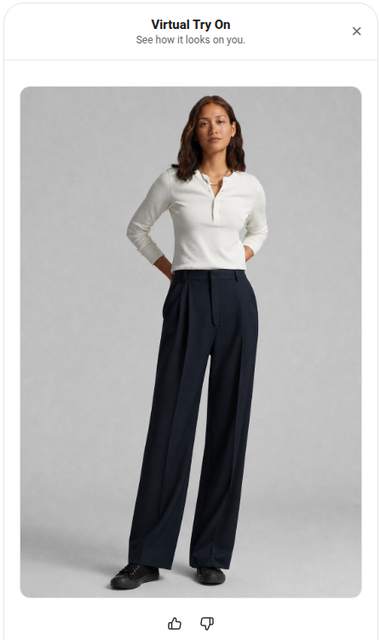
The shopper uploads a full-body photo, and the agent generates a realistic image of them wearing the product. Built for fashion, apparel, eyewear, and accessories. Generation takes roughly 25 seconds to a minute, so it is worth designing your button copy around that wait ("We are rendering your look" reads better than silence).
See It In Your Room
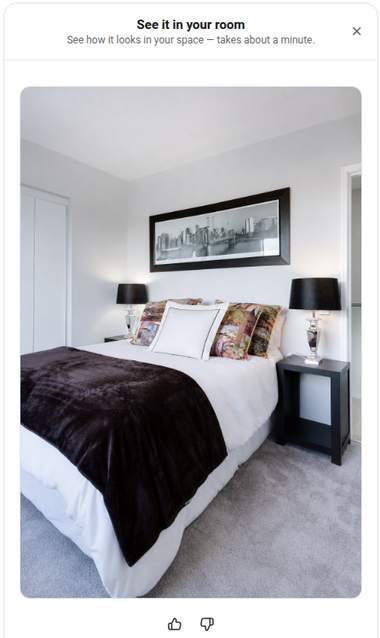
The shopper uploads a photo of their space, and the agent renders the product into it: furniture, decor, lighting, art, and other home goods. Processing time is similar to Try-On, about a minute.
Outfit Builder
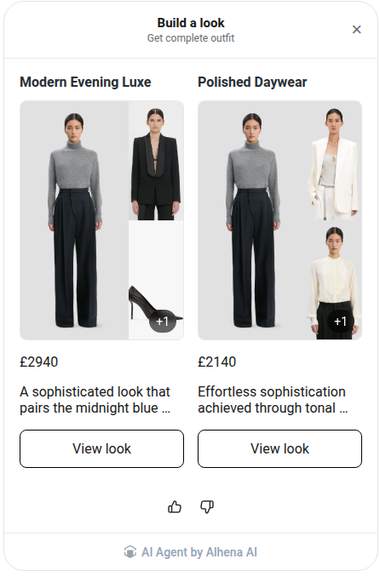
No photo needed. The agent assembles a complete, coordinated outfit around the product being viewed, pulling complementary pieces from your own catalogue. This is the basket-size play: it turns a single-item view into a full look, with every piece shoppable.
Room Designer
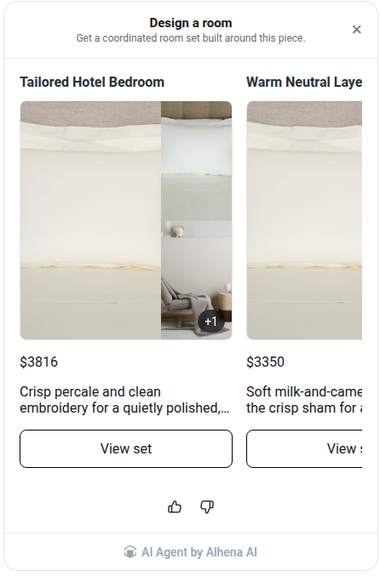
No photo needed. The home-goods counterpart to Outfit Builder. It designs a coordinated room set around the current product, each piece priced and clickable.
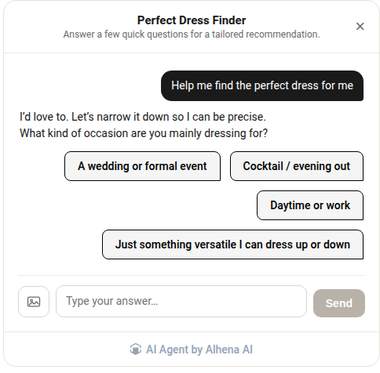
Product Quiz
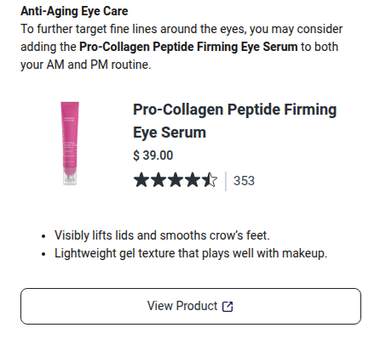
The exception to the "one result" pattern. Instead of a single visual output, this is an interactive mini-conversation. It asks a few targeted questions, then recommends the products that best fit the answers, with clickable options and product cards. It is the right tool when a shopper needs to be guided between options rather than shown one image.
The quiz is really a configurable template. The same agent adapts to your catalogue and the question you set. On a fashion store it becomes a style finder. On a beauty store, the same embeddable becomes a skincare routine builder or a skin analyser: it can offer an optional selfie analysis, ask a few questions, and return a personalised routine with specific products, ratings, and prices.
Shade Finder
Placed beside the swatches on a beauty product page, Shade Finder helps a shopper land on the right shade instead of guessing. It reads the shade options from the product context on the page, so one placement covers an entire range, and it hands off to chat when someone wants to talk through undertones or compare two shades.
Skin Analyzer
Skin Analyzer asks the shopper for a selfie, returns a read on their skin, and routes that into a recommendation on the same page. Like Virtual Try-On, it is a photo agent, so the consent and retention rules in the photo section below apply to it as well.
How agents get onto the page
Getting an agent onto a product page takes one of two paths, and both are simple.
Both paths coexist on the same site. Use auto-insert for standard product templates and the manual snippet for pages where you need tighter control. If your store runs as a single-page app (common with headless setups), a single re-initialisation call after each page navigation keeps the buttons appearing correctly.
Placements: how configuration actually works
The object that ties everything together is the placement: a single configured instance of an agent for your store. This is the key mental model. You do not configure "Virtual Try-On" once globally. You create placements. A company can have many placements of the same agent: a separate virtual try-on for shoes and another for dresses, each with its own copy, targeting, and behaviour.
Each placement stores its own settings: whether it is enabled, a name, a unique identifier, a priority rank, the result mode (panel vs. chat), a launch message, copy and style overrides, URL or page-title conditions for where it should appear, and an optional auto-insert position.
How placement resolution works
When the page loads, the widget decides which placement to render. The logic follows a strict order:
- Named placement winsIf you have explicitly named a placement in the page markup, that one is used.
- First matching conditionsOtherwise, the first enabled placement whose page conditions (URL, title) match the current page.
- First catch-all defaultOtherwise, the first enabled placement with no conditions at all.
- Nothing matchesIf none apply, no agent appears on that page.
Page conditions support URL patterns and page-title matching. Multiple conditions on a single placement are evaluated as an AND: all must match. When several placements qualify for the same page, priority is a drag-and-drop order in the dashboard, and the rule is simple: lowest priority number wins. This is what lets the shoes-vs-dresses split work cleanly. Each placement's conditions decide where it is eligible, and priority breaks any ties.
Where the result appears: panel vs. chat
Every placement delivers its result in one of two modes, chosen per placement in the Style settings. This is the single most important setting, because it changes the entire shape of the shopper's experience.
The Product Quiz is the exception. It is always conversational, because a back-and-forth is its nature. Even in panel mode, it behaves as a scoped mini-chat that resumes its history and supports clickable quiz options, product cards, and images. If the shopper goes off-topic or asks for human help, it hands off to the full chat widget automatically.
The other four agents support both modes. Pick a panel for a fast confidence check near the buy button, and open in chat when you want to keep the shopper in a longer, exploratory conversation.
How the AI handles embeds differently
This is the part that makes the "focused, single-purpose" promise real rather than cosmetic.
In normal chat, an incoming message goes through Alhena's routing layer, which analyses the request and decides which specialist should handle it. Embeds skip that step entirely. When a shopper taps an embedded agent button, the request goes straight to the correct specialist, no routing decision needed. A Virtual Try-On click goes to the try-on specialist, full stop. Less latency, zero chance of the AI misinterpreting the intent.
Inline placements also use a separate set of guidelines. This means you can write instructions that apply only when an agent is answering inside an embed, separate from how it behaves in full chat. For example, your chat guidelines might say "offer to connect with a stylist," while your embed guidelines say "answer once and keep it self-contained."
The prompting itself is scoped to the format. One-shot inline agents (Try-On, See It In Your Room, Outfit Builder, and Room Designer) are instructed to answer once, be self-contained, not ask follow-up questions, not offer human transfer, and treat the current product page as the subject. The product quiz gets a different set of instructions: stay within product discovery and hand off to the full widget for anything outside that scope. The behaviour you see in the panel is a direct result of these two different instruction sets.
Photos: limits, consent, and reuse
Virtual Try-On and See It In Your Room both require a photo upload, and they share a few important rules.
What is cached, and what deliberately is not
Caching follows a clean principle: cache what is deterministic, never cache what depends on the individual shopper.
Analytics and tracking
Embed-driven interactions get their own source label and icon in your Alhena analytics dashboard. You can filter conversations by integration source to see exactly how many interactions each embeddable agent is driving, separate from your general chat traffic.
Product quiz conversations are further separated by placement, so if you are running a "Find Your Shade" quiz on one collection and a "Build Your Routine" quiz on another, each placement's conversations stay distinct in your reporting.
Practical gotchas worth knowing
A few real caveats, stated plainly, because they will save you a confusing afternoon.
Getting started: the setup path
- Confirm your Alhena chat widget is installedEmbeddable agents run on the same foundation. If the widget is already live, this step is done.
- Enable the specialist agents you wantOnly agents relevant to your catalogue will appear as options in your dashboard.
- Create a placement for each agentSet the name, button copy, result mode (panel or chat), page conditions, and priority.
- Test on real products using the playgroundSee the panel or chat handoff behave exactly as a shopper would.
- Install itAuto-insert for no-code placement, or drop a snippet into your templates for manual control.
The design goal throughout was to take the intelligence you have already built in Alhena and surface it at the moment that matters most: when a shopper is looking at a product and deciding. The agents already know your catalogue. Embeddable agents just give them a place to stand on the page.
Put AI directly on your product pages
Book a demo with Alhena AI, or start free with 25 conversations.
Frequently asked questions
Yes. Alhena is an agentic AI platform that lets you drop a Virtual Try-On agent directly onto any PDP using a no-code auto-insert option. You pick the page element where you want the button, like next to “Add to Cart,” and the agent appears automatically across your Shopify store. No theme edits, no developer tickets. The AI assistant reads your product catalogue and understands every item, so one setup covers your entire store. Retailers on WooCommerce and Salesforce Commerce Cloud can install it the same way.
When a shopper views a single garment, the Outfit Builder agent assembles a complete, coordinated look using other clothes and accessories from your own catalogue. Every item in the outfit is shoppable, so instead of one purchase, the shopper adds two or three pieces to their cart in a single interaction. Brands using Alhena’s AI product recommendations have reported AOV increases of 20% or more. The agent works the same way for home goods through the Room Designer, building a full room set around one product to drive cross-sell at checkout.
A chatbot is open-ended. It sits in a corner widget and fields whatever the shopper types, from returns to product discovery. An embeddable AI assistant is the opposite: a focused, single-purpose agent placed directly on the product page that does one job (like virtual try-ons or outfit building) without the shopper ever opening a chat window. The AI is routed straight to a specialist rather than through a conversational AI planner, which makes it faster and more accurate for that specific interaction. Think of it as the difference between a general help desk and a fitting room right next to the shelf.
They do. Shoppers who engage with intelligent, guided AI recommendations are up to 40% more likely to complete a purchase than those filtering a catalogue on their own. Alhena’s Product Quiz agent works as a short conversational flow right on the PDP: it asks a few natural language questions about preferences, then recommends the best-fit products with clickable cards and prices. It’s especially effective for product discovery in categories where shoppers need help choosing, like skincare routines, mattress firmness, or athletic gear. The quiz scans your catalogue data and personalizes every recommendation.
Yes, that’s exactly what Alhena’s placement system is built for. Each embedded agent is a separate placement with its own page conditions based on URL structure or page title. A fashion brand could show Virtual Try-On on clothes pages and Outfit Builder on accessories, while a home store could show See It In Your Room on furniture and Room Designer on decor. The intelligent agents auto-detect which product the shopper is viewing from the page context, so one placement covers all matching pages without per-product configuration.
When a shopper uploads a full-body photo, the AI agent uses image generation to produce a realistic preview of them wearing the garment. The model processes the uploaded photo against your product images and renders a composite that shows fit, drape, and style on the shopper’s actual body. Generation takes roughly 25 seconds to a minute. The photo is stored locally so repeat try-ons across different clothes don’t require another upload. Privacy is handled through a separate consent flow, and images aren’t shared or reused beyond that session.
Based on retailer data, Virtual Try-On has the highest conversion impact on fashion and apparel because it builds trust by letting shoppers visualize the product on themselves before purchase. AI outfit builders and room designers deliver the strongest AOV lift by turning single-item views into multi-item carts. Product quizzes perform best for high-consideration commerce categories where shoppers need guided product discovery. And agentic checkout, where the autonomous AI agent populates the cart and pre-fills checkout, reduces the friction between recommendation and purchase.
Yes. Returns cost US retailers $890 billion in 2024, and “didn’t look like expected” remains a top reason. Virtual try-ons directly address this by giving shoppers a realistic preview of how clothes fit their body or how furniture looks in their room before they buy. Early adopters report return rate reductions of 20 to 36% on categories where the AI visualization is available. The Product Quiz also helps by guiding shoppers to the right product through structured questions rather than letting them guess from a product description alone.
Alhena’s agents are trained on your specific catalogue data and follow your brand voice guidelines, so the language and tone match your store rather than sounding like a generic template. Each embeddable agent also uses a separate set of content guidelines from the chat widget. You can instruct your chat to be conversational and offer human handoffs, while your embedded agents stay focused and self-contained. The AI doesn’t generate content from the open web. It pulls from your indexed product descriptions, structured data, and catalogue, which keeps answers accurate and on-brand across every interaction.
Alhena offers a free trial with 25 conversations so you can test embeddable agents on your own store with real products before committing. Setup takes under 48 hours with no developer resources needed. You can try Virtual Try-On, Outfit Builder, Room Designer, See It In Your Room, or Product Quiz on your live PDP and see how shoppers interact. The platform integrates with Shopify, WooCommerce, Magento, and Salesforce Commerce Cloud, and includes built-in revenue attribution so you can measure the actual commerce impact from day one.