Slack has become the place where modern teams work, collaborate, and communicate. For many SaaS companies, e-commerce brands, agencies, and support teams, it's also where customers ask questions. That's why more businesses are adopting an AI customer support Slack integration to provide instant assistance without forcing users to leave their workspace.
The problem is that most support systems still require people to open tickets, search help centers, send emails, or wait for a support agent. This creates unnecessary friction and slows down issue resolution.
The Alhena Slack integration solves this problem by bringing an AI chatbot for Slack, customer support automation, and knowledge base search directly into channels, threads, and DMs.
With Alhena AI, customers and employees can ask questions directly inside Slack and receive instant answers powered by your help center, product documentation, FAQs, company policies, and internal knowledge base. Whether you're looking for an AI help desk for Slack, a Slack support bot, or a way to automate repetitive support requests, Alhena helps teams deliver faster and more consistent support.
Instead of redirecting users elsewhere, support happens where conversations are already taking place.
In this guide, you'll learn how the Alhena Slack AI chatbot works, how companies use it for customer support, employee help desks, onboarding, and Slack Connect channels, and how to set it up in just a few minutes.
What the Alhena Slack Integration Actually Does
Once you install Alhena as a Slack app, it shows up like any other workspace member. People can @mention it in a channel, DM it directly, or continue a conversation inside a thread. It responds using the same knowledge base, FAQs, product information, brand voice, and answering guidelines you've already set up in your connected Alhena dashboard.
There's no separate configuration for Slack. If you've already trained Alhena on your help docs and product catalog, Alhena brings those answers over to Slack automatically. You bring one knowledge base to every channel.
What people can do with it:
- @mention Alhena in any channel it's been invited to
- DM it for private, one-on-one questions
- Ask follow-ups in the same thread (context carries over)
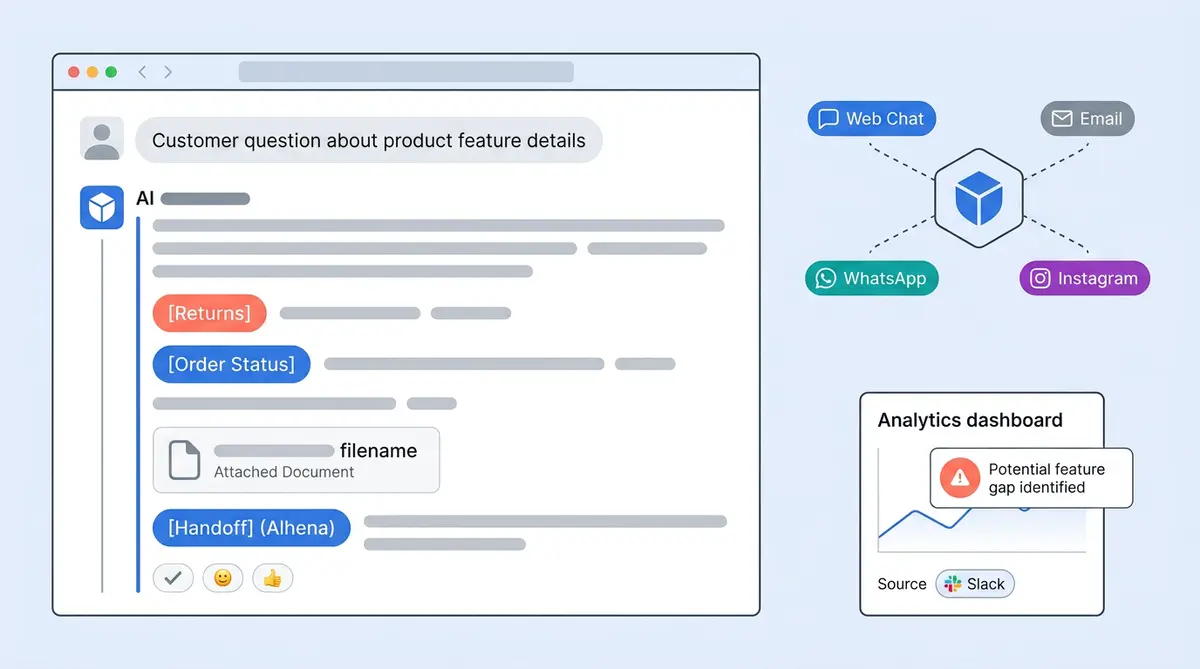
- Drop in file attachments for the AI to reference
- React with 👍 or 👎 to rate an answer
- Click quick-reply buttons when Alhena offers structured choices
Every one of these Slack conversations also gets saved inside Alhena as a support ticket tagged SLACK. So when you look at your analytics dashboard, Slack shows up as its own channel right alongside web chat, email, and everything else.
What Happens Under the Hood When Someone Asks a Question
This part matters if you're curious about reliability and speed. When a customer or teammate types a question in Slack, here's the path that question takes before an answer shows up in the thread.
Slack fires an event to Alhena's server. Alhena identifies which workspace the question came from, matches it to the right company profile, and cleans up the raw text (stripping the @mention prefix, for instance). Then it checks the thread timestamp: is this a new conversation, or a follow-up to something already in progress?
If it's new, Alhena creates a fresh conversation record. If it's a follow-up, it appends the question to the existing thread history. Either way, the question gets saved as a ticket, a "thinking" placeholder pops up in Slack, and the actual query heads to Alhena with the source tagged as SLACK.
The AI generates an answer using your knowledge base, your guidelines, and the conversation history from that thread. As the response comes back, Alhena edits the placeholder in real time, word by word, so the person asking sees it build out word by word, like a real-time reply. No spinning wheel, no five-second wait. Faster than typing a ticket. Once the response is complete, it gets saved back into Alhena's conversation record.
Alhena also converts standard Markdown for Slack automatically, so bold text, bullet points, and links all render correctly inside Slack.
Threaded Conversations That Actually Remember Context
This is the part that separates a real support tool from a simple Q&A bot. Slack threads are the backbone of how this integration keeps conversations coherent.
When someone posts a top-level question (either by @mentioning Alhena or sending a DM), a new conversation starts. Alhena stores the thread reference as an identifier. Every follow-up in that same thread gets linked to the same conversation record, and the AI receives the recent thread history each time.
In practice, that means a customer can ask "What's your refund policy?" and then follow up with "Does that apply to EU customers?" without repeating themselves. The AI connects the dots because it has the full thread context.
Common follow-up patterns we see:
- "Can you explain step 3 in more detail?"
- "What about the enterprise plan?"
- "Does this work with Shopify?"
- "Send me the link for that."
Threads also keep your shared channels from turning into a mess. Instead of answers flooding the main channel view, everything stays nested inside the thread. Other channel members can peek in if they're curious or scroll past.
Buttons, Files, and Feedback: It's Not Just Text Replies
Plain text answers are fine for simple questions. But sometimes a conversation needs a little more structure. Alhena handles three things inside Slack that most chatbots don't bother with.
Quick-Reply Buttons
When Alhena's response includes a set of options ("Would you like to check order status, start a return, or talk to a person?"), those show up as clickable Slack buttons. Tapping one sends that choice back to Alhena, disables the old buttons, and continues the conversation in the same thread. Think of it like a guided troubleshooting wizard or a product recommendation quiz, but built right into Slack.
File Attachments
When people are asking a question, they can drop in files, and Alhena will actually process them. It fetches the private Slack file, uploads it to Alhena's storage, and passes the content along as part of the AI request. A customer could attach a screenshot of an error, a CSV of order numbers, or a contract, and the AI factors all of it into its response.
Reaction Feedback
Thumbs up, thumbs down. Simple, but it matters. Alhena records emoji reactions on its answers and ties them back to specific responses. Over time, your team can filter by negative feedback, spot patterns, update the knowledge base, and watch answer quality climb. Alhena can also add a short feedback prompt at the end of replies to nudge people toward rating the response.
Support Channel vs. Knowledge Source: Two Different Things
This trips people up, so let's be clear about it.
Slack as a support channel means Alhena is answering questions inside Slack. That's what this whole post is about.
Slack as a knowledge source is something else entirely. It means Alhena ingests your existing Slack channel history to learn from the conversations your team has already had. Useful if your best support knowledge lives in old threads rather than formal docs.
They're independent features. You can run one without the other or both together:
- Support channel = where people ask and get answers
- Knowledge source = where Alhena learns from your team's past conversations
Most companies start with Slack as a support channel using their existing help center content, then later turn on knowledge ingestion if they want the AI to pull from internal Slack discussions too.
Two Ways People Use It: Channels and DMs
The Slack integration works in two patterns, and both feed into the same Alhena dashboard.
Channel Support
Someone @mentions Alhena inside a Slack channel. Alhena responds in a thread. This is the go-to for shared customer channels (especially e-commerce and SaaS companies on Slack Connect), partner rooms, internal help desks, and onboarding workspaces.
Picture a customer in a Slack Connect channel typing @Alhena What's the status of my order #4521? and getting a threaded reply with the order details pulled from the connected e-commerce platform. No tab switching, no ticket filed, no waiting.
DM Support
Someone opens the Alhena app in Slack and sends a direct message. More private, more like chatting with a dedicated assistant. Good for account-specific or sensitive questions that don't belong in a public channel.
Both modes produce the same analytics, the same conversation records, and the same quality tracking. The only difference is who else can see the conversation.
Analytics: Measuring Slack as Its Own Channel
Every Slack conversation gets tagged as a Slack source in your Alhena dashboard. That means you can slice your support data by channel and see how Slack stacks up against web chat, email, Instagram DMs, WhatsApp, and the rest. For the full picture of how all channels connect, check our omnichannel AI setup guide.
What you can track:
- Total Slack conversations and volume trends
- AI resolution rate (questions handled without a human stepping in)
- Feedback scores from thumbs-up and thumbs-down reactions
- Average response time
- Credit usage per channel
- Top question topics and conversation drivers
For reference, Manawa cut their support workload by 43% and dropped response times from 40 minutes to under 1 minute using Alhena across channels. The same measurement framework applies whether your volume comes from your website, email, or Slack.
One note worth keeping in mind: Slack is an external channel. Your agents respond inside Slack threads directly, not from the Alhena dashboard. The dashboard is for monitoring, reviewing conversations, and tracking metrics.
Setting It Up (Under Five Minutes, No Dev Work)
If your Alhena account is already configured with a knowledge base, here's a quick summary of the setup:
- Go to Settings → Integrations in your Alhena dashboard.
- Flip the Slack toggle. You'll get redirected to Slack's OAuth screen.
- Click "Allow". Your workspace admin authorizes the Alhena app.
- You're redirected back. Alhena connects to your workspace automatically.
- Invite Alhena to channels. In Slack, type
/invite @Alhenain any channel you want covered. - Send a test question. You should see a streaming reply within seconds.
That's genuinely it. No API keys to copy-paste, no webhook URLs to configure, no development time. Alhena picks up your existing knowledge base and brand voice settings immediately.
If you ever want to disconnect, you can do it from the Alhena dashboard or from Slack's workspace settings. Private channels need an explicit invite before Alhena can respond in them.
Who Gets the Most Out of This
Not every company needs Slack as a support surface. But for a few specific setups, it's a clear win.
B2B companies on Slack Connect: If you're sharing channels with customers, dropping Alhena into those channels means people get faster answers without waiting for your team's timezone to line up. SaaS platforms, agencies, and professional services all see the biggest lift here. For more on using Alhena for internal teams and help desks specifically, see our AI Slack help desk guide.
Internal IT and HR support: The same five questions about PTO policies, VPN setup, and software access come in every week. Let Alhena automate those while your agents focus on the tasks that actually need a human brain.
Customer success and onboarding: New customers ramping up on your product usually get a dedicated Slack channel. Alhena fields the "how do I..." questions so your agents and CSM can focus on strategy instead of copy-pasting help docs.
Partner and vendor support: If you manage a partner ecosystem through Slack, give partners self-serve access to pricing, docs, API specs, and integration guides without your team being in the loop on every question.
Crocus hits 86% deflection rates and 84% CSAT scores with Alhena across their channels. Adding Slack as another surface extends those results to wherever your people spend their day today.
Key Takeaways
- Alhena's Slack integration turns Slack into a real support channel, not just a notification pipe or a keyword-matching bot.
- It runs on your existing knowledge base. No separate training, no second configuration.
- Threaded conversations keep context across follow-ups, so people don't repeat themselves.
- Buttons, file attachments, and reaction feedback make it more than text-in, text-out.
- Every Slack conversation shows up in your Alhena dashboard with full analytics.
- Slack as a support channel and Slack as a knowledge source are independent features. Use one, both, or neither.
- Setup takes under five minutes. No dev resources, no API keys, no webhooks.
- Consumption-based pricing. You pay when Alhena responds, not per seat.
Want to see what this looks like in your own workspace? Book a demo with Alhena AI to watch the Slack integration in action, or start for free with 25 conversations and test it yourself.
Frequently Asked Questions
What is the Alhena AI Slack integration?
It's a Slack app that lets any user ask Alhena questions right inside Slack, in channels, threads, or DMs. Alhena pulls answers from your existing knowledge base, so the replies match what you'd get on your website or through email support. No separate setup needed.
How does the Alhena slack bot AI handle follow-up questions?
Follow-ups stay in the same Slack thread, and Alhena treats them as one continuous conversation. So if someone asks about your refund policy and then follows up with "Does that apply internationally?", Alhena already has the context. No need to repeat anything.
Can I use Alhena's Slack integration for B2B customer support?
Yes, and this is one of the strongest use cases. If you share Slack Connect channels with customers, Alhena can answer questions directly in those channels. Companies using Alhena across their support channels have hit 86% deflection rates and 84% CSAT.
What is the difference between Slack as a support channel and Slack as a knowledge source in Alhena?
Support channel means people ask Alhena questions in Slack and get answers there. Knowledge source means Alhena reads your old Slack conversations to learn from them. Two separate features. You can use one without the other.
How long does it take to set up the Alhena Slack integration?
About five minutes. You flip a toggle in your Alhena dashboard, authorize the app through Slack, and invite it to the channels you want. No API keys, no code, no IT tickets.
Does the Alhena Slack bot support file attachments?
Yes. People can attach screenshots, PDFs, spreadsheets, or any file to their Slack message. Alhena picks up the file and includes it as context when generating the answer.
How does Alhena's slack ai chatbot compare to Slack's built-in AI?
Slack's own AI does thread summaries, channel recaps, and search. It doesn't answer your customers' questions or handle support workflows. Salesforce Agentforce also plugs into Slack, but it needs a full Salesforce stack. Alhena is built specifically for customer support and works with your existing knowledge base out of the box. See our Slack chatbot comparison for more detail.
What analytics does Alhena provide for Slack conversations?
Slack shows up as its own channel in your Alhena dashboard. You can track conversation volume, resolution rates, reaction-based feedback scores, average response times, credit usage, and which topics come up most often.
Is there a cost per Slack response with Alhena?
Alhena charges per response, not per seat. You only pay when it actually answers a question. There's a free tier with 25 conversations if you want to test it first. Check the ROI calculator to estimate costs for your volume.
How does Alhena compare to Halp, Zendesk, or Jira for Slack support?
Apps like Halp turn Slack messages into helpdesk tickets. Zendesk and Intercom plug into Slack too, but mostly for ticket management and routing. Jira connects to Slack for bug tracking and project updates. Alhena takes a different approach to Slack support: instead of just creating tickets, it answers questions directly using your knowledge base. You still get a ticket system underneath (every conversation is logged), but the person asking gets an instant reply instead of waiting in a helpdesk queue. If you already use Halp or a similar Slack support tool for triage, Alhena can sit alongside it and handle the questions that don't need a human.
Can Alhena triage and escalate questions inside Slack?
Yes. Alhena can triage incoming questions by topic and either answer them or route them to the right support team. If a question or incident needs a human, the escalation workflow hands it off to a team member or creates a support ticket in your helpdesk. You can set up triage rules that automate the easy stuff and queue the rest for your agents. Alhena also tracks response time per channel, so your team can measure how quickly escalation happens and whether you're hitting your SLAs.
Does Alhena work as an internal helpdesk or service desk in Slack?
It does, and this is one of the more common setups. Teams use Alhena as a self service helpdesk for internal questions: HR policies, IT access, onboarding steps, bug reports, that kind of thing. Instead of filing a service desk ticket or searching a wiki, a user just asks in Slack and gets an answer. For IT teams dealing with repeated bug reports and service desk requests, Alhena can automate the first response and only escalate the tricky ones. Think of it as a helpdesk that lives where your team already works.
Can Alhena connect with PagerDuty, Jira, or on-call scheduling tools?
Alhena integrates with helpdesk and workflow tools like Zendesk, Freshdesk, and Salesforce. For PagerDuty, Jira, and on-call schedule management, you'd typically use those alongside Alhena rather than through it directly. A common setup: Alhena handles triage and first responses in Slack, and your team uses PagerDuty for on-call schedule alerts and Jira for bug tracking. Alhena can also pull your Slack status and channel context into its answers, so responses stay relevant to what's happening right now.