> For the complete documentation index, see [llms.txt](https://alhena.gitbook.io/docs/llms.txt). Markdown versions of documentation pages are available by appending `.md` to page URLs; this page is available as [Markdown](https://alhena.gitbook.io/docs/integrations/helpdesk/zendesk.md).
# Zendesk
Alhena can work with your existing Zendesk helpdesk and seamlessly integrate into your existing workflows. It can respond to website chat, email, and WhatsApp, passing on to a human when needed.
## Prerequisites
* A Zendesk account with admin access
* Zendesk Suite Professional plan or higher (required for WhatsApp)
## Setup
### Step 1: Enable Zendesk in Alhena
1. In Alhena, go to **Settings > Integrations**
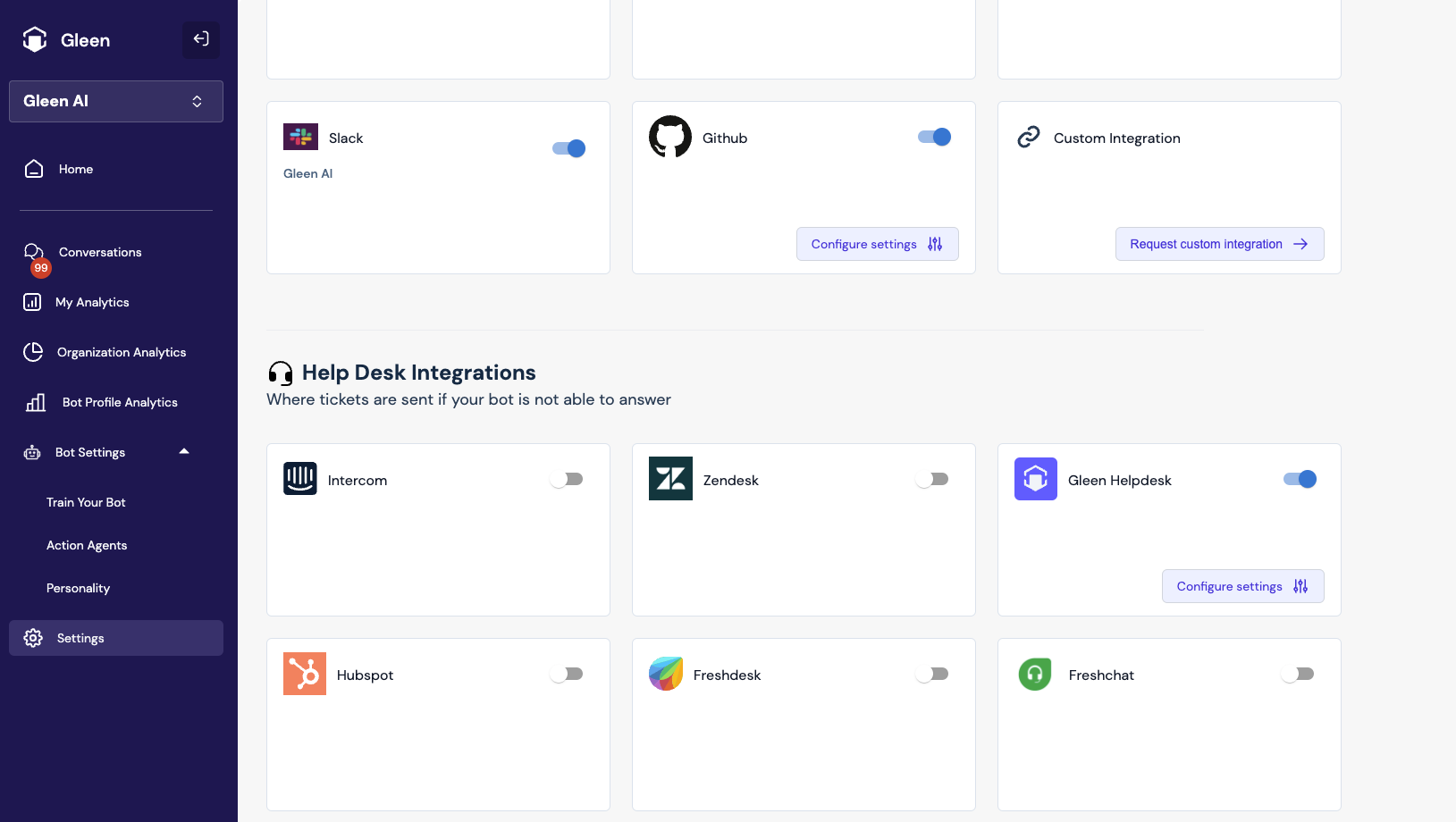
2. Find **Zendesk** and click the toggle to enable it
When you enable the integration, Alhena creates a new agent in your Zendesk account called "Alhena Bot". The bot only responds to open tickets assigned to this agent.
***
## Triggers (for Email)
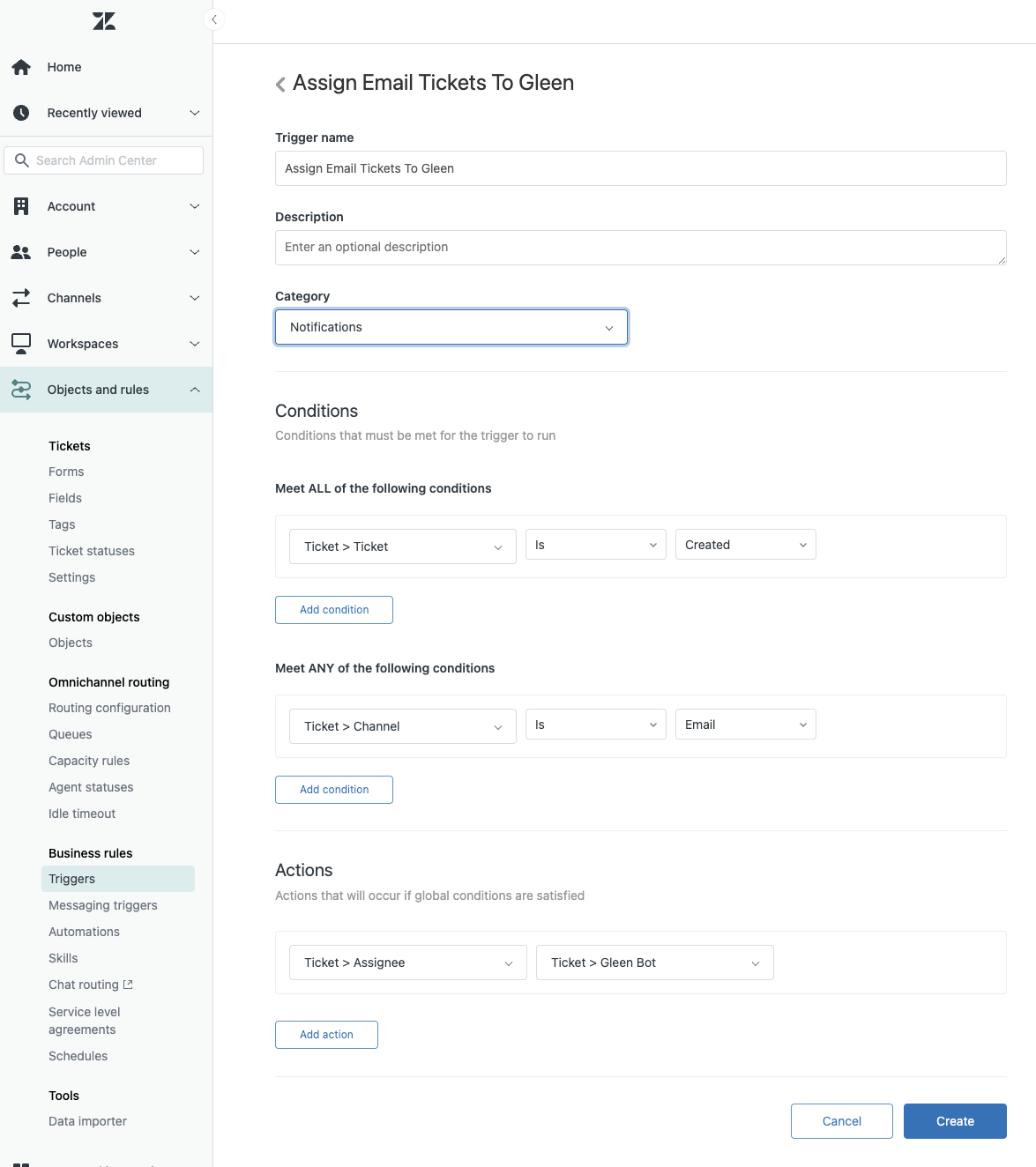
To have Alhena automatically respond to tickets, create a trigger in Zendesk to assign new tickets to the Alhena Bot agent.
### Setting Up a Trigger
1. In Zendesk, go to **Admin Center > Objects and rules > Business rules > Triggers**
2. Click **Add trigger**
3. Configure the trigger to assign new email tickets to Alhena Bot
Example trigger to assign all new email tickets to Alhena
Once Alhena answers a ticket, it moves it to closed status. Zendesk automatically reopens tickets when a customer replies, and Alhena will reply again.
***
## Email Tickets
Alhena can automatically respond to tickets in Zendesk created by email. For each new message in a ticket, Alhena generates an answer, transferring the ticket to a human agent when needed.
See [Human Transfer Triggers](/docs/integrations/helpdesk/human-transfer-triggers.md) for when Alhena hands off to human agents.
You can customize the signature and disclaimer added to AI email replies — click **Configure** on the **Emails in Zendesk** card. See [Email AI Settings](/docs/integrations/helpdesk/email-ai-settings.md).
{% hint style="info" %}
Enabling Email (or WhatsApp) in Zendesk creates an Alhena agent user in your Zendesk account so it can assign and reply to tickets. This uses one Zendesk agent seat.
{% endhint %}
***
## Agent Assist in Zendesk
Agent Assist lets your human agents use Alhena AI to draft better, faster responses from inside Zendesk. Enabling it requires installing Alhena's Zendesk app.
### Step 1: Enable Agent Assist
1. In Alhena, go to **Settings > Integrations > Zendesk**.
2. On the **Agent Assist in Zendesk** card, click the toggle to enable it.
### Step 2: Install the Alhena Zendesk App
1. On the **Agent Assist in Zendesk** card, click **Install Alhena Zendesk App**.
2. In the dialog, click **Install the Alhena App here** to open the app in the Zendesk Marketplace and install it.
3. Back in the Alhena dialog, copy the **API key** shown.
4. When the Zendesk app prompts you, paste in the API key to connect it to your Alhena account.
***
## Website Chat Tickets
Once you configure your Zendesk integration, Alhena syncs conversations from the Website SDK into Zendesk. You can see the conversations users are having with the bot in realtime from Zendesk.
When a ticket is transferred to human agents:
* The bot asks users for their email address
* Users can upload images and files for human agents to see
* Agents can send images and files back to the user
By default, website chat tickets appear similarly to email tickets inside Zendesk. You can optionally [configure the Sunshine Conversations API](/docs/integrations/helpdesk/zendesk/enabling-sunshine-api-for-website-tickets.md) for an improved live chat experience.
### Choosing when web chat tickets are created
For standard (email-style) website tickets, you can choose when Alhena creates the ticket in Zendesk. On the Zendesk Web Chat Settings page, under **Choose when to create tickets in Zendesk**, pick one:
* **When AI starts answering user questions** – the ticket is created as soon as Alhena begins responding.
* **When AI does human handoff** – the ticket is created only when the conversation is escalated to a human agent.
Click **Save Changes** to apply. This option is hidden once the [Sunshine Conversations API](/docs/integrations/helpdesk/zendesk/enabling-sunshine-api-for-website-tickets.md) is enabled, since those conversations are created as chat threads instead.
***
## WhatsApp Tickets
If you have WhatsApp configured in Zendesk, Alhena can respond to any tickets created through this channel. This requires access to the Sunshine Conversations API through the Zendesk Suite Professional plan or higher.
### Step 1: Enable the Zendesk Integration
First, make sure you've configured the Zendesk Integration with the [instructions above](#setup).
### Step 2: Enable WhatsApp in Alhena
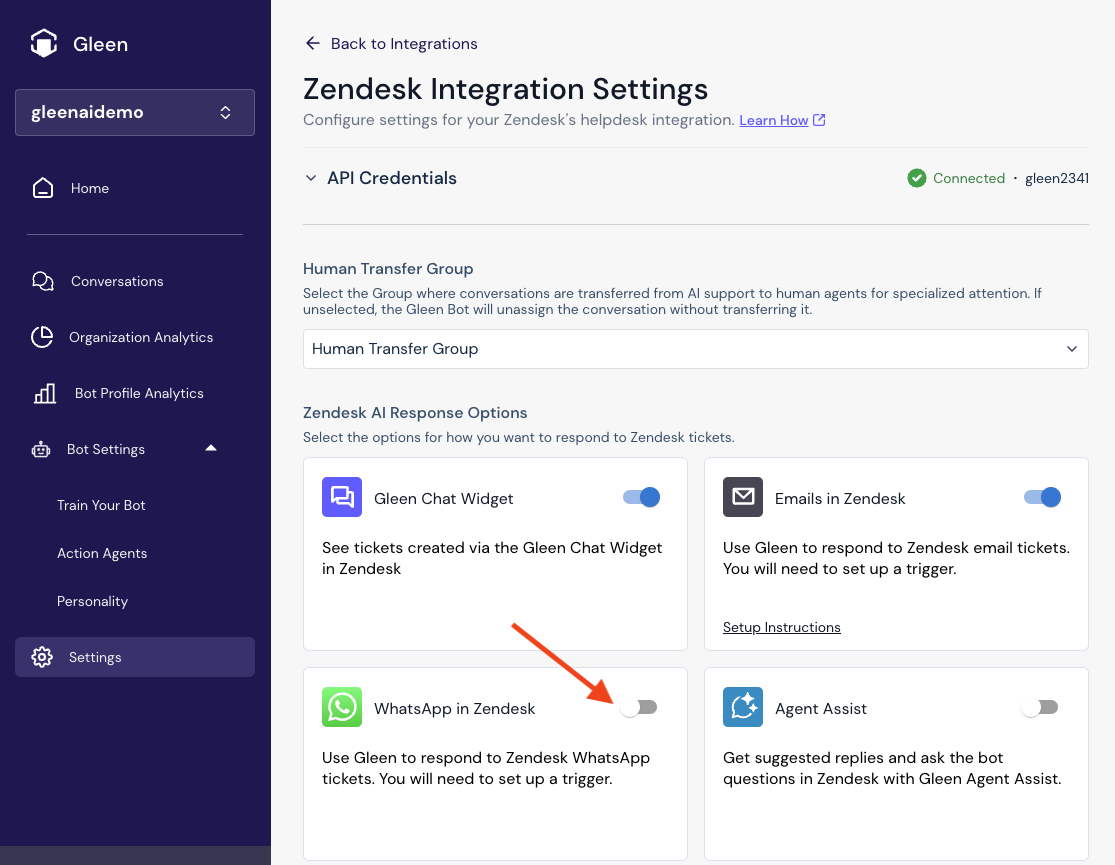
1. In Alhena, go to **Settings > Integrations > Zendesk**
2. Enable the **WhatsApp** toggle
### Step 3: Create an API Key in Zendesk
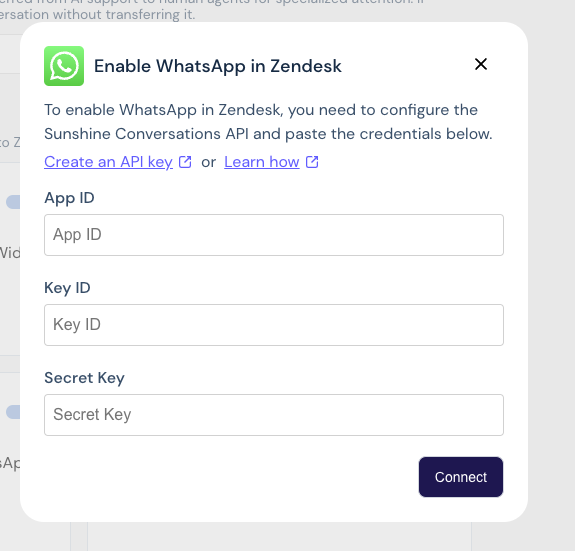
1. Click **Create An API Key** in Alhena, or navigate to the Conversations API page in Zendesk admin panel under **Apps and integrations**
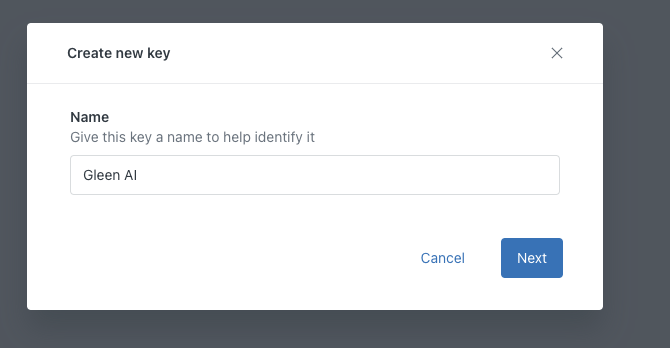
2. Click **Create API Key** in the Zendesk admin panel
3. Name your API key (e.g., "Alhena AI")
### Step 4: Connect the API Key
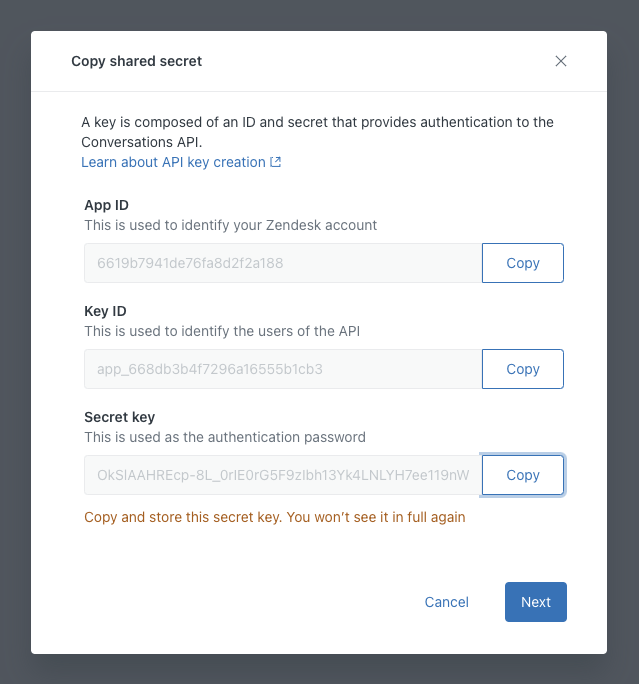
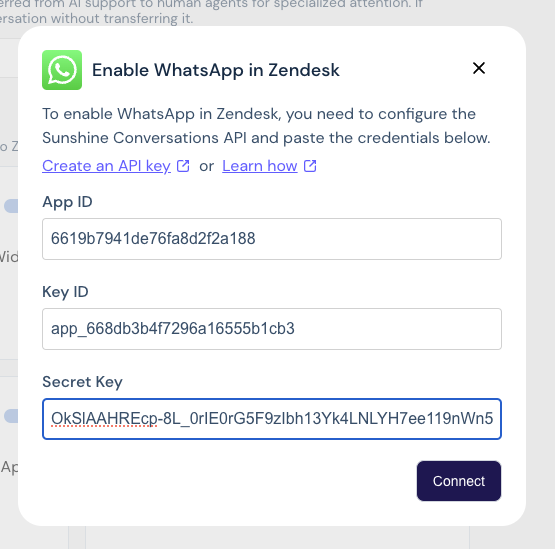
1. Copy each of the three values from Zendesk's admin panel into Alhena's dashboard
2. Click **Connect** in Alhena's dashboard
Your bot will now automatically reply to any WhatsApp tickets assigned to the "Alhena Bot" agent. You will most likely want to set up a [trigger in Zendesk](#triggers-for-email) to automatically assign tickets to the bot.
### How It Works
1. A user sends a message to your WhatsApp number, and a new ticket is created in Zendesk
2. There will be some delay before Alhena starts processing the ticket (due to Zendesk limitations, it may take a couple of minutes)
3. Alhena waits until the message is at least 30 seconds old to start processing, since WhatsApp users may type multiple messages in a row or need time to attach images
4. Alhena processes the messages and images it received together and generates an answer
***
## Bot Profile Mapping
If you have multiple bot profiles for your organization in Alhena, you can route tickets from the same Zendesk account to the appropriate bot profile. For example, you might have multiple products or websites where the tickets go to the same Zendesk account.
[Contact support](/docs/troubleshooting/troubleshooting.md#contact-support) to configure this mapping. We support mapping for common Zendesk configurations like multiple email addresses or multiple WhatsApp numbers.
***
## FAQs
### How can I correct incorrect answers for tickets in Zendesk?
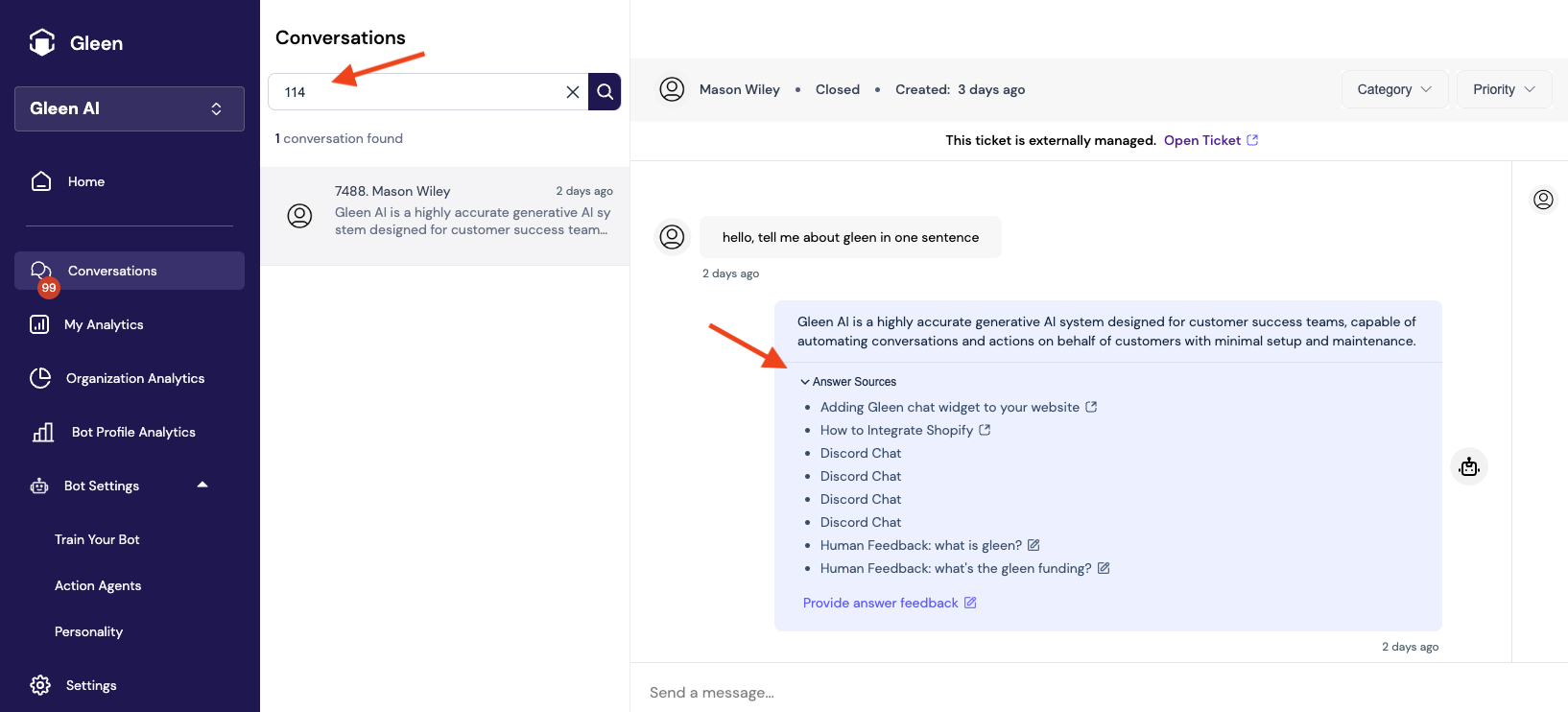
If you find a ticket where the bot gave a wrong answer, you can use the ticket ID to search in Alhena's dashboard and see the answer sources used.
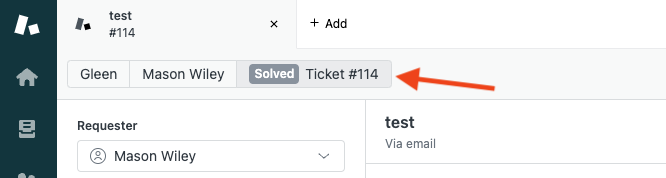
1. Find the ticket ID in Zendesk
2. Enter this ticket ID into the search box in Alhena to locate the ticket and see the answer sources. You can also search by any text in the messages, phone number, or email address.
3. From there, you can open links to the information Alhena used to generate the answer, edit existing feedback, or add new feedback.
### Can I train my bot on past ticket responses in Zendesk?
Yes. Contact the Alhena team for assistance.
### Can I train my bot on Zendesk macros?
Yes. Contact the Alhena team for assistance.