> For the complete documentation index, see [llms.txt](https://alhena.gitbook.io/docs/llms.txt). Markdown versions of documentation pages are available by appending `.md` to page URLs; this page is available as [Markdown](https://alhena.gitbook.io/docs/integrations/helpdesk/integrating-alhena-with-reamaze.md).
# Re:amaze
Integrate Alhena with your Re:amaze helpdesk to respond to website chat and email, with seamless handoff to human agents when needed.
## Prerequisites
* A Re:amaze account with admin access
* Your Re:amaze brand subdomain (see [How do I find my brand subdomain?](#how-do-i-find-my-brand-subdomain) below)
* A Re:amaze API token
## Setup
Re:amaze connection setup
### Step 1: Get Your API Token
1. In Re:amaze, go to **Settings > Developer**
2. Under **API Token**, copy your token
### Step 2: Connect Re:amaze in Alhena
1. In Alhena, go to **Settings > Integrations**
2. Find **Re:amaze** and click **Enable**
3. Click **Configure Settings**
4. Enter your Re:amaze brand subdomain, login email, and API token
5. Click **Connect**
{% hint style="info" %}
If your Re:amaze account has multiple brands, enter the domain for the brand whose channels you want to use. The available channels in the next step are determined by the brand you connect with.
{% endhint %}
### Step 3: Select a Default Channel
Once connected, a **Default Channel** dropdown appears. Select which Re:amaze channel new conversations from the chat widget will be created in.
***
Re:amaze channel settings
## Channels
Re:amaze supports two channels for Alhena: website chat and email. You can enable each channel independently from the integration settings page.
### Website Chat
Enable the **Chat Widget** toggle to route conversations from the Alhena chat widget into Re:amaze. Alhena provides a website chat widget via the Website SDK. When a human agent is needed, conversations sync to Re:amaze where human agents can reply.
### Email
Enable the **Email** toggle to have Alhena respond to email conversations in Re:amaze. When email is enabled, Alhena creates a bot staff member in your Re:amaze account and responds to open conversations assigned to it.
Once Alhena answers a conversation, it closes it. Re:amaze automatically reopens conversations when a customer replies, and Alhena will respond again.
You can customize the signature and disclaimer added to AI email replies — click **Configure** on the **Emails in Re:amaze** card. See [Email AI Settings](/docs/integrations/helpdesk/email-ai-settings.md).
#### Setting Up a Workflow
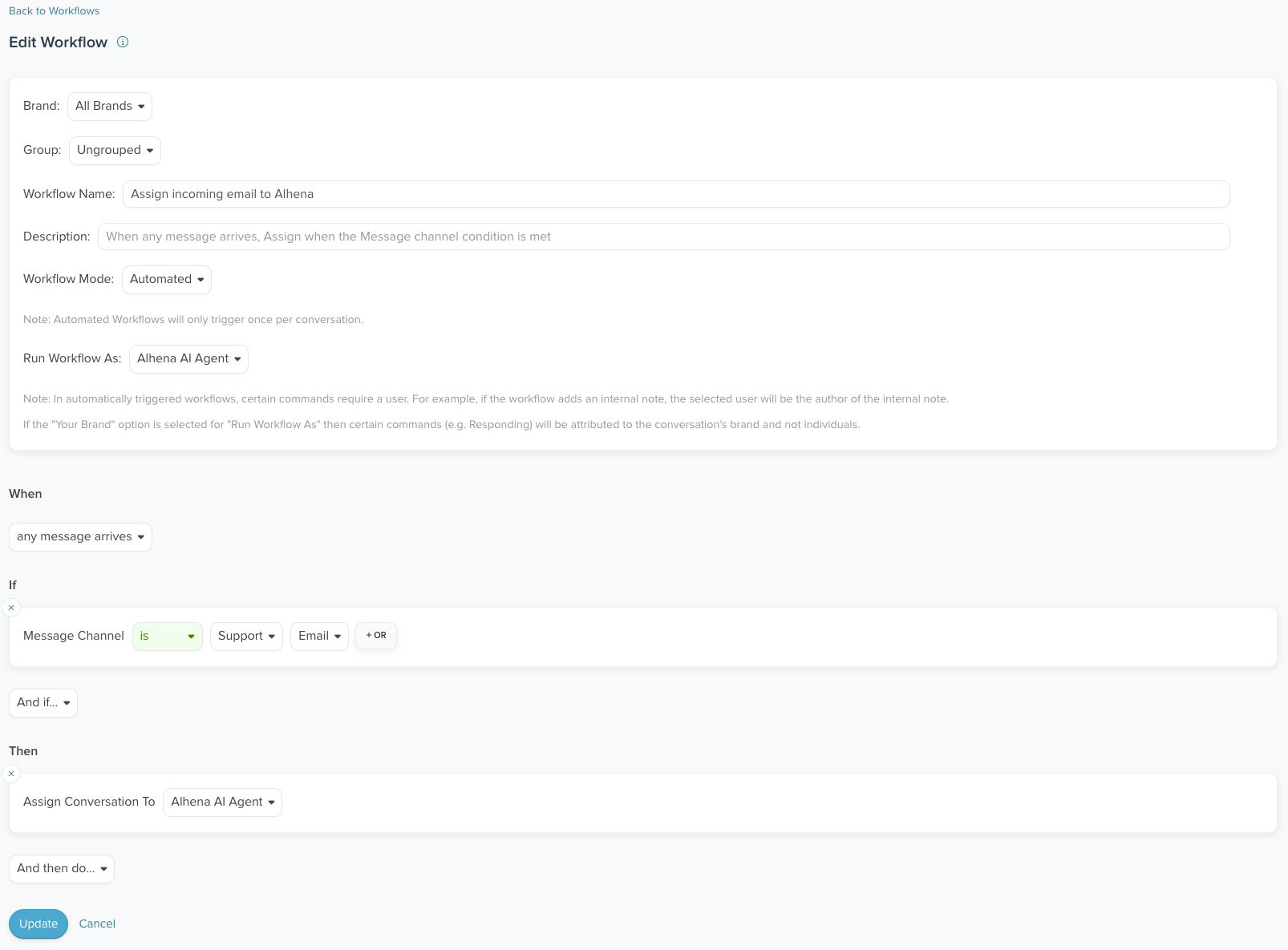
To have Alhena automatically handle incoming email conversations, create a workflow in Re:amaze to assign new emails to the Alhena AI Agent:
1. In Re:amaze, go to **Settings > Workflows**
2. Create a new workflow with the following conditions:
* **When:** Any message arrives
* **If:** Message channel is **Support > Email**
* **Then:** Assign to **Alhena AI Agent**
***
## Human Transfer
Alhena transfers the conversation to a human agent when:
* The customer asks for a human agent (e.g., "I want to talk to a person")
* The bot cannot find an answer in its knowledge base
* A custom rule in your answering guidelines is triggered
On human transfer, Alhena reopens the conversation so a human agent can take over. To automatically route escalated conversations to a specific group, set up a workflow as described in [Assigning Escalated Conversations](#assigning-escalated-conversations) below.
Human agents can also manually respond to conversations, and the bot will stop responding.
For the complete list of human transfer triggers, see [Human Transfer Triggers](/docs/integrations/helpdesk/human-transfer-triggers.md).
### Assigning Escalated Conversations
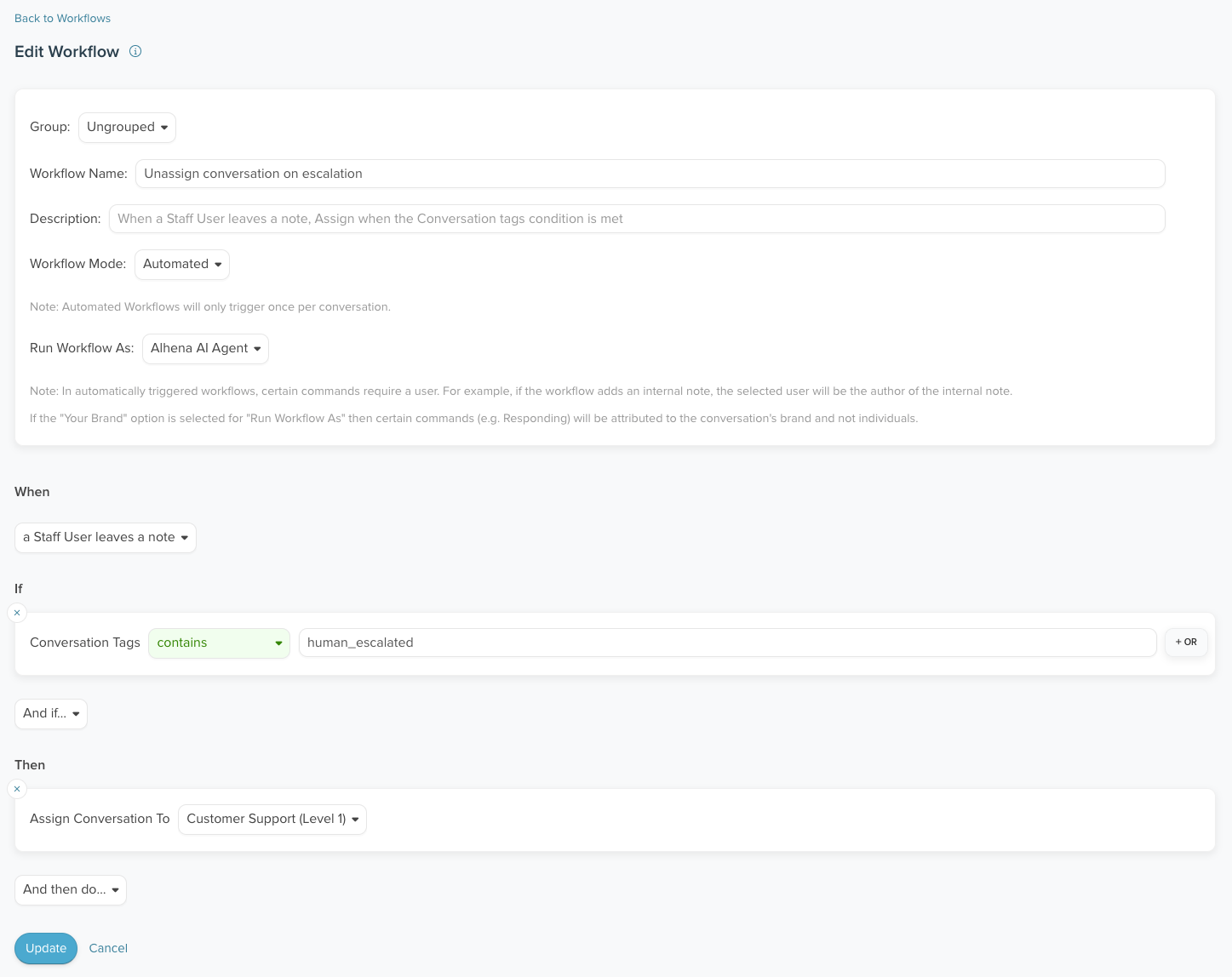
When Alhena escalates a conversation, it tags it with `human_escalated`. You can create a workflow in Re:amaze to automatically assign these conversations to a specific group:
1. In Re:amaze, go to **Settings > Workflows**
2. Create a new workflow with the following conditions:
* **When:** A staff user leaves a note
* **If:** Conversation tags contains **human\_escalated**
* **Then:** Assign conversation to your chosen group
***
## FAQs
### How do I find my brand subdomain?
If your Re:amaze account has only one brand, use the domain you normally access Re:amaze with (e.g., `your-domain.reamaze.com`).
If your account has multiple brands, you need the subdomain for the specific brand you want to connect:
1. In Re:amaze, go to **Settings > Account > Brands**
2. Click the brand you want to connect
3. The brand subdomain is shown in the URL. For example, in `https://your-main-domain.reamaze.com/admin/brands/your-brand-subdomain/edit`, the subdomain is `your-brand-subdomain` (the segment before `/edit`)
### Can I use Re:amaze for multiple bot profiles?
Yes. Each Re:amaze brand can be connected to a different Alhena AI profile. If you need to route multiple email addresses within the same brand to different Alhena AI profiles, [contact support](/docs/troubleshooting/troubleshooting.md#contact-support) for assistance.