> For the complete documentation index, see [llms.txt](https://alhena.gitbook.io/docs/llms.txt). Markdown versions of documentation pages are available by appending `.md` to page URLs; this page is available as [Markdown](https://alhena.gitbook.io/docs/integrations/helpdesk/integrating-alhena-with-freshchat.md).
# Freshchat
This guide will walk you through setting up the Freshchat integration with Alhena to enable AI-powered support through your Freshchat account.
## Prerequisites
* An active Freshchat account with admin access
* An Alhena account
## Setup
### Step 1: Generate Freshchat API Credentials
1. Log in to your Freshchat admin panel
2. Navigate to **Settings** > **Admin Settings** > **Marketplace and Integrations**
3. Click on **API Settings** in API section
4. If this is your first time on this page, click **Generate API key**
5. Your **Chat URL** and **API Key** will now be visible
6. Keep this page open - you'll need these credentials in the next step
### Step 2: Configure Freshchat Webhook
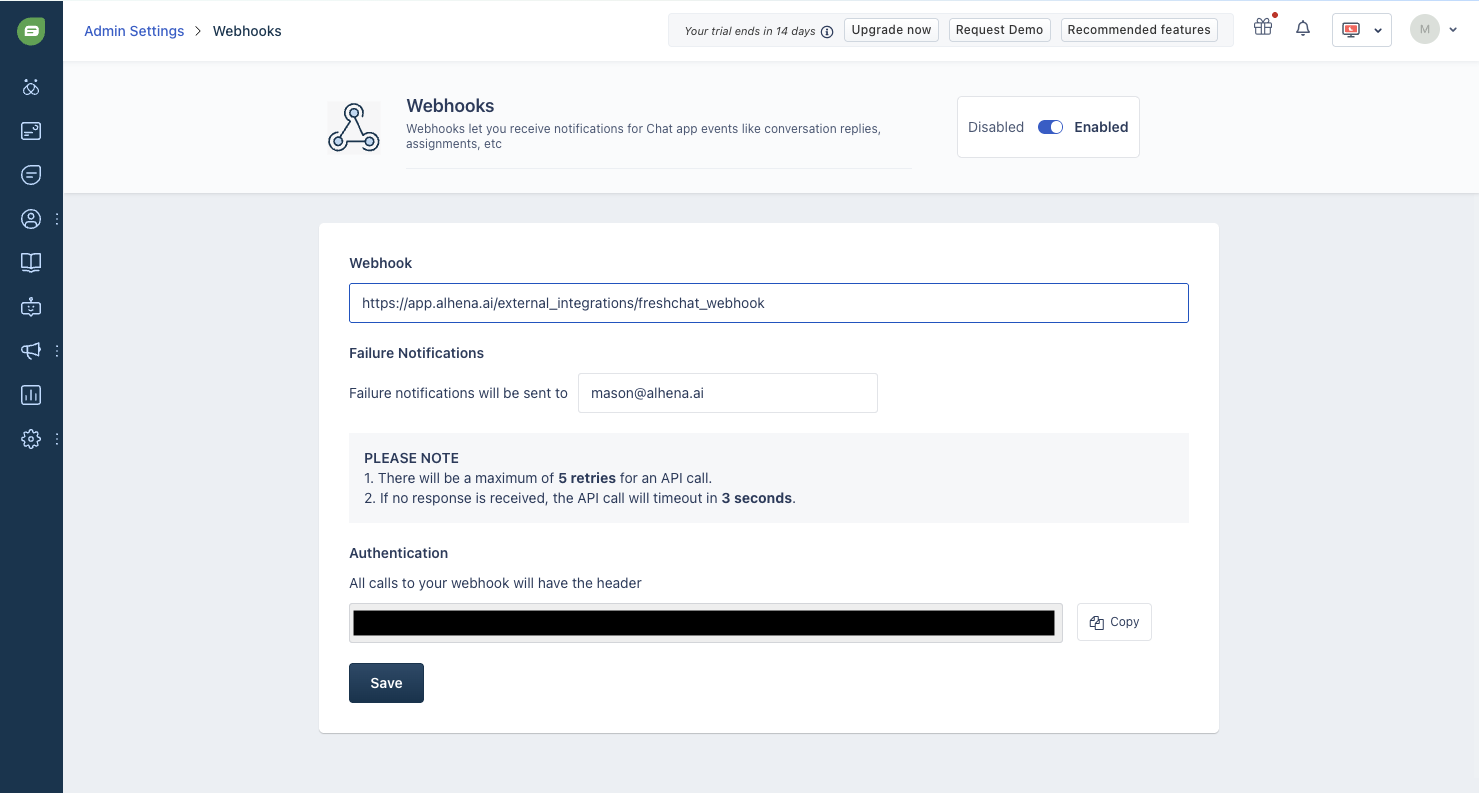
1. In your Freshchat admin panel, go to **Settings** > **Admin Settings** > **Marketplace and Integrations**
2. Click the toggle at the top of the page to **enable webhooks**
3. In the **Webhook URL** field, enter your Alhena webhook endpoint:
* For US region: `https://app.alhena.ai/external_integrations/freshchat_webhook`
* For EU region: `https://eu.alhena.ai/external_integrations/freshchat_webhook`
4. The **Failure notifications** field is optional - you can add an email address if you want to be notified of webhook failures
5. Click **Save**
6. After saving, an **Authentication header** will be generated and displayed
7. Copy this authentication header value
### Step 3: Connect Freshchat in Alhena
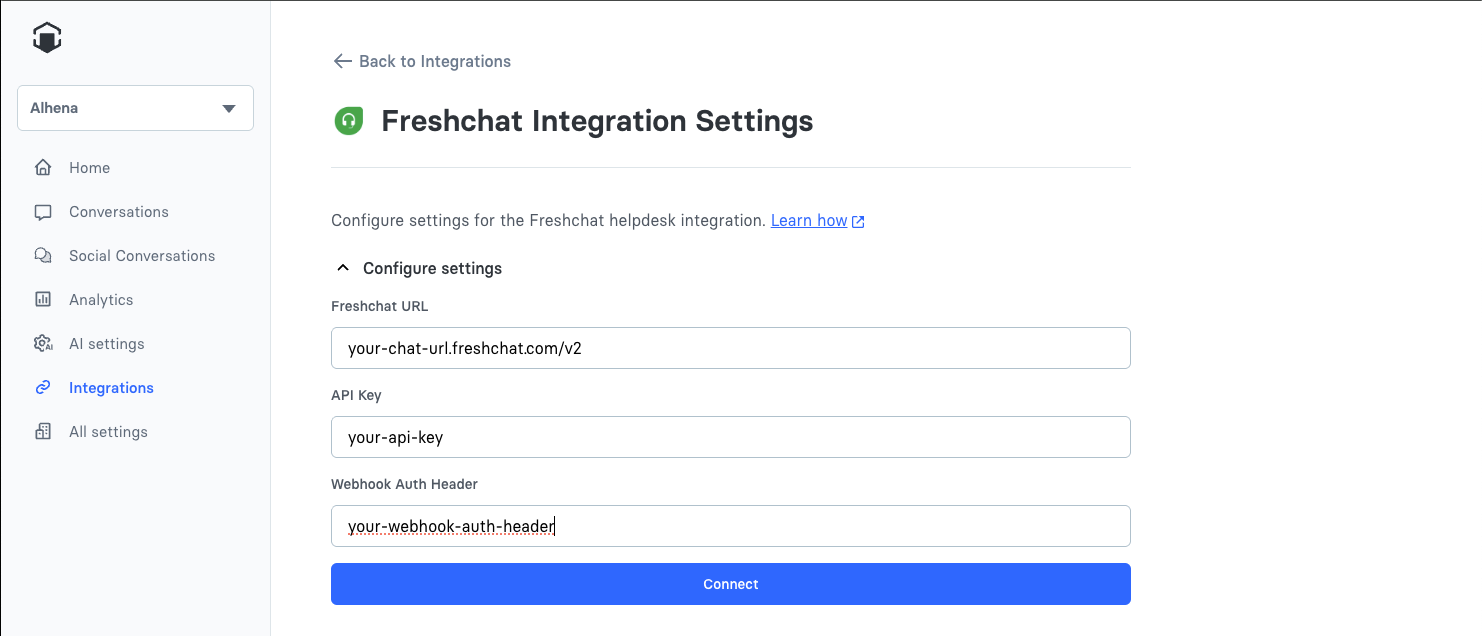
1. In Alhena, navigate to **Settings** > **Integrations** > **Freshchat**
2. Click on **Configure settings** to expand the connection form
3. Enter your **Freshchat URL** (the Chat URL from Step 1)
4. Enter your **API Key** (from Step 1)
5. Enter your **Webhook Auth Header** (the authentication header from Step 2)
6. Click **Connect**
Alhena will validate your credentials by connecting to Freshchat. If successful, you'll see a success message.
### Step 4: Select Freshchat Topic
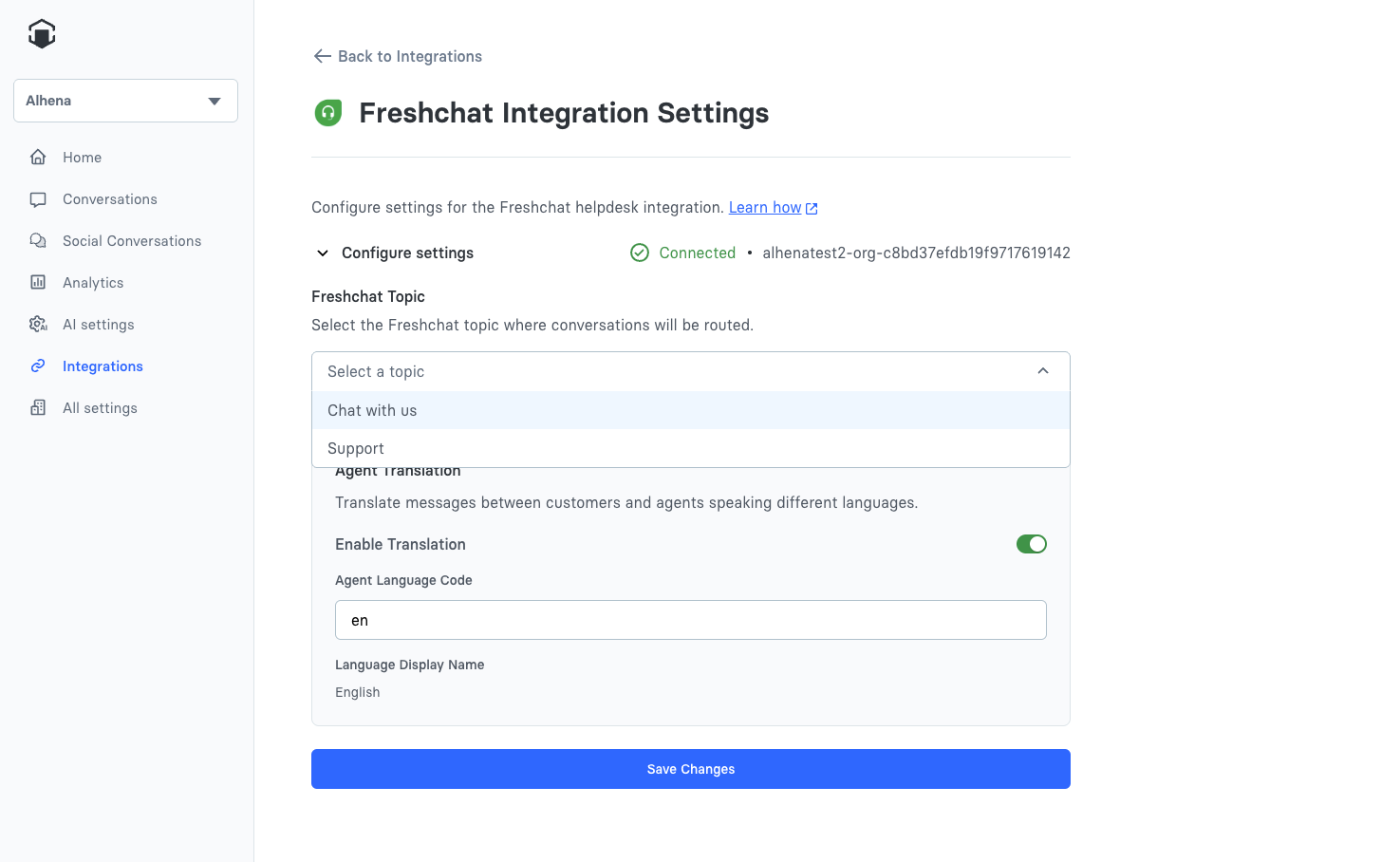
Select which Freshchat topic (channel) should receive conversations from Alhena:
1. In the **Freshchat Topic** section, select your desired topic from the dropdown
2. The selection is saved automatically
### Step 5: Select Freshchat Group
Select which Freshchat group should receive conversations that Alhena escalates to a human agent:
1. In the **Freshchat Group** section, select your desired group from the dropdown
2. The selection is saved automatically
When an escalated conversation is handed off, it will be assigned to this group in Freshchat. If no groups appear, create a group in Freshchat first.
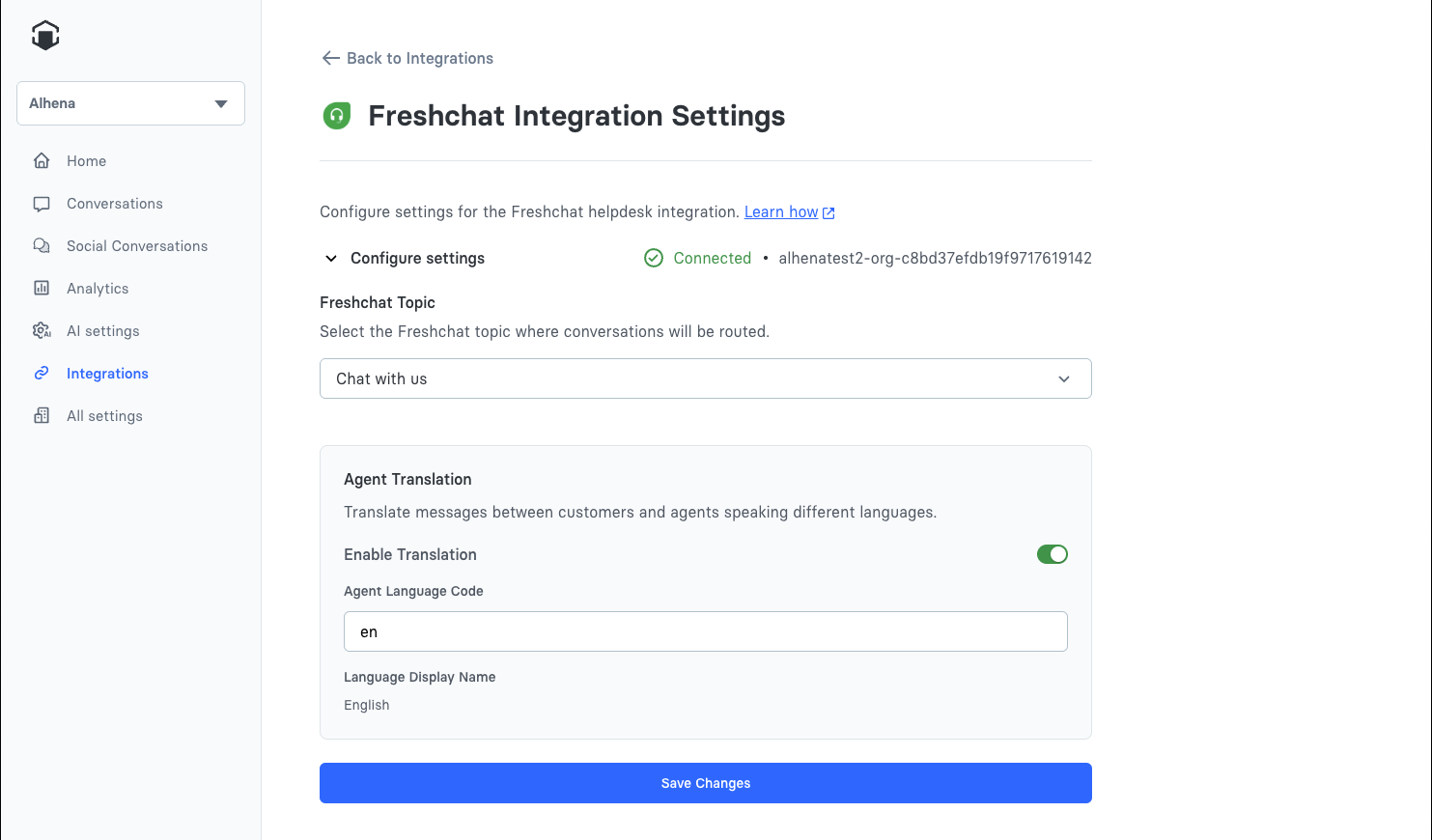
### Step 6: Configure Agent Translation (Optional)
If you want to enable automatic translation between customers and agents:
1. Toggle **Enable Translation** to ON
2. Enter the **Agent Language Code** (e.g., `en` for English, `es` for Spanish, `fr` for French)
3. Click **Save Changes**
When enabled, messages from customers will be automatically translated to the agent's language, and agent replies will be translated back to the customer's language.
### Verify Your Setup
After completing all steps:
1. The Freshchat integration card in Alhena should show as **Connected**
2. Test the integration by escalating a conversation to a human agent:
* Open your Alhena chat widget or playground
* Send a message like "Talk to a human" or "I need help from an agent"
* Enter your email address when prompted
* The conversation should now appear in your Freshchat dashboard
3. Send a message from Freshchat and verify it appears in the Alhena widget
4. Send a reply from the Alhena widget and verify it appears in Freshchat
### Troubleshooting
#### "Invalid credentials" error
* Double-check that you've copied the correct Chat URL and API Key from Freshchat
* Verify that your API key hasn't been regenerated in Freshchat
#### Agent messages aren't appearing in Alhena
* Ensure you've enabled webhooks in Freshchat (toggle at the top of the page)
* Verify the webhook URL matches your region (app.alhena.ai for US, eu.alhena.ai for EU)
* Check that you've copied the authentication header correctly into Alhena
#### Messages not routing to Freshchat
* Verify that you've selected a topic in the Freshchat Topic section
* Ensure the Freshchat integration is enabled (toggle should be ON in the Integrations page)
### Business Hours Routing
**Note:** When both Freshchat and Freshdesk are configured:
* During business hours: Website chat tickets are routed to Freshchat
* Outside business hours: Website chat tickets are automatically routed to Freshdesk
To configure business hours, go to **AI Settings** > **Connect Tools** > **Set hours for transfer** in Alhena.
### Need Help?
If you encounter any issues during setup, please [contact support](/docs/troubleshooting/troubleshooting.md#contact-support).