> For the complete documentation index, see [llms.txt](https://alhena.gitbook.io/docs/llms.txt). Markdown versions of documentation pages are available by appending `.md` to page URLs; this page is available as [Markdown](https://alhena.gitbook.io/docs/integrations/helpdesk/email-triage-rules.md).
# Email Triage Rules
Close or transfer helpdesk emails that don't need an AI reply, such as out-of-office replies, carrier notices and spam, using rules you write in plain language.
Many emails that reach your helpdesk don't need an answer: out-of-office replies, "thanks, all good" messages, shipping notices, automated system emails and spam. Email triage rules let Alhena close these tickets, or send them straight to the right team, before the AI writes a reply.
You describe each rule in plain language. Alhena checks every new email against your rules. If one fits, Alhena tags the ticket and closes or transfers it. If none fits, the AI replies as usual.
Email triage works with **Zendesk**, **Freshdesk**, **Gorgias**, **Kustomer**, **Salesforce Service Cloud**, **Zoho Desk** and **Re:amaze**.
## When to Use It
Turn on email triage when:
* Your team or the AI spends time on emails nobody needs to answer, such as away replies, carrier updates or newsletters.
* Some emails should always go to a specific team without an AI reply, for example wholesale enquiries or press requests.
* You want these emails labeled in your helpdesk so they're easy to report on.
You may not need it if almost all of your email comes from real customers asking real questions. Alhena already doesn't reply to automated senders such as no-reply addresses (see [Human Transfer Triggers](/docs/integrations/helpdesk/human-transfer-triggers.md)). Triage adds control over what happens to those emails and to the ones that slip through.
## What Alhena Looks At
For each new email, Alhena's AI reads:
| What it reads | Why |
| --------------------------------------------------------- | ---------------------------------------------------------------------------------------------------------------- |
| The sender's email address | Helps spot automated senders, carriers and known vendors. |
| The subject line | Often enough on its own, for example "Automatic reply". |
| The latest email | The email being judged. Very long emails are cut to their first 20,000 characters. |
| The last reply sent on the ticket, by Alhena or your team | Context only. This keeps a reply like "Yes, please" to a question you asked from being mistaken for a thank-you. |
It compares the email with each active rule's **When it applies** description and its **example emails**. The rule's name is only a label for you and doesn't affect matching, so put the details in the description.
For tags, it reads each active tag's name and its **When it applies** description.
It doesn't open attachments or images, and it doesn't look up older messages on the ticket or order data.
## How a Rule Decides
* Alhena picks the **one** rule that fits the email best. The order of your rules doesn't matter.
* A rule acts only when Alhena is confident it fits. When it isn't sure, the email goes to the AI as usual.
* If the email asks for anything, even alongside an away notice or a thank-you, Alhena treats it as needing a reply and no rule acts. For example, "I'm away until Monday, but please cancel my order" gets a reply.
* Emails with no words of their own (only a signature, or content that's in an attachment), file-sharing notices and undelivered-email notices are left to the usual flow.
## Turning On Email Triage
1. In Alhena, go to **Settings > Integrations** and open your helpdesk's settings page.
2. Open the email settings:
* **Zendesk, Freshdesk, Gorgias, Kustomer, Zoho Desk and Re:amaze:** on the **Emails in \[helpdesk]** card, click **Configure**.
* **Salesforce Service Cloud:** the **Email triage rules** card is on the Salesforce settings page, once your integration is saved.
3. On the **Email triage rules** card, turn on the switch.
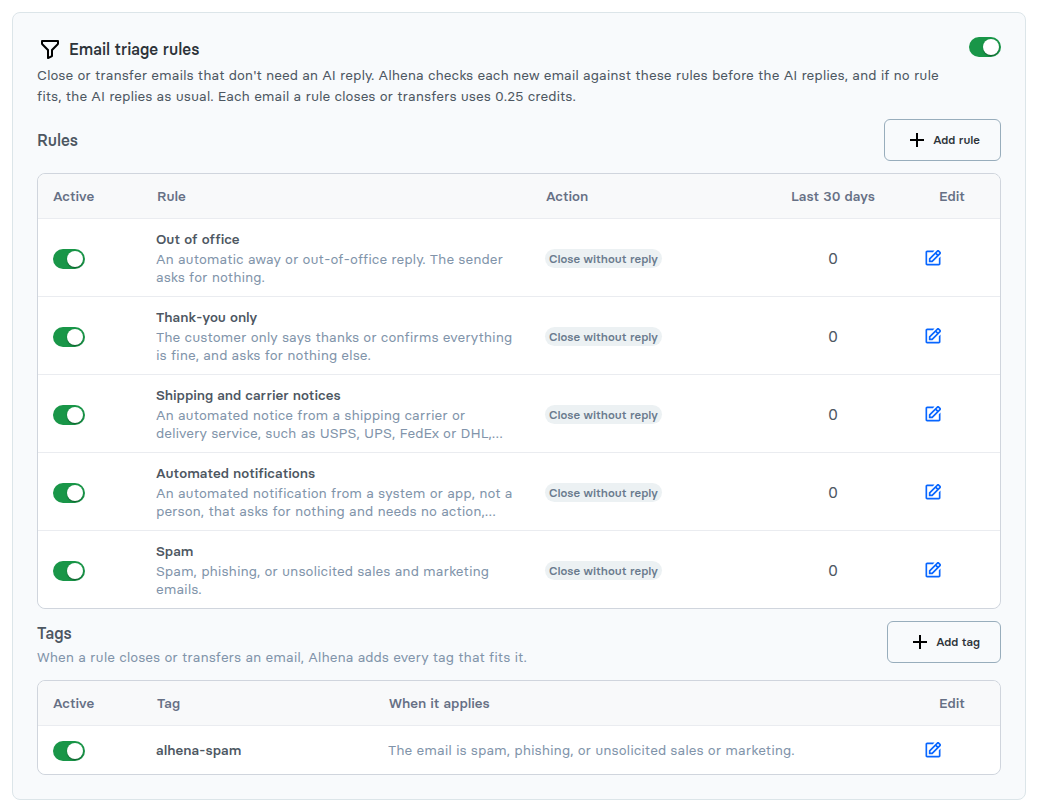
The first time you turn it on, Alhena adds a set of suggested rules and a tag. They start working right away:
| Suggested rule | Action |
| ---------------------------- | ------------------- |
| Out of office | Close without reply |
| Thank-you only | Close without reply |
| Shipping and carrier notices | Close without reply |
| Automated notifications | Close without reply |
| Spam | Close without reply |
The suggested tag is `alhena-spam`, added to spam, phishing and unsolicited sales emails.
The Email triage rules card with the suggested rules and tag
{% hint style="info" %}
To review the suggested rules before they run, turn the switch on and straight back off. The rules stay on the page. Edit or switch off the ones you don't want, then turn email triage back on.
{% endhint %}
Each helpdesk has its own switch, rules and tags. If you run several brands in Alhena, each brand's settings are separate.
## Adding or Editing a Rule
Click **Add rule**, or the edit icon next to a rule, and fill in:
* **Name:** a short label, such as "Wholesale enquiries". Up to 100 characters.
* **When it applies:** describe the emails this rule is for, in plain language. Up to 1,000 characters.
* **Example emails (optional):** paste up to 5 real emails this rule should match. Examples help a lot with borderline cases.
* **Action:**
* **Close without reply:** Alhena closes the ticket in your helpdesk and sends nothing.
* **Transfer to a human:** choose a group, team or queue from your helpdesk in **Transfer to**, or leave it on **Default handoff** to use your usual human handoff.
Adding a rule that transfers wholesale enquiries to a human
Click **Add rule**, or **Save rule** when editing. Use the switch in the **Active** column to pause a rule without deleting it. The **Last 30 days** column shows how many emails each rule has handled.
You can have up to 20 rules.
### Writing Good Rules
* **Describe the email, not the action.** "An automated notice from a shipping carrier such as USPS, UPS or FedEx about a package. A system sent it, not a customer." works better than "Close carrier emails".
* **Say what's excluded.** For example: "The sender asks for nothing."
* **Keep rules from overlapping.** If two rules could fit the same email, merge them or make the descriptions clearly different.
* **Add examples from your real inbox.** One or two short examples are usually enough.
* **Start with Close only for emails you're sure about.** For anything borderline, use Transfer to a human first, check the results, then switch to Close.
## Tags
Tags are added to the ticket in your helpdesk when a rule closes or transfers it. Alhena adds every active tag that fits the email, so one email can get several tags.
Click **Add tag** and fill in:
* **Tag:** the tag name as it should appear in your helpdesk, for example `usps`.
* **When it applies:** describe the emails that should get this tag, for example "The email is from USPS". Up to 1,000 characters.
Adding a tag
You can have up to 30 tags. Tags are only added when a rule acts. Emails the AI answers don't get them.
{% hint style="info" %}
Salesforce cases don't support tags, so tags aren't available for Salesforce. Re:amaze has no groups, so transfers in Re:amaze always use your default handoff.
{% endhint %}
## What Happens When a Rule Fits
1. Alhena adds any tags that fit.
2. Alhena closes the ticket, or transfers it to the group you chose or to your default handoff.
3. The conversation in Alhena gets a note, for example: *Closed by email triage rule "Spam". Tags added: alhena-spam*.
4. No AI reply is sent.
If your helpdesk rejects the close or transfer, the ticket goes to a human instead and no credits are used.
Emails from automated senders also go through your rules first. If no rule fits, they're handled the same way as before.
## When Triage Doesn't Run
Triage is skipped, and the email follows the usual flow, when:
* Email triage is off for that helpdesk, or no rules are active.
* A teammate has already taken over the conversation.
* The email has no text.
* Your account is out of credits.
* The ticket is one Alhena wouldn't reply to anyway, for example because it's too old.
* The check fails or times out.
## Seeing What Triage Did
* **Settings card:** the **Last 30 days** column shows how often each rule acted.
* **Conversations:** once a rule has handled at least one conversation, two filters appear: **All email triage outcomes** (Closed by email triage, Transferred by email triage) and **All email triage rules**.
* **Conversation view:** each handled conversation shows a note with the rule, the action and the tags added.
## Credits
Each email a rule closes or transfers uses **0.25 credits**. The exact amount for your account is shown on the **Email triage rules** card. Emails no rule acts on don't use triage credits.
## Turning Off Email Triage
Turn off the switch on the **Email triage rules** card. The next email goes through the usual flow.
Your rules and tags are kept, so you can turn triage back on later. Tickets that were already closed or transferred stay that way, tags stay on their tickets, and conversation notes and filters still show past results.