> For the complete documentation index, see [llms.txt](https://alhena.gitbook.io/docs/llms.txt). Markdown versions of documentation pages are available by appending `.md` to page URLs; this page is available as [Markdown](https://alhena.gitbook.io/docs/integrations/ecommerce/platforms/integrating-alhena-ai-with-shopify/shopify-checkout-extension.md).
# Shopify Checkout Extension
Add the Alhena chat to your Shopify checkout so shoppers can ask questions without leaving the page.
Checkout is where hesitation costs you the most. A shopper who can't find your return policy, isn't sure when their order will arrive, or wants to double-check a discount code will often abandon the cart rather than open a new tab to look for the answer.
The Alhena checkout extension puts your AI assistant right inside the checkout pages. Shoppers see a chat button in the corner of the checkout, tap it, and get an answer without losing their place or their cart.
***
## Requirements
{% hint style="warning" %}
The checkout extension requires a **Shopify Plus** plan. Shopify only allows apps to add content to checkout on Plus, so this feature is not available on Basic, Shopify, or Advanced plans.
If you're not on Plus, you can still reach shoppers on your cart and product pages with the standard [chat widget](/docs/features/chat-widget.md).
{% endhint %}
Before you start, make sure you have:
* A **Shopify Plus** store
* The **Alhena app installed** on that store — see [Shopify Integration](/docs/integrations/ecommerce/platforms/integrating-alhena-ai-with-shopify.md)
* Access to your Shopify admin **Settings** (store owner or a staff account with checkout permissions)
***
## Step 1: Open the checkout editor
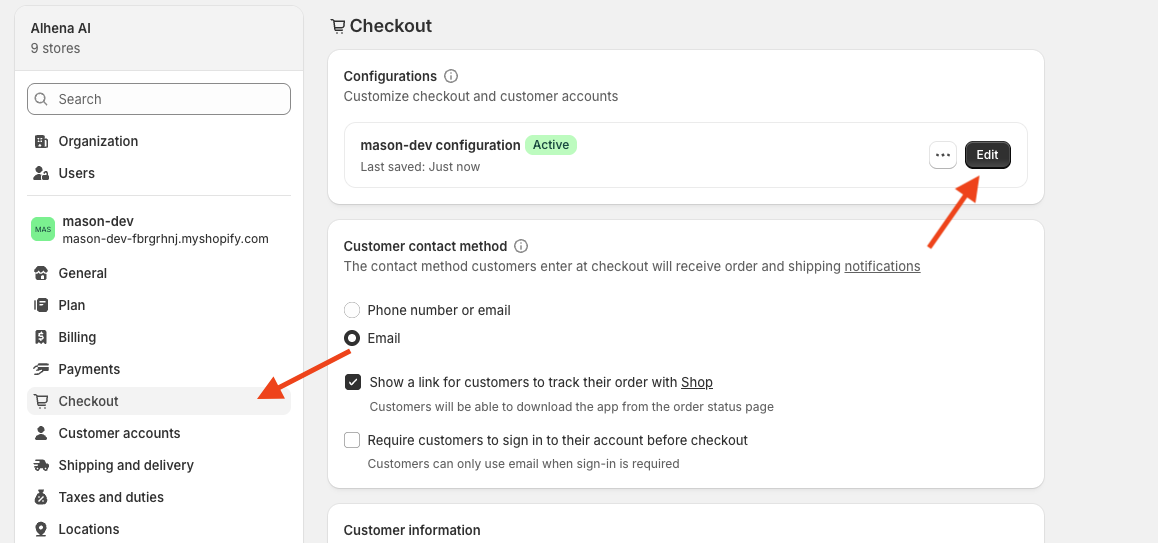
1. In your Shopify admin, go to **Settings > Checkout**.
2. Under **Configurations**, find your active checkout configuration.
3. Click **Edit**. This opens the checkout editor.
Settings > Checkout > Edit opens the checkout editor.
***
## Step 2: Add the Alhena chat to checkout
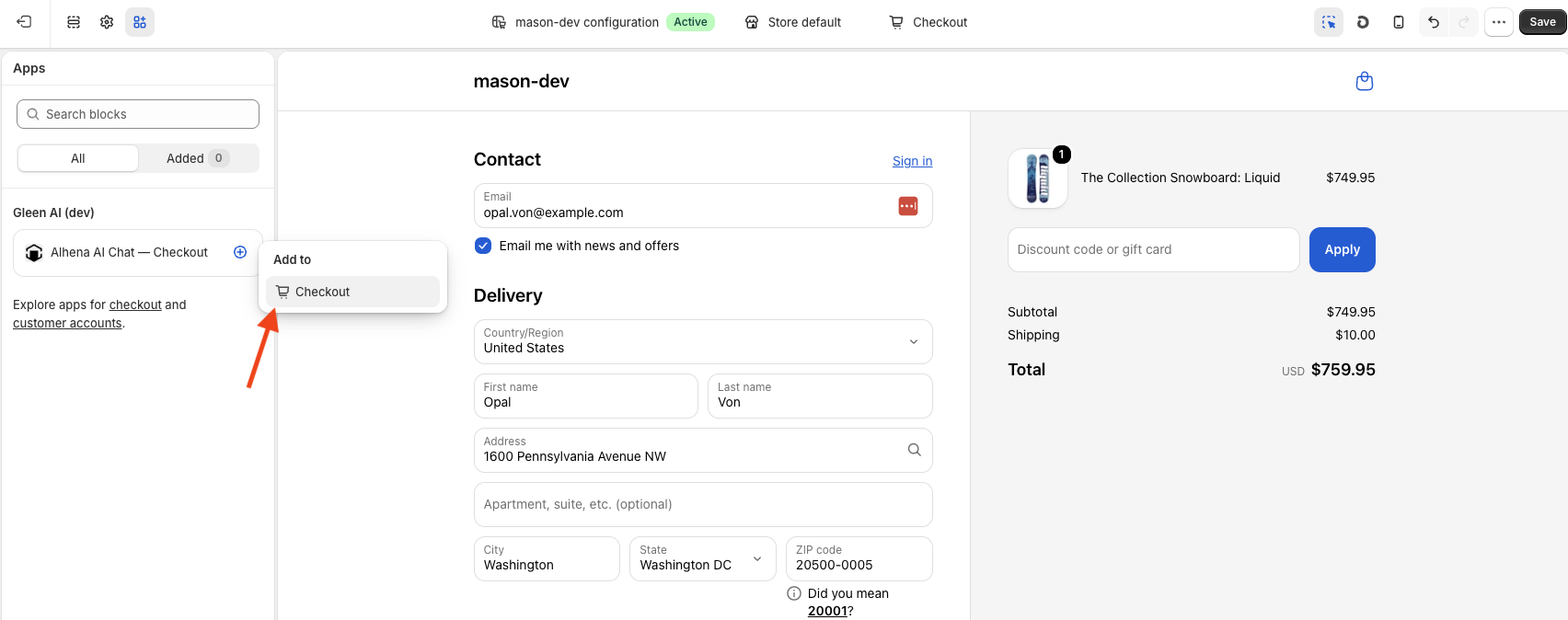
1. Make sure the page selector at the top of the editor is set to **Checkout**.
2. Click the **Apps** icon (the blocks icon) in the top-left toolbar.
3. Under **Alhena AI**, find **Alhena AI Chat — Checkout**.
4. Click the **+** next to it and choose **Checkout** from the **Add to** menu.
5. Click **Save**.
Adding the Alhena AI Chat block to checkout in the checkout editor.
The chat button appears in the checkout preview right away so you can confirm it's live before saving.
***
## Step 3: Test it on your storefront
1. Add a product to your cart on your live store and proceed to checkout.
2. Look for the chat button in the bottom-right corner of the checkout page.
3. Open it and ask a question your assistant should know — for example, "What's your return policy?"
***
## What shoppers can do
The checkout chat is the same assistant that answers on the rest of your site, so it draws on the same training content, guidelines, and connected agents. It's most often used at this stage for:
* Shipping timelines, costs, and delivery options
* Return and exchange policies
* Discount code and payment questions
* Product details a shopper wants to confirm before paying
It also picks up the checkout's language automatically, so shoppers browsing your store in another language keep that language in chat.
***
## Where it appears
The chat appears on the **checkout steps** — information, shipping, and payment.
{% hint style="info" %}
**Position and size can't be customized.** Shopify controls where checkout chat appears and how large the button is, so it always sits in the same corner and there's no setting to move or resize it. This is a Shopify limitation and applies to every app that adds chat to checkout, not just Alhena.
Your branding — colors, avatar, and greeting — still comes from your Alhena [chat widget customization](/docs/features/chat-widget/customization.md).
{% endhint %}
***
## Removing the extension
1. Go to **Settings > Checkout** and click **Edit** on your configuration.
2. Select the **Alhena AI Chat — Checkout** block in the editor.
3. Remove it, then click **Save**.
Removing the block only affects checkout. Your chat widget on the rest of your store keeps working.
***
## Troubleshooting
#### The Alhena block doesn't appear in the Apps list
* Confirm your store is on **Shopify Plus**. On other plans, checkout apps aren't available.
* Confirm the Alhena app is installed on this store, and reinstall it if you recently changed plans.
* Make sure you're editing the **Checkout** page, not **Thank you** or **Order status**.
#### The chat button doesn't show on my live checkout
* Check that you clicked **Save** in the checkout editor.
* Confirm you edited the checkout configuration marked **Active**. Stores with multiple configurations may show a different one to shoppers.
#### The chat opens but doesn't answer well
The checkout chat uses your existing training content. If answers are thin, add the relevant policy pages to your [training sources](/docs/ai-configuration/data-sources/websites.md) or add [guidelines](/docs/ai-configuration/tuning/guidelines.md) for shipping and returns questions.