> For the complete documentation index, see [llms.txt](https://alhena.gitbook.io/docs/llms.txt). Markdown versions of documentation pages are available by appending `.md` to page URLs; this page is available as [Markdown](https://alhena.gitbook.io/docs/integrations/custom-extensions/sheet-search.md).
# Sheet Search
Sheet search tools let agents search through spreadsheet data you've uploaded to your knowledge base. This is useful for structured data that doesn't fit well in documents.
**Plan required:** All plans
## Use Cases
* Product specifications and catalogs
* Pricing tables
* Store location data
* FAQ databases in tabular format
* Inventory information
* Employee directories
## How It Works
When you add a spreadsheet to your knowledge base, it can be enabled as a searchable tool. The agent can then query this data to answer user questions with up-to-date information from your spreadsheets.
## Step 1: Add Your Sheet
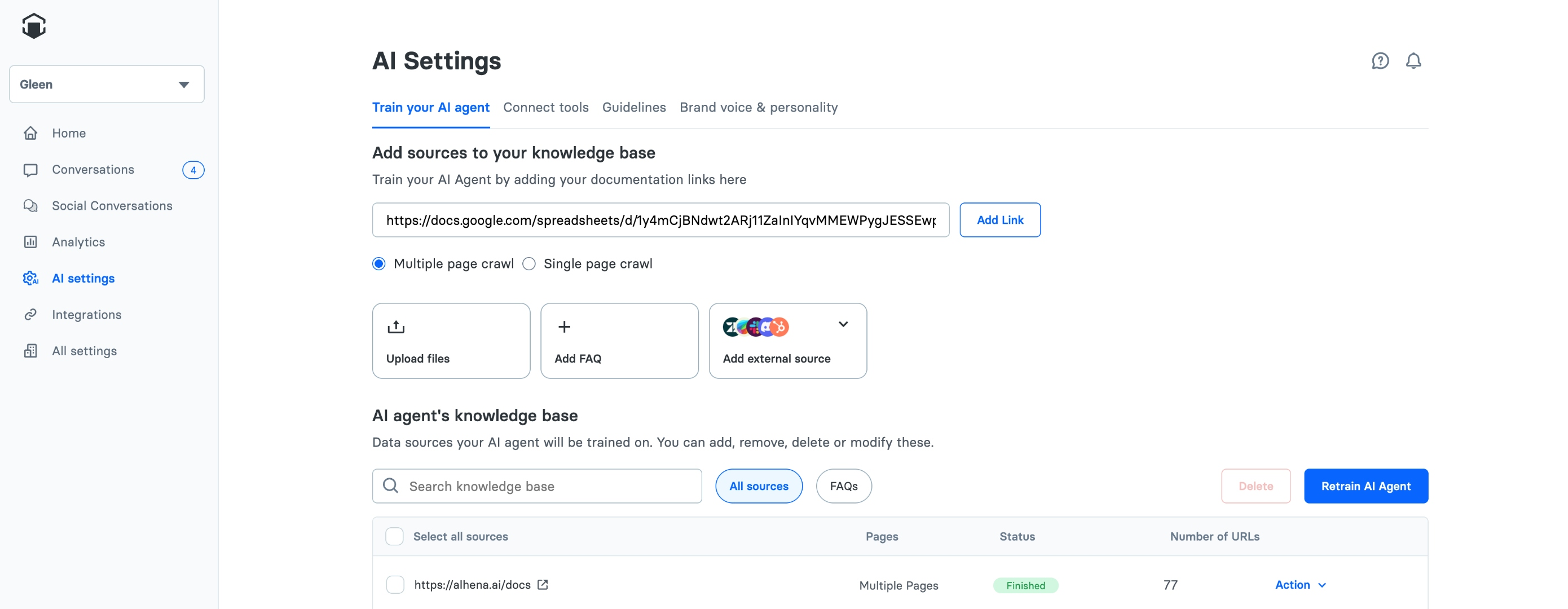
1. Navigate to **AI Settings** and go to the **Train your AI agent** tab
2. Locate the **Add sources to your knowledge base** section
3. Paste a Google Sheets link into the input field or upload a sheet file
4. Click **Add Link** to add the sheet to your knowledge base
## Step 2: Configure Your Sheet
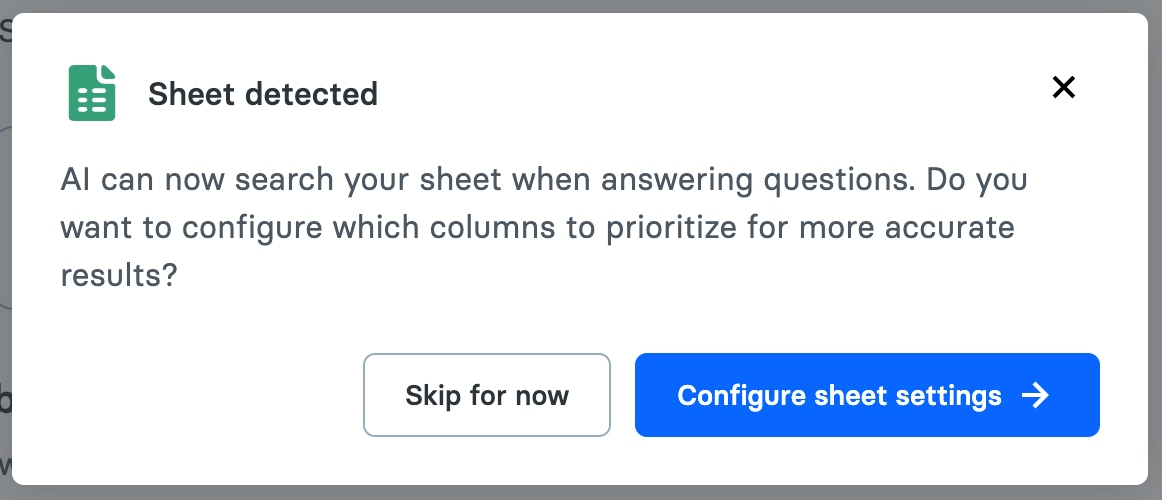
After the sheet is added, a "Sheet detected" modal will appear. You have two options:
* **Configure sheet settings** - Fine-tune which columns are indexed and prioritized for search results. Recommended for optimal AI performance.
* **Skip for now** - Start using the sheet with default settings. You can configure it later from the Actions menu.
## Step 3: Sheet Settings
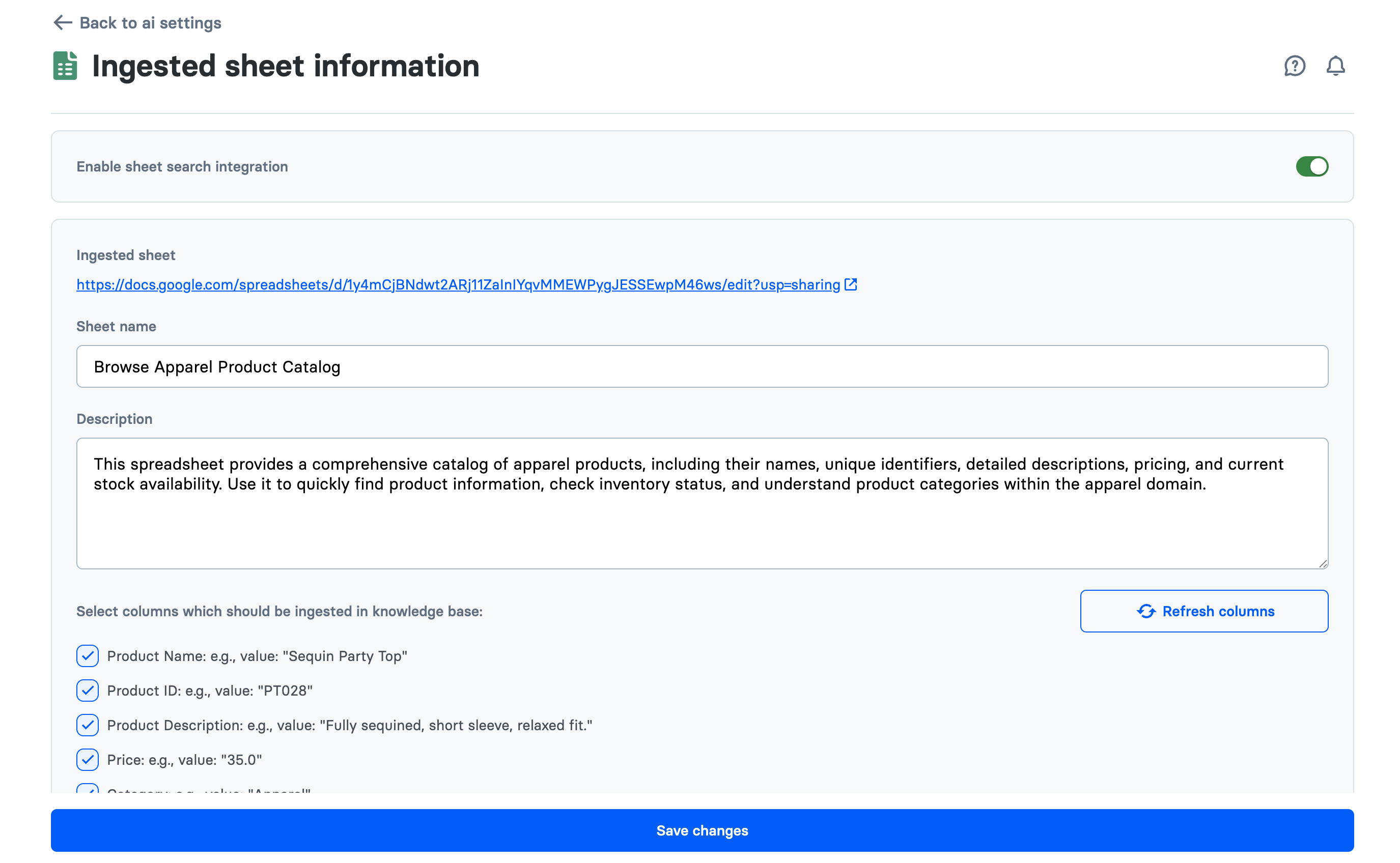
After clicking **Configure sheet settings**, you'll see the configuration page.
### Enable Sheet Search Integration
Toggle **Enable sheet search integration** to activate this feature. When enabled, the agent will query this sheet when answering user questions.
### Edit Sheet Details
| Field | Description |
| --------------- | ---------------------------------------------------------------------- |
| **Sheet name** | Display name for your sheet |
| **Description** | What data this sheet contains (helps the agent know when to search it) |
{% hint style="info" %}
Write specific descriptions. Instead of "Product data", write "Product catalog with 500+ items including SKUs, prices, dimensions, and availability status."
{% endhint %}
### Configure Column Indexing
Select which columns should be ingested and prioritized in the knowledge base.
Columns marked with **priority** will be weighted more heavily when the AI searches for relevant information.
### Save Your Configuration
Click **Save changes** to apply the configuration. Your sheet is now ready to be searched by the agent.
## Adjusting Settings Later
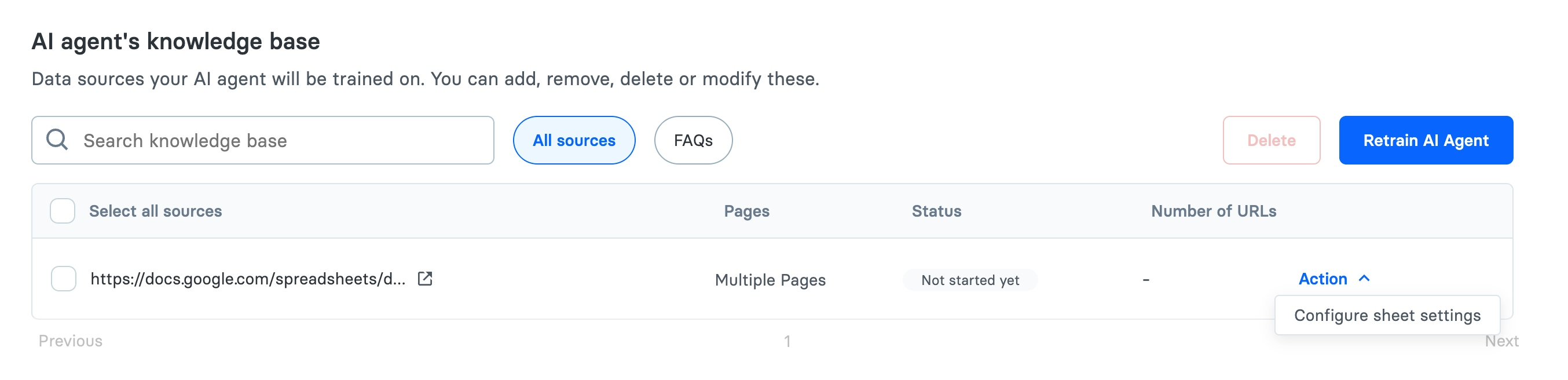
To access configuration after initial setup:
1. Find the sheet entry in your knowledge base sources list
2. Click the **Actions** dropdown menu
3. Select **Configure sheet settings**
## Assigning to Agents
Once configured, enable the sheet search tool for specific agents:
1. Navigate to **AI Settings > Agents**
2. Select the agent you want to configure
3. In the Tools section, enable the sheet search tool
4. Save your changes
## Best Practices
### Keep data clean
Ensure your spreadsheet has clear headers and consistent formatting. See [spreadsheet formatting best practices](https://github.com/Gleen-AI/gitbook-docs/blob/main/integrations/data-sources/csv-excel-and-google-sheets-ingestion.md#best-practices-checklist-quick).
### Use meaningful descriptions
Be specific about what data the sheet contains and when the agent should search it.
### Prioritize key columns
Mark columns most relevant to user queries as priority. This helps the agent find the right information faster.
### Keep data current
Regularly update your sheet data so the AI always has access to the latest information.
### Test with sample queries
After configuring a sheet, test the AI with sample queries to ensure it retrieves the expected data.
## Supported Formats
* Google Sheets (via link)
* CSV files
* Excel files (.xlsx, .xls)
For detailed information on preparing spreadsheet files, see [CSV, Excel & Sheets](https://github.com/Gleen-AI/gitbook-docs/blob/main/integrations/data-sources/csv-excel-and-google-sheets-ingestion.md).
## Troubleshooting
| Issue | Solution |
| ------------------------------ | ---------------------------------------------------- |
| Agent doesn't search the sheet | Verify the sheet is enabled as a tool for that agent |
| Wrong data returned | Check column priorities and sheet description |
| Data is outdated | Re-sync the sheet from the knowledge base |
| Search is slow | Reduce the number of indexed columns to essentials |
## Related
* [API Tools](/docs/integrations/custom-extensions/api-tools.md) - For HTTP API integrations
* [MCP Servers](/docs/integrations/custom-extensions/mcp-servers.md) - For complex integrations
* [CSV, Excel & Sheets](/docs/ai-configuration/data-sources/csv-excel-and-google-sheets-ingestion.md) - Data source setup