> For the complete documentation index, see [llms.txt](https://alhena.gitbook.io/docs/llms.txt). Markdown versions of documentation pages are available by appending `.md` to page URLs; this page is available as [Markdown](https://alhena.gitbook.io/docs/integrations/communication/integrating-alhena-ai-with-email.md).
# Email
Alhena AI can connect to your support email account on Gmail, Outlook, or other email providers, where you can then respond to tickets that need human attention through Alhena Helpdesk.
If you have a support email account and aren't already using a ticketing solution such as Zendesk or Freshdesk, then Alhena can directly connect to your email account.
## Configuring Email Support
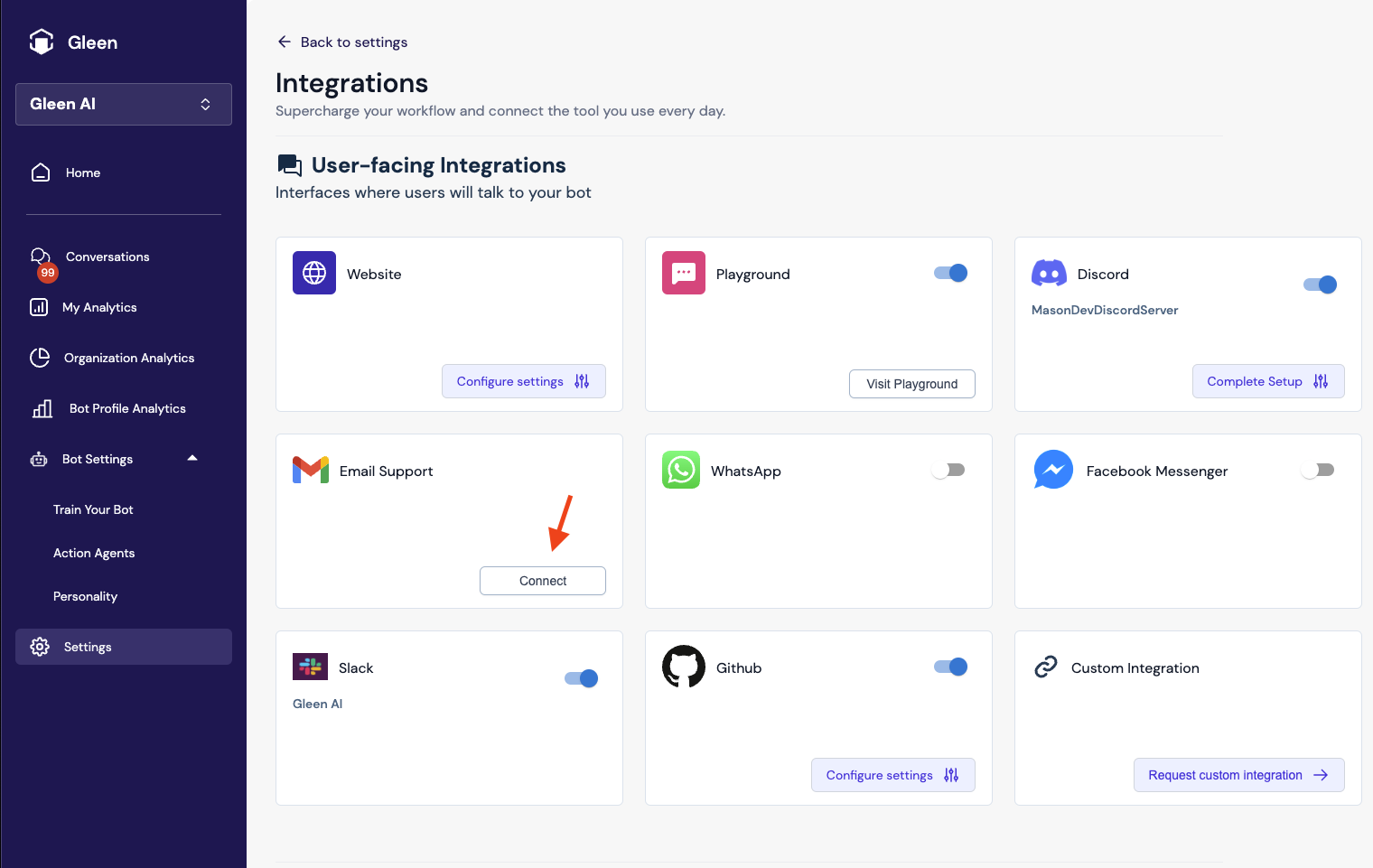
First, from the Alhena Dashboard, navigate to the Settings page and click on Integrations. Now, click on "Connect" under Email Support.
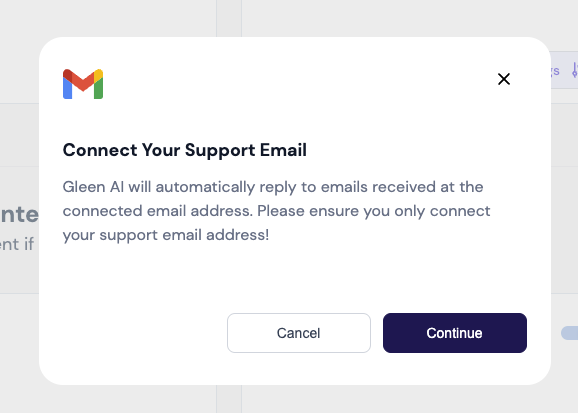
Confirm that the email account you intend to connect is a dedicated support email address. You shouldn't connect your personal account, as Alhena will automatically start replying to incoming messages once connected.
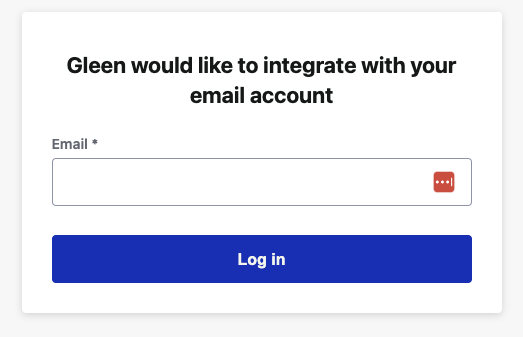
Enter your support email address and click Log In.
Now you'll be directed to your email provider to finish the authentication process.
Once completed, the integration is complete and your bot will handle any incoming customer questions sent to this email inbox.
Alhena will not respond to any emails that were created before the integration was set up, only new emails received after the setup was completed.
## Human Transfer
Alhena will attempt to answer any questions based on your knowledge base, but will stop responding and let a human agent take over when needed. There are a few cases where Alhena will stop responding.
* The user asks for a human agent, i.e. they type "I want to talk to a person" or something similar.
* The bot wasn't able to find an answer in its knowledge base.
* A custom rule you've added in the [answering guidelines](https://github.com/Gleen-AI/gitbook-docs/blob/main/integrations/tuning-alhena-ai-post-training/best-practices-for-configuring-the-alhena-ais-personality-and-guidelines.md) for your bot was triggered.
* You sent a response to the customer directly from your email account.
For any tickets that need a human response, all admins and bot profile members will receive an email notification. You will see these tickets listed in the "Unassigned" tab on the Conversations page.
Alhena will ignore any email messages we suspect as being from some automated system, rather than an actual customer inquiry.