> For the complete documentation index, see [llms.txt](https://alhena.gitbook.io/docs/llms.txt). Markdown versions of documentation pages are available by appending `.md` to page URLs; this page is available as [Markdown](https://alhena.gitbook.io/docs/features/voice-ai/freshcaller-setup.md).
# Freshcaller Setup
Connect Freshcaller to Alhena Voice AI to route incoming calls to your AI agent.
{% hint style="info" %}
Freshcaller integration requires assistance from the Alhena team. [Contact support](/docs/troubleshooting/troubleshooting.md#contact-support) to get started — we will provide you with the custom Freshcaller app and your Alhena API key.
{% endhint %}
### How It Works
When a customer calls your Freshcaller number, Freshcaller routes the call to Alhena, where your Voice AI agent handles the conversation. If the caller needs to speak with a person, Alhena transfers the call back to Freshcaller with the AI conversation transcript so your team has full context.
***
### Prerequisites
* Active Freshcaller account
* Your Freshcaller API key
* Contact the Alhena team to receive:
* The custom Freshcaller app package
* Your Alhena API key
***
### Step 1: Install the Custom Freshcaller App
#### Upload the app
1. In Freshcaller, go to **Admin → Apps**.
2. Scroll to the bottom and click **Build it yourself**.
3. Click **New App → Custom App**.
4. Upload the `.zip` file provided by Alhena. Enter **Alhena Freshcaller** as the app name and description.
5. Click **Save and Publish**.
#### Install the app
1. Go to **Admin → Apps → Manage Apps**.
2. Under **Custom Apps**, click **Install** next to **Alhena Freshcaller**.
3. During installation, enter:
* **Freshcaller API Key** — your Freshcaller account API key
* **Alhena API Key** — provided by the Alhena team
* **Alhena Domain** — `app.alhena.ai` or `eu.alhena.ai`, depending on your account region
***
### Step 2: Configure Your Phone Number's Call Action
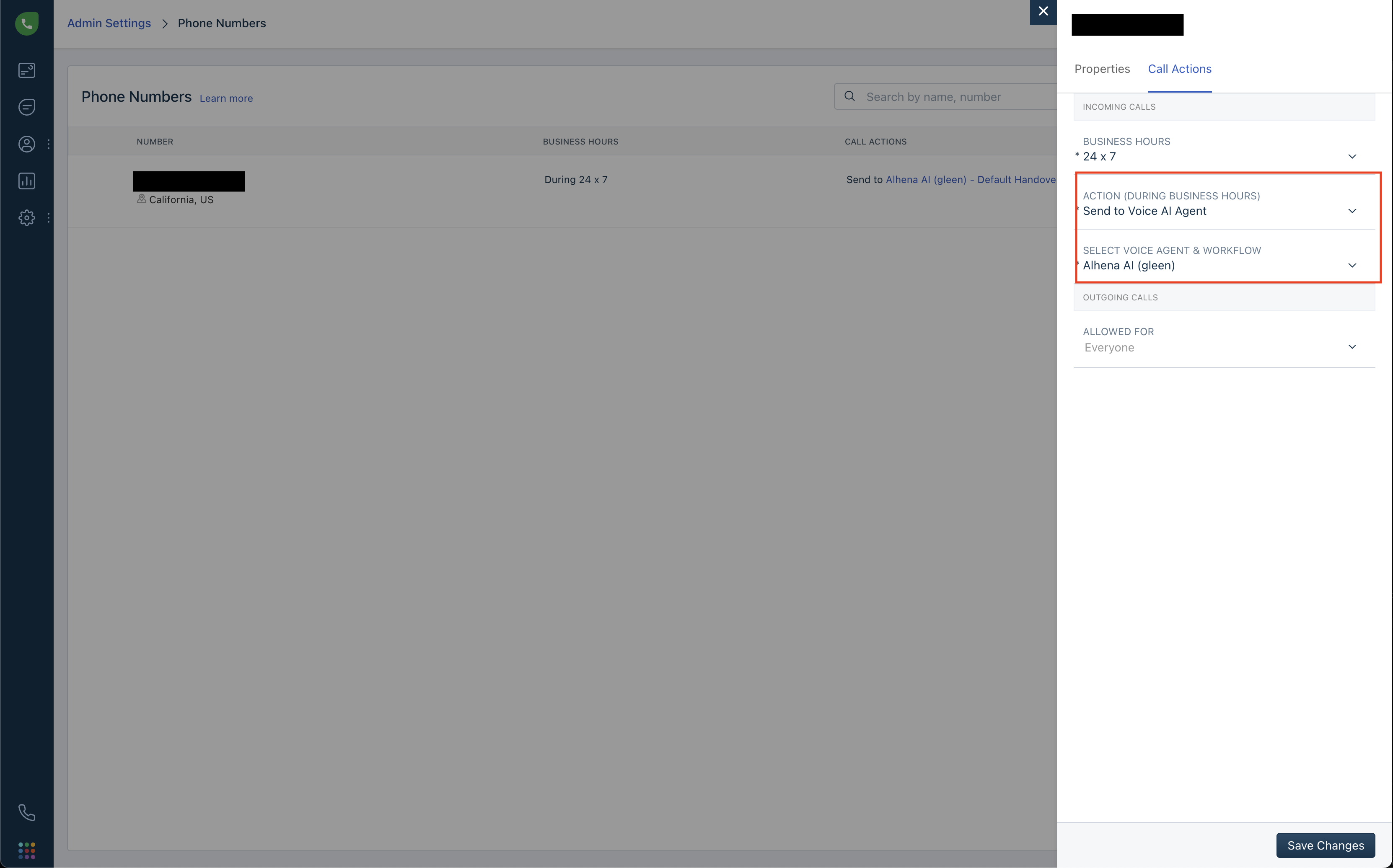
Once the app is installed, a **Call Action** is automatically created in Freshcaller for routing calls to Alhena. You need to assign it to your phone number:
1. In Freshcaller, go to **Admin → Phone Numbers** and select the number you want Alhena to answer.
2. Under the number's settings, set the **Call Action** to the Alhena call action.
Assign the Alhena call action to your phone number
***
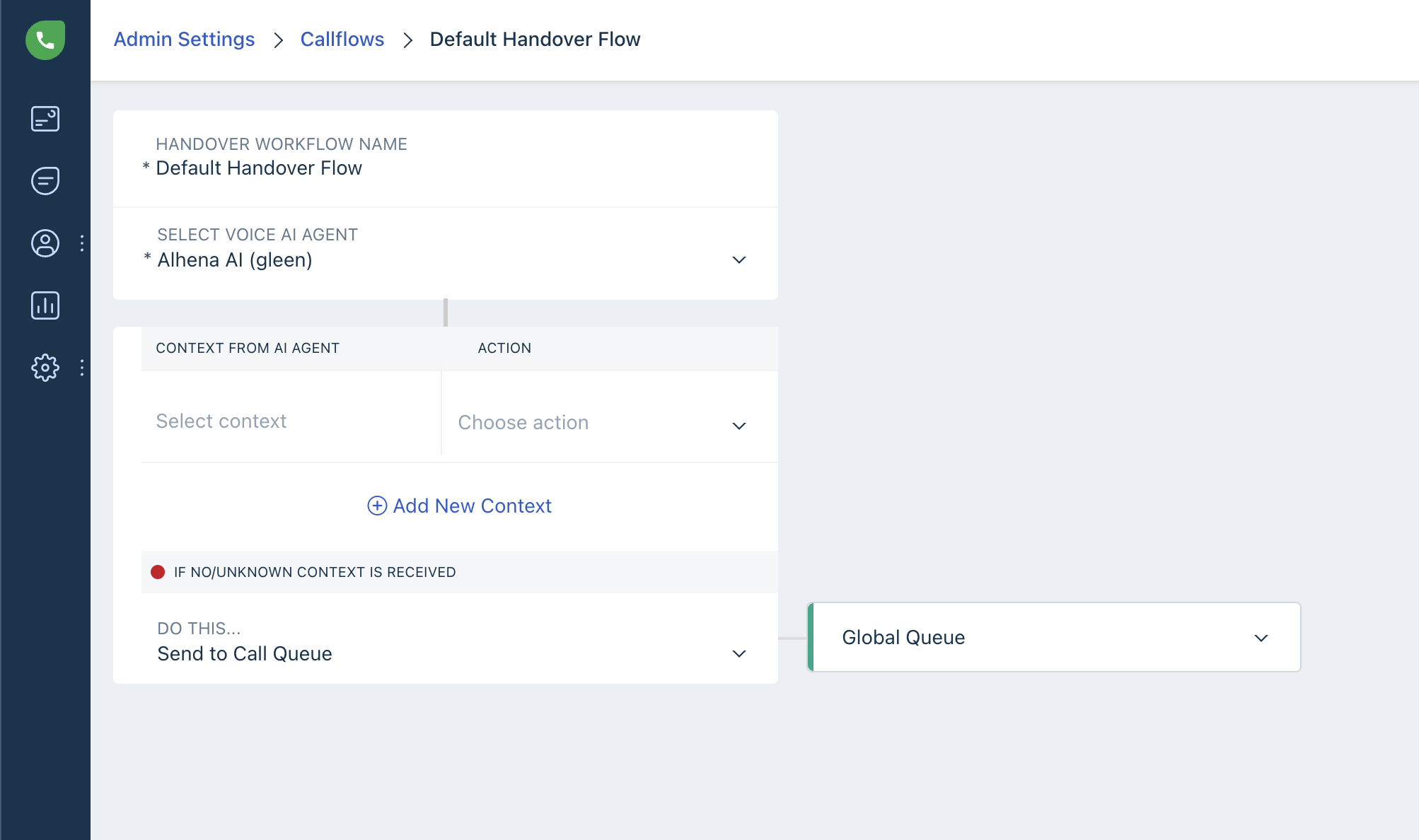
### Step 3: Set a Transfer Queue
When Alhena transfers a call to a human agent, it needs to know which Freshcaller queue to route the caller to.
1. In the Alhena call action settings, configure the **Transfer Queue** — the Freshcaller queue that should receive calls when a human handoff is triggered.
Configure the transfer queue for human handoff
***
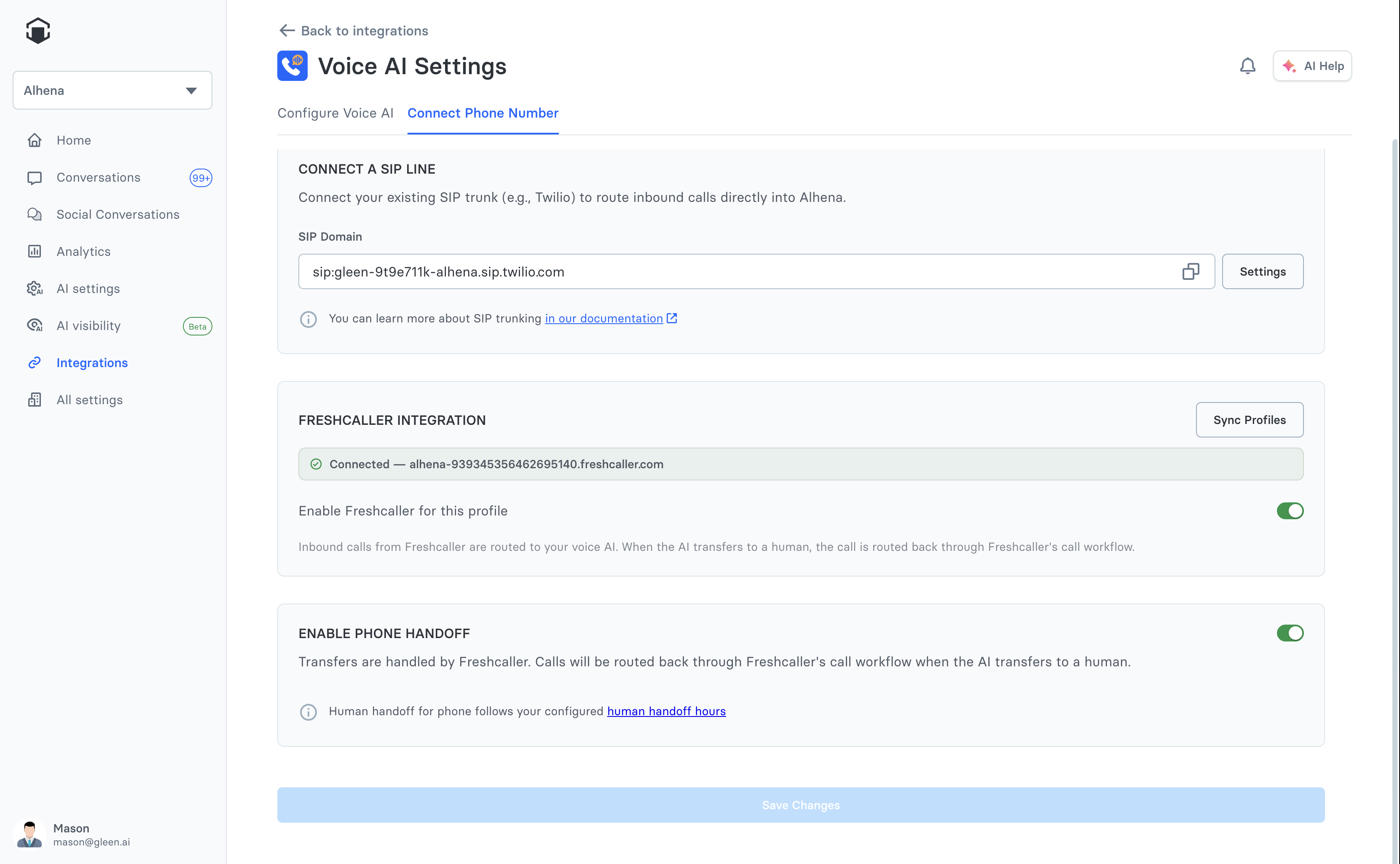
### Step 4: Enable Freshcaller in Alhena Voice AI Settings
1. Go to **Integrations → Voice AI Settings**.
2. The **Freshcaller** toggle will appear after the Freshcaller app is installed in your account.
3. Toggle **Freshcaller** on.