# Product FAQs

{% hint style="info" %}
See product FAQs in action on our [demo site](https://alhenademo.com/).
{% endhint %}

### Overview

**Product FAQs** is a feature that generates FAQs automatically for each product on your e-commerce store, anticipating customer questions and providing instant answers to improve their shopping experience. Smart FAQs lead to better customer support and happier shoppers by proactively addressing common queries about your products.

This documentation will guide you through the steps to configure Product FAQs in the Alhena AI dashboard, customize their appearance, and embed them on your website.

{% hint style="info" %}
Please note that this feature is only available for shopify/woocommerce customers. For other e-commerce stores, [contact support](/docs/troubleshooting/troubleshooting.md#contact-support) and they can help you enable this feature.
{% endhint %}

### Navigating to Product FAQs Settings

1. Log in to your Alhena AI dashboard.
2. In the sidebar, click on **Settings > Integrations**.
3. From the **Integrations** section, select **"AI Powered FAQs"** to begin configuring your Product FAQs.
4. Enable the AI Powered FAQs and click on **Configure settings** to start customizing.

<figure><img src="/files/4JDZbv4CLtIiN2GyEgmw" alt="" width="563"><figcaption></figcaption></figure>

### Customizing Product FAQs Appearance

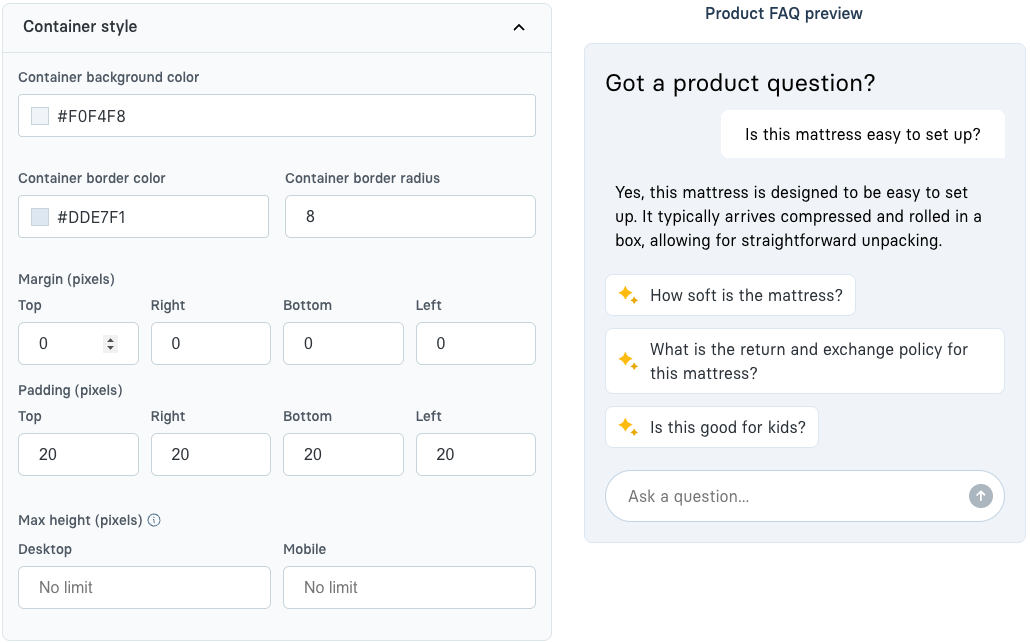
**1. Container Style**

<figure><img src="/files/VoPFU0kJkgqRlQIt60e2" alt="" width="563"><figcaption><p><em>Screenshot of container style customization options, including header text and colors.</em></p></figcaption></figure>

* **Header Text**: Enter a heading, like "Got a product question?", to display above the FAQ widget.
* **Text and Background Colors**: Set the color for header text, container background, and container borders to match your website branding.
* **Border Radius**: Adjust the border radius to make the FAQ container match your website's design.

**2. FAQ Style**

<figure><img src="/files/L35glwdf3tkbu5xTPCEd" alt="" width="563"><figcaption><p><em>Screenshot of FAQ style customization options</em></p></figcaption></figure>

* **FAQ Icon**: Upload a custom icon for your FAQs to make the widget more visually engaging.
* **FAQ Background & Text Colors**: Choose colors for the FAQ text and background that align with your brand.
* **Number of FAQs to Show**: Set the number of FAQs visible by default in the widget.

**3. Chat Input Style**

<figure><img src="/files/LWDyhYgeOLx0SA0qLGKf" alt="" width="563"><figcaption><p><em>Screenshot of chat input style customization options.</em></p></figcaption></figure>

* **Placeholder Text**: Customize the placeholder text in the input box to encourage shoppers to ask questions.
* **Colors for Background, Text, and Send Button**: Adjust these colors to ensure consistency with your store's theme.

### Previewing Your FAQ Widget

* The **Preview** section on the right-hand side allows you to see how your widget will appear to customers as you make changes. Adjust settings until you're satisfied with the look and feel.
* Click "Save Changes" to save your customizations.

### Testing FAQs with Playground

<figure><img src="/files/NS6tFeKQsZaqYPMNt9KF" alt="" width="563"><figcaption><p><em>Screenshot of the Playground tab for testing product FAQs.</em></p></figcaption></figure>

1. Navigate to the **Playground** tab in the Product FAQs settings.
2. Select a product page URL from the dropdown to preview the auto-generated FAQs.
3. Click the FAQs to receive answers.

### Embedding Product FAQs on Your Website

<figure><img src="/files/XnDIuptUnK8rJFRzWvHf" alt="" width="563"><figcaption></figcaption></figure>

#### 🛠️ Integration Steps

{% hint style="info" %}
For Shopify users, we provide an app block that is available if you've installed the Alhena Shopify app to your store for easier installation. If you are using Shopify, you can skip these steps and see the [Shopify instructions](/docs/features/product-faqs/shopify-setup.md).
{% endhint %}

**1. Prerequisites**

* Ensure the **Alhena SDK** is already embedded and initialized on your site.
* No additional script needs to be imported—the existing widget handles FAQ rendering.

**2. Install the FAQ Widget**

1. Click on the **Installation** tab in the Product FAQs settings.
2. If you haven't yet installed the Alhena SDK, expand the **Alhena SDK Installation** section and follow the instructions. You can skip this if you've already added the chat widget. For full SDK installation details, see the [Installation](/docs/features/chat-widget/installation.md) page.

**3. Add the FAQ Widget to Your Pages**

There are two ways to add the FAQ widget to your product pages: **Auto-Insert** or **Manual Installation**.

#### Option A: Auto-Insert Product FAQs

Auto-Insert automatically places the FAQ widget on matching pages without requiring you to edit your website's HTML. This is the easiest way to get started.

1. Toggle on **Auto-Insert Product FAQs** at the top of the section.
2. **Add URL/Title Rules** — Click **Add rule** to define which pages should display the FAQ widget. Each rule has the following options:

   * **Field**: Choose **Page URL** or **Page Title** to match against.
   * **Operator**: Select **Contains**, **Equals**, **Starts with**, or **Ends with**.
   * **Value**: Enter one or more values (one per line). If any value matches, the rule triggers.
   * **Ignore URL parameters** (URL rules only): Check this to ignore query strings (everything after `?`) when matching.

   If any rule matches the current page, the widget will be inserted.
3. **CSS Selector** — Enter a CSS selector for the element where the widget should be placed (e.g., `#product-description`, `.product-details`).
4. **Position** — Choose where the widget appears relative to the selected element:
   * **Insert before**: Places the widget immediately before the element.
   * **Insert after**: Places the widget immediately after the element.
   * **Append child**: Places the widget inside the element, at the end.
5. Click **Save Settings**.

You can edit or delete rules at any time from the rules table.

#### Option B: Manual Installation

If you prefer to control exactly where the widget appears, insert the following `<div>` element directly into your product page HTML:

```html
<div id="gleen-product-faqs"></div>
```

Place this code in the section of your website where you want the FAQ widget to appear.

***

#### ⚙️ Behavior Notes

* **Independent of the Chatbot**:
  * The FAQ module does not initiate human transfers. It’s purely for on-page product question deflection.
* **Smart Knowledge Base**:
  * It uses the same knowledge base as the chatbot, so even non-product-specific questions may be answered.

***

#### 🧪 A/B Testing or Delayed Initialization

To load the FAQ module dynamically after page load or conditionally in an experiment, use this script:

```javascript
document.addEventListener("DOMContentLoaded", function () {
  const faqDiv = document.createElement("div");
  faqDiv.id = "gleen-product-faqs";
  document.querySelector("#target-section").appendChild(faqDiv);
  window.gleenWidget.initializeFAQWidget();
});
```

* Replace `#target-section` with the actual selector where the FAQ block should appear (e.g., `#product-details`).

> **Note:** Make sure to call `window.gleenWidget.initializeFAQWidget()` after adding the `div`. This function is **already included in the Alhena Widget script** and is required to render the FAQ content into the div.

***

### Conclusion

The **Product FAQs** feature helps streamline customer support by providing relevant answers to shoppers' questions directly on your product pages. By reducing the need for manual customer queries, it increases customer satisfaction and speeds up the decision-making process.

Make sure to customize the look of the widget to match your brand and embed it properly to offer a seamless experience for your customers.

For further assistance, use the **Get Help** button in your Alhena AI dashboard.


---

# Agent Instructions: Querying This Documentation

If you need additional information that is not directly available in this page, you can query the documentation dynamically by asking a question.

Perform an HTTP GET request on the current page URL with the `ask` query parameter:

```
GET https://alhena.gitbook.io/docs/features/product-faqs.md?ask=<question>
```

The question should be specific, self-contained, and written in natural language.
The response will contain a direct answer to the question and relevant excerpts and sources from the documentation.

Use this mechanism when the answer is not explicitly present in the current page, you need clarification or additional context, or you want to retrieve related documentation sections.