> For the complete documentation index, see [llms.txt](https://alhena.gitbook.io/docs/llms.txt). Markdown versions of documentation pages are available by appending `.md` to page URLs; this page is available as [Markdown](https://alhena.gitbook.io/docs/features/embeddable-agents.md).

# Embeddable Agents

{% hint style="info" %}
See embeddable agents in action on our [demo site](https://alhenademo.com/).
{% endhint %}

### Overview

**Embeddable Agents** are AI-powered helpers you place directly on your store — usually on a product page — as a compact button. When a shopper taps the button, a small panel opens and an AI agent helps them right there, without leaving the page: it can show the product on them, build a complete outfit, visualise the item in their room, design a coordinated room set, or run a short quiz to recommend the right product.

They run on the same AI that powers your chat widget, so they already understand your catalogue and your brand. You don't wire up any product data — each agent automatically recognises which product the shopper is looking at from the page itself.

{% hint style="info" %}
Embeddable agents need the **Alhena chat widget (SDK)** installed on your site. If you've already added the chat widget, you're ready to go — see [Installation](/docs/features/embeddable-agents/installation.md).
{% endhint %}

***

### Embeddable Agents

| Agent                   | What it does                                         | Shopper uploads a photo?    |
| ----------------------- | ---------------------------------------------------- | --------------------------- |
| **Virtual Try-On**      | Shows the product on the shopper                     | Yes — a full-body photo     |
| **See It In Your Room** | Shows the product in the shopper's space             | Yes — a photo of their room |
| **Outfit Builder**      | Builds a complete outfit around the product          | No                          |
| **Room Designer**       | Designs a coordinated room set around the product    | No                          |
| **Product Quiz**        | Asks a few quick questions, then recommends products | No                          |

<figure><img src="/files/eusO4hfujDH5tUKWtuWl" alt="" width="563"><figcaption><p><em>The embeddable agents available under Settings → Integrations.</em></p></figcaption></figure>

***

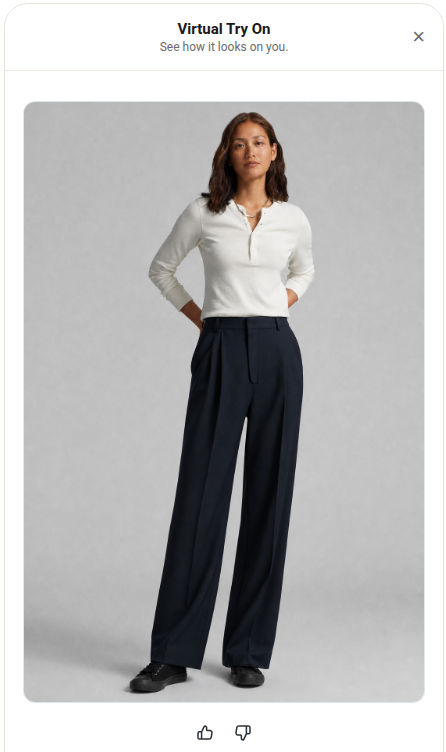
#### Virtual Try-On

The shopper uploads a full-body photo and the agent generates a realistic image of them wearing the product. Best for fashion, apparel, eyewear, and accessories. Generating the image takes about a minute.

<figure><img src="/files/ViojkskaEv5P3UYyf9oG" alt="" width="375"><figcaption><p><em>A shopper's virtual try-on result, shown inside the panel.</em></p></figcaption></figure>

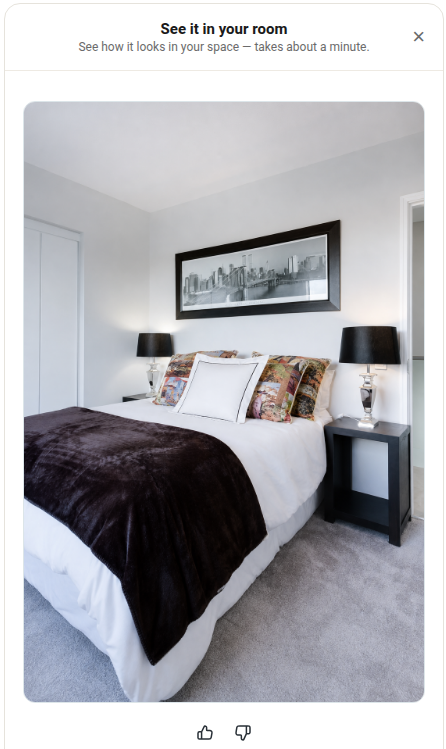
#### See It In Your Room

The shopper uploads a photo of their room and the agent shows how the product looks in that space. Best for furniture, décor, lighting, art, and other home products. Like Virtual Try-On, the visualisation takes about a minute.

<figure><img src="/files/B9e88nXVpaqwRMCnMcSi" alt="" width="375"><figcaption><p><em>A bedding product visualised in the shopper's own room.</em></p></figcaption></figure>

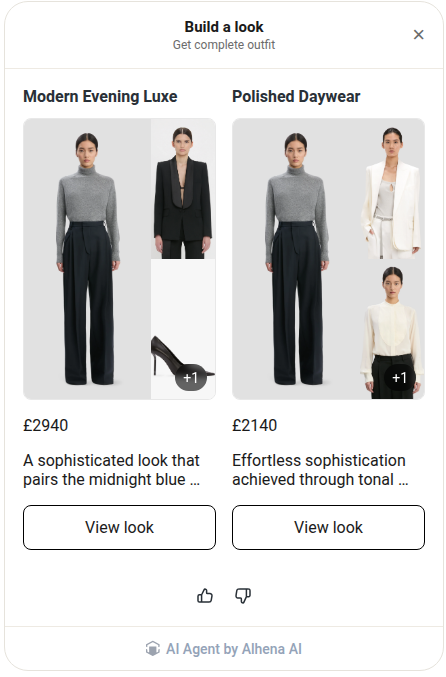
#### Outfit Builder

No photo needed. The agent builds a complete, coordinated outfit around the product the shopper is viewing — pulling complementary pieces from your catalogue. Great for increasing basket size on fashion stores.

<figure><img src="/files/9vSvc8DZPqwnAGndsUs9" alt="" width="375"><figcaption><p><em>An outfit built around the current product.</em></p></figcaption></figure>

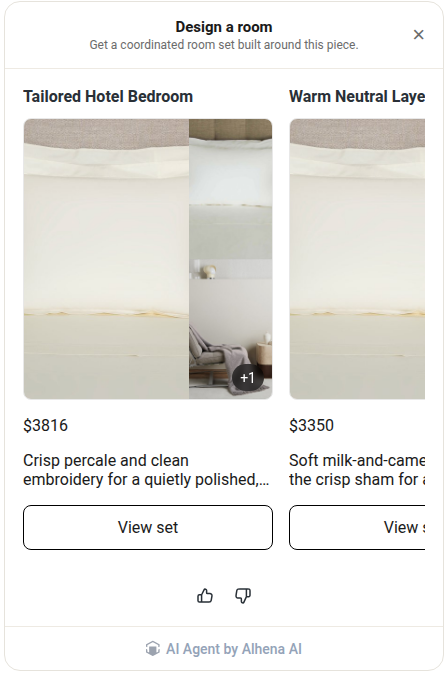
#### Room Designer

No photo needed. The agent designs a coordinated room set built around the current product — the home-goods counterpart to Outfit Builder.

<figure><img src="/files/2e2i9TEv6e5sEtIWzdDC" alt="" width="375"><figcaption><p><em>Coordinated room sets built around a single product, each priced and shoppable.</em></p></figcaption></figure>

#### Product Quiz

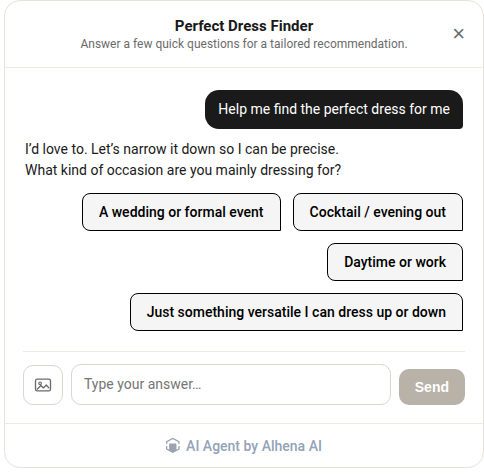
An interactive mini-chat. The agent asks a few quick questions and then recommends the products that best fit the shopper's answers. Unlike the other four agents, the Product Quiz is a back-and-forth conversation rather than a single result — ideal for helping shoppers choose between options or find the right fit.

<figure><img src="/files/oQkQKDAxOHnnUpbWmM2C" alt="" width="375"><figcaption><p><em>The Product Quiz mini-chat guiding a shopper to a recommendation.</em></p></figcaption></figure>

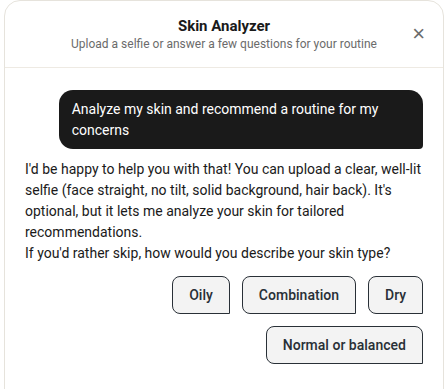
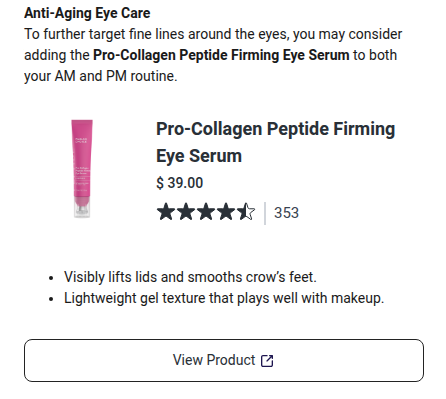
The same agent adapts to your catalogue and the question you set. On a fashion store it's a style finder; on a beauty store it becomes a **skincare routine builder** or a **skin analyzer** — all from one embeddable, configured differently.

<figure><img src="/files/uEupXB8skODAxlSO5Lxp" alt="" width="375"><figcaption><p><em>A skin analyzer that offers an optional selfie analysis, then asks a few quick questions.</em></p></figcaption></figure>

<figure><img src="/files/yp5itbwB94iDkfXAYknL" alt="" width="375"><figcaption><p><em>…and returns a personalised routine with specific products, ratings, and prices.</em></p></figcaption></figure>

***

### Where the answer appears

Each placement can handle the shopper's request in one of two ways. You choose this per placement on the **Style** tab.

* **Answer in the panel** — the agent does everything inside the small panel, right on the page. The shopper sees the try-on, the outfit, or the recommendation without the full chat opening. Best for a quick, focused experience.
* **Open in chat** — the panel collects what it needs (a photo, the product) and then hands off to the full chat widget, where the conversation continues. Best when you want shoppers to be able to ask follow-up questions.

The Product Quiz is always conversational; the other four agents support both modes.

***

### Where these conversations appear

Chats that start from an embeddable agent are grouped under a dedicated **Embed** source. They have their own icon in the [Conversations](/docs/dashboard/conversations.md) inbox, and you can isolate them by selecting **Embed** in the **Integration source** filter on the [Analytics](/docs/dashboard/analytics.md) tabs.

***

### Getting started

1. **Configure a placement** — choose where each agent appears, how it looks, and how it answers. See [Configuring placements](/docs/features/embeddable-agents/configuration.md).
2. **Add it to your website** — paste a small snippet (or use auto-insert). See [Installation](/docs/features/embeddable-agents/installation.md).

For further assistance, use the **AI Help** button in your Alhena AI dashboard.