> For the complete documentation index, see [llms.txt](https://alhena.gitbook.io/docs/llms.txt). Markdown versions of documentation pages are available by appending `.md` to page URLs; this page is available as [Markdown](https://alhena.gitbook.io/docs/features/chat-widget/voice-dictation.md).

# Voice Dictation

Let shoppers speak their question instead of typing it. Alhena turns what they say into text in the message box, ready to review and send.

Voice dictation adds a microphone button to Alhena's message boxes. A shopper taps it, says their question, and their words appear as text, ready to check and send. It's quicker than typing on a phone and helps shoppers who'd rather talk than type.

Dictation is **on by default** for every store. You can turn it off at any time.

## Where shoppers see it

The microphone button appears in every place a shopper can type a message to Alhena:

* the [chat widget](/docs/features/chat-widget.md)
* [Product FAQs](/docs/features/product-faqs.md)
* [embeddable agents](/docs/features/embeddable-agents.md) that have a chat box
* AI search

It shows only in browsers that support recording audio, which covers all current desktop and mobile browsers.

## How it works for shoppers

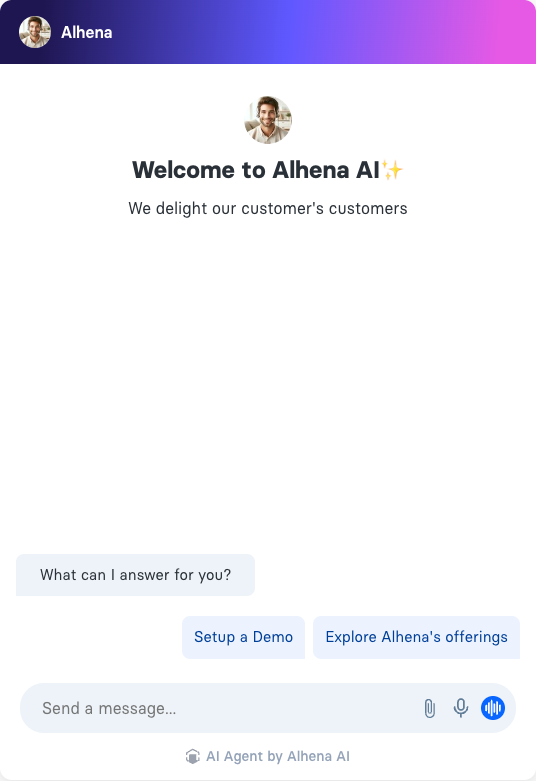
<figure><img src="https://2864633804-files.gitbook.io/~/files/v0/b/gitbook-x-prod.appspot.com/o/spaces%2FKZ3bWFAIdLAqpW2uafZ4%2Fuploads%2Fgit-blob-7ae392d44f4f0f1bfec996e29c198b38636eb8dd%2Fvoice-dictation-mic-button.png?alt=media" alt="Chat widget with the microphone button in the message box, next to the attach-file button" width="375"><figcaption><p><em>The microphone button sits in the message box, next to the attach-file button.</em></p></figcaption></figure>

If you use [Voice AI](/docs/features/voice-ai.md) on your website, the message box also shows a separate **voice chat** button (the waveform icon). That one starts a live voice conversation with your AI agent. The microphone only turns speech into text.

1. The shopper taps the **microphone** button in the message box.
2. The first time, their browser asks for permission to use the microphone. They need to allow it.
3. A recording bar replaces the message box. It shows a live waveform that moves with their voice.
4. When they've finished speaking, they have three choices:
   * Tap **stop** (the square button) to turn the recording into text in the message box. They can edit the text before sending it.
   * Tap the **send** button to turn the recording into text and send it straight away, in one tap.
   * Tap **×** to cancel the recording. Nothing is sent.
5. While Alhena works out what was said, the bar shows **Transcribing…** and the message box is locked so the text isn't overwritten. This usually takes a second or two.

<figure><img src="https://2864633804-files.gitbook.io/~/files/v0/b/gitbook-x-prod.appspot.com/o/spaces%2FKZ3bWFAIdLAqpW2uafZ4%2Fuploads%2Fgit-blob-084d5a605b33b3e6c658b0feef7063306d3d850e%2Fvoice-dictation-recording-bar.png?alt=media" alt="The recording bar with a live waveform, a cancel button, a stop button and a send button" width="375"><figcaption><p><em>While recording: cancel (×) on the left, then stop and send on the right.</em></p></figcaption></figure>

If the shopper had already typed something, the spoken text is added after it.

Alhena detects the spoken language automatically, so shoppers can speak in their own language.

### Limits

* Each recording can be up to **60 seconds** long. A countdown appears for the last 10 seconds, and the recording stops on its own at the limit.
* Usage limits apply to prevent abuse. A shopper who hits a limit sees a message asking them to type instead or try again later.

### Messages shoppers may see

| Message                                                                               | What it means                                                                                          |
| ------------------------------------------------------------------------------------- | ------------------------------------------------------------------------------------------------------ |
| *Microphone access is blocked. Allow it in your browser settings to use voice input.* | The shopper declined the browser's microphone permission. They can allow it in their browser settings. |
| *We didn't catch that. Please try again.*                                             | No speech was detected in the recording.                                                               |
| *Too many voice messages right now. Please type your message or try again later.*     | A usage limit was reached.                                                                             |
| *Couldn't turn your voice into text. Please try again or type your message.*          | Something went wrong while transcribing.                                                               |

These messages are translated along with the rest of the widget.

## Privacy

Recordings are used only to turn speech into text. Alhena doesn't save the audio. Only the text the shopper sends becomes part of the conversation, the same as a typed message.

## Turning dictation on or off

The setting is per AI profile and applies to every message box listed above.

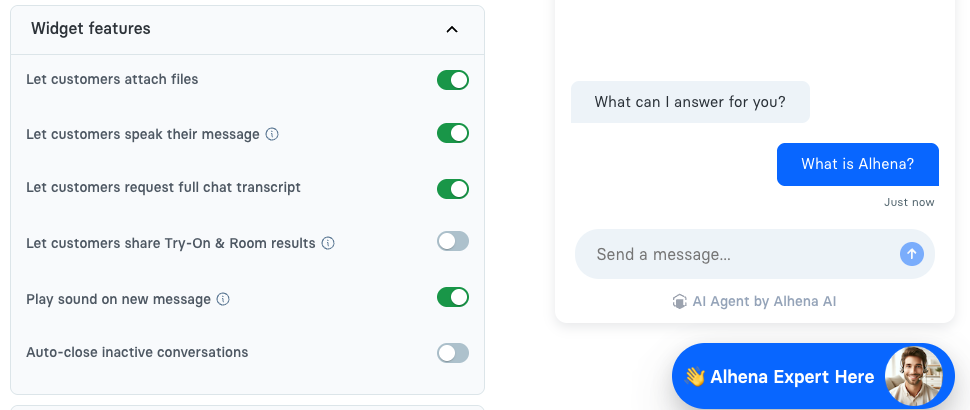
1. In the Alhena dashboard, go to **Integrations** and click **Configure** on the **Website** card.
2. On the **Customize** tab, open the **Widget features** section.
3. Turn **Let customers speak their message** on or off.
4. Click **Save changes**.

<figure><img src="https://2864633804-files.gitbook.io/~/files/v0/b/gitbook-x-prod.appspot.com/o/spaces%2FKZ3bWFAIdLAqpW2uafZ4%2Fuploads%2Fgit-blob-8cb45254c3c2f62ef2189600496f4bba4f356969%2Fvoice-dictation-setting.png?alt=media" alt="Widget features section with the Let customers speak their message toggle turned on" width="563"><figcaption><p><em>The <strong>Let customers speak their message</strong> toggle under <strong>Widget features</strong>.</em></p></figcaption></figure>

{% hint style="info" %}
The microphone needs a secure (HTTPS) page. Browsers don't allow microphone access on plain HTTP pages, so the button won't work there.
{% endhint %}