# AI Nudges

Nudges proactively engage website visitors and encourage them to start a conversation with the chat widget.

They are short prompts that you can configure to appear on any page of your website (home, product, content etc.) based on conditions you set - encouraging timely, relevant interactions with your chat widget.

### How Nudges Work

Nudges are contextual prompts that appear on your webpage to **encourage user interaction**.

**Benefits of Using Nudges**

* **Increased Engagement:** By prompting users at the right time, nudges significantly boost user interaction.
* **Targeted Communication:** Deliver personalized FAQs or context-aware prompts based on user behavior and page context.
* **Enhanced Experience:** With controlled and timely prompts, nudges improve the journey without being intrusive.

***

### Types of Nudges

#### 1. Standard Nudges

* Configured manually for any **page title** or **URL**.
* Triggered based on **urls, time delay**, **scroll depth**, or **custom SDK events**.
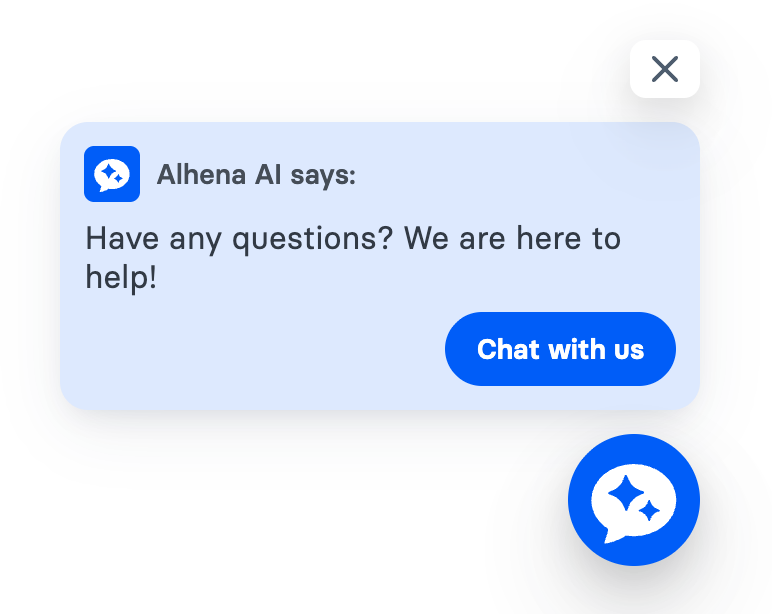
* Example: *“*&#x48;ave any questions? We are here to help!*”*

<figure><img src="/files/jz2dLkB45113TD2wLpp9" alt="" width="563"><figcaption><p>[Standard Nudge]</p></figcaption></figure>

***

#### 2. Product FAQs Nudges as notifications *(New* ✨*)*

Special nudges designed **for product pages**:

* 🔍 **Context-Aware**: Automatically generates FAQs like *“How do I choose the right size?”*.
* 🔔 **Notification Style**: Shown as lightweight chat notifications.
* 🏷️ **Exclusive**: Only available for companies with **products enabled**.
* 📈 **Boost Conversions**: Helps customers resolve doubts instantly, reducing drop-offs.

<figure><img src="/files/8s0ZqXM4qHSgPnLyrFuu" alt="" width="563"><figcaption><p>[Product FAQs Nudge as a Notification]</p></figcaption></figure>

***

### Getting Started 🚀

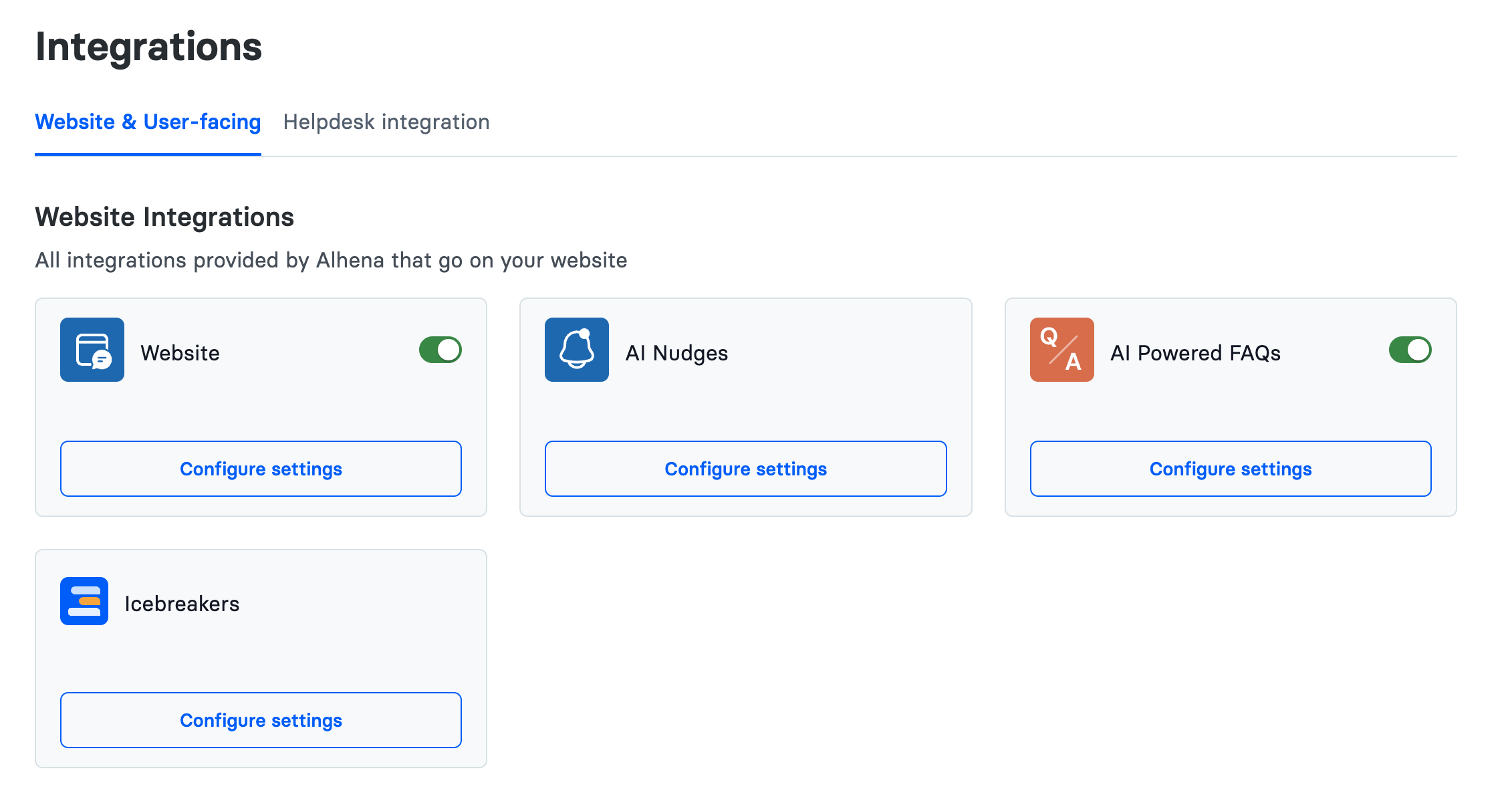
#### Step 1: Navigate to AI Nudges Settings

Go to:\
`Settings → Integrations → AI Nudges`

<figure><img src="/files/X3FMrroOJIhCPCWDYGeP" alt=""><figcaption><p>[AI Nudges - Configure settings in Alhena Dashboard]</p></figcaption></figure>

***

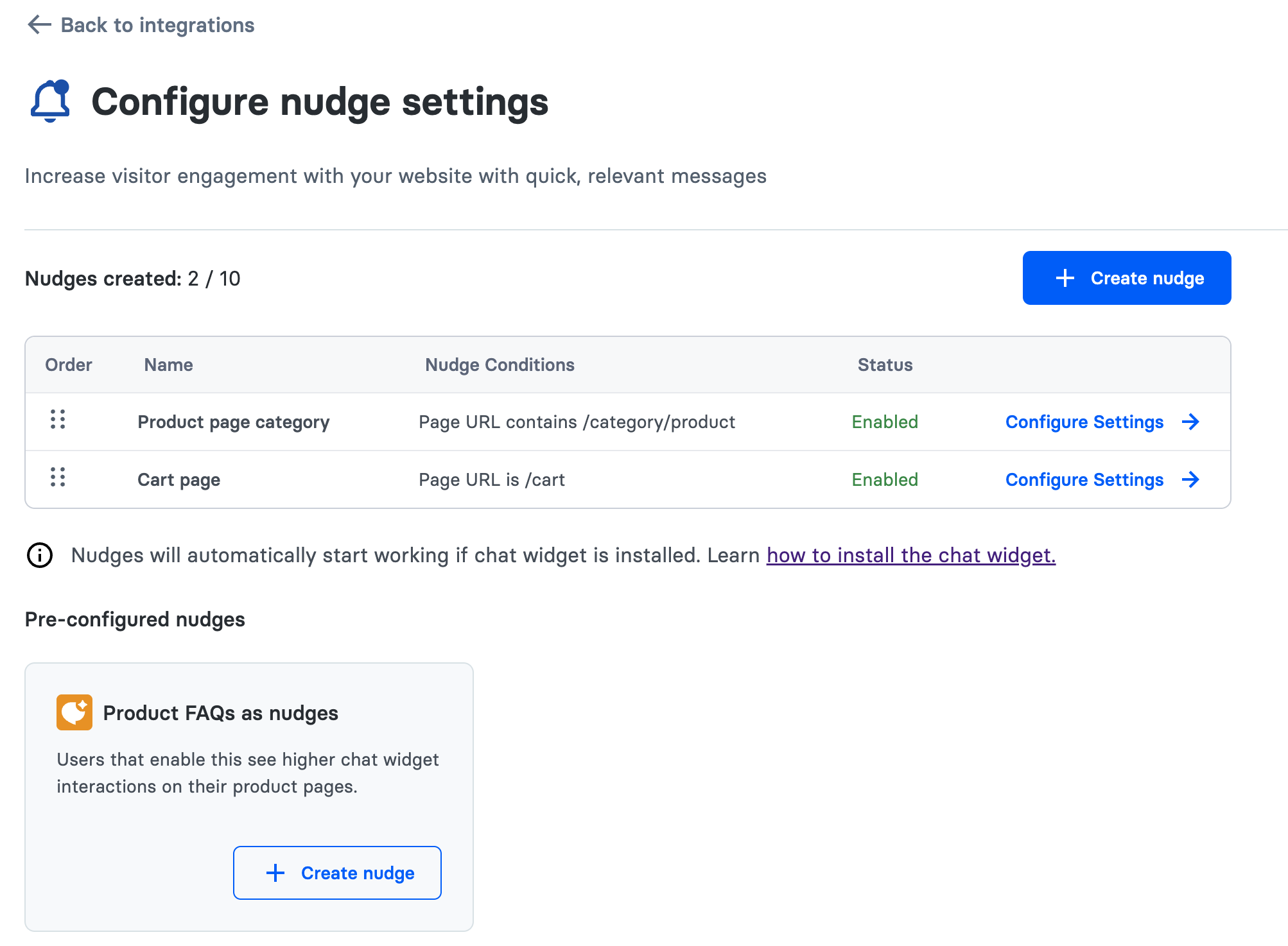
#### Step 2: Configure Nudge Settings

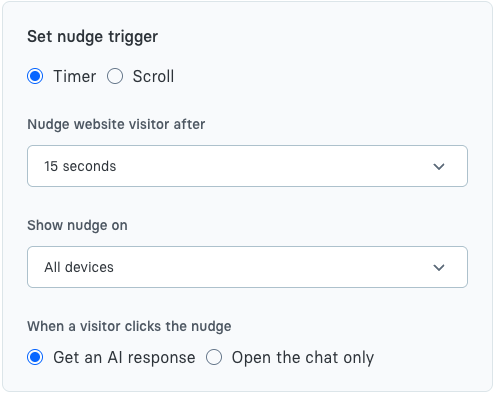
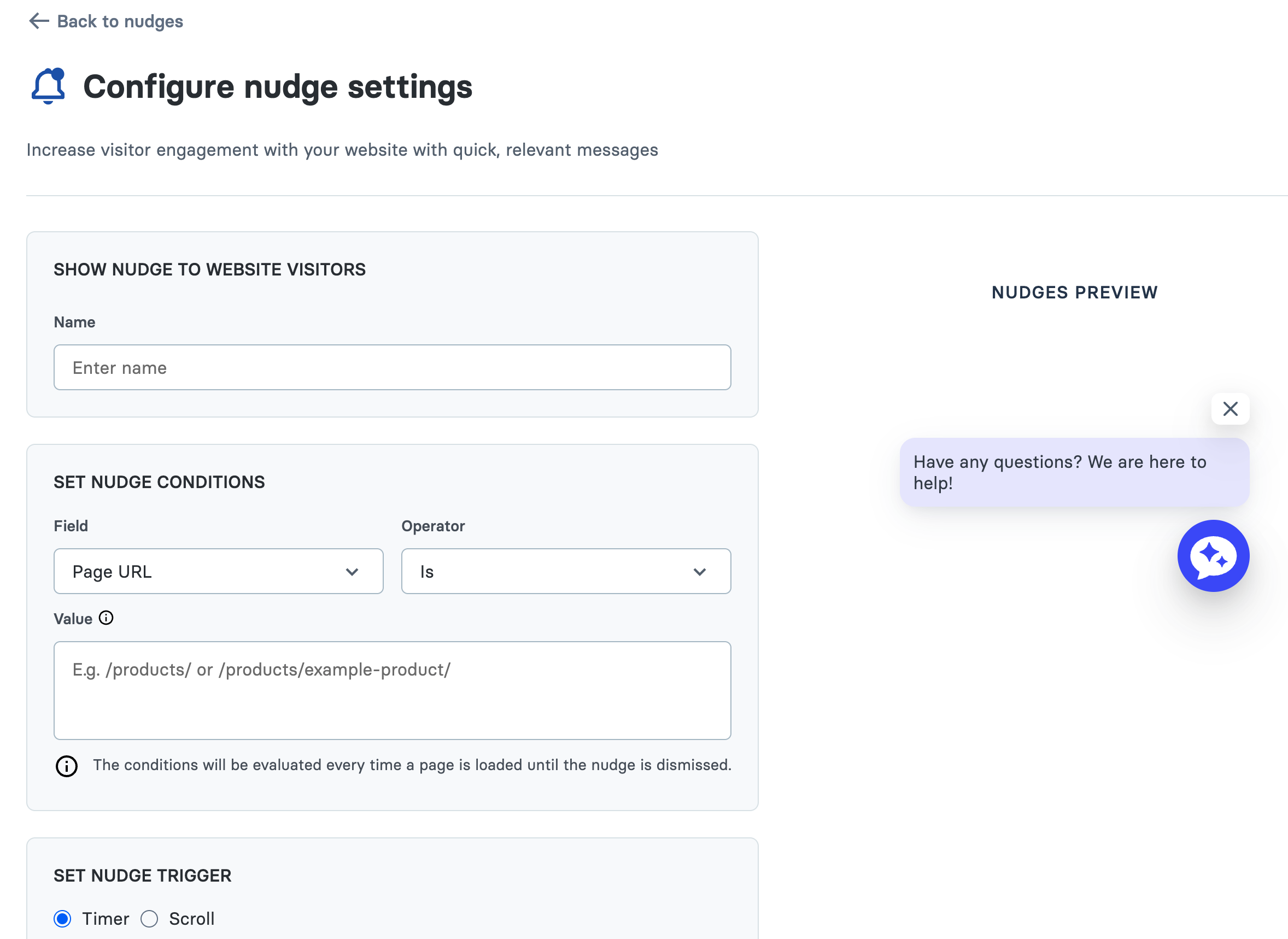
When creating or editing a nudge, you can define:

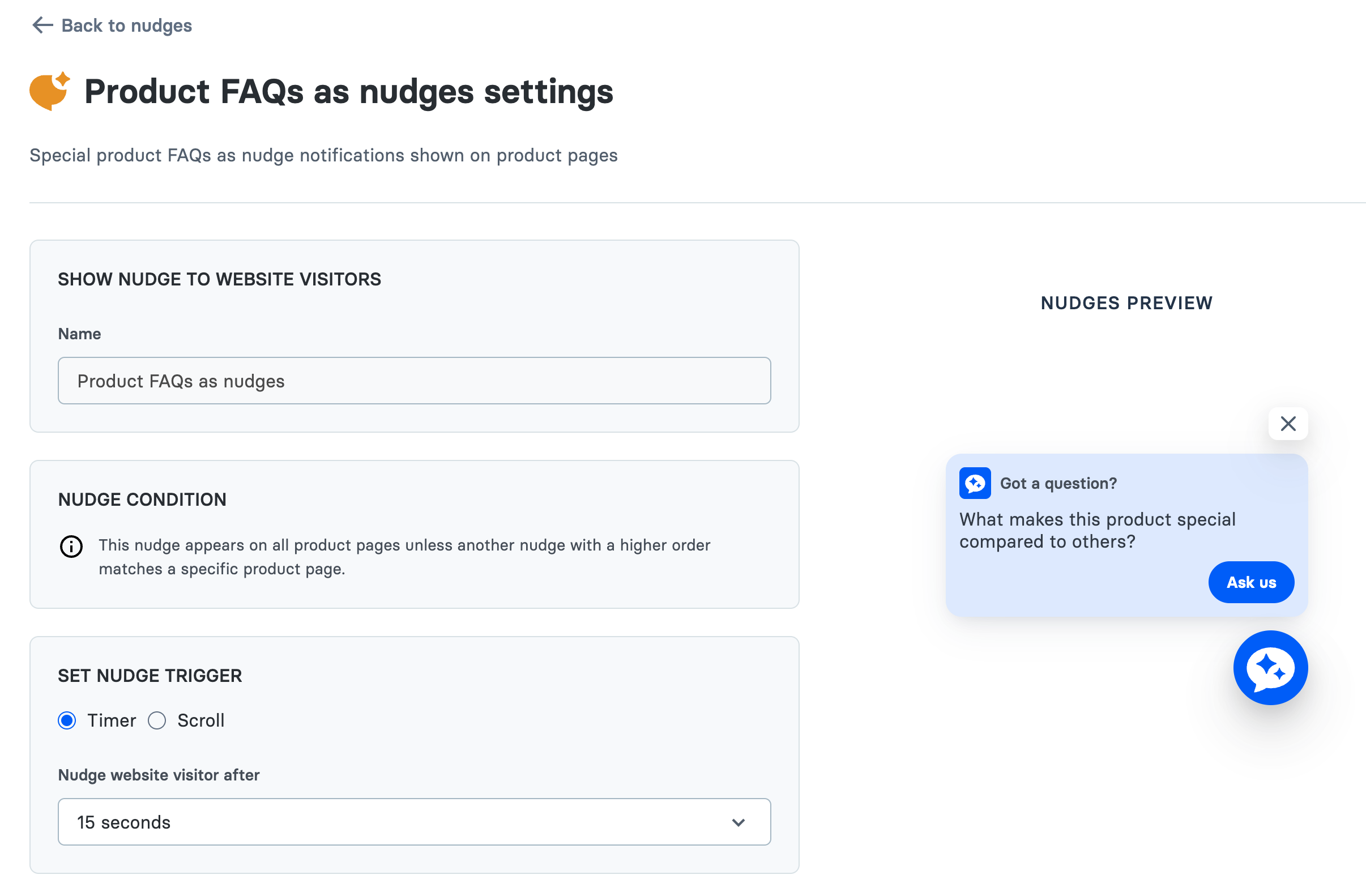
* **Nudge Conditions**
  * Match by page title or URL.
  * For *Product FAQs Nudges*, these auto-apply to **all product pages** unless another specific nudge overrides with higher order.
* **Triggers**
  * `Timer`: Display after a pre-configured delay (e.g., 5s).
  * `Scroll`: Trigger after user scrolls X pixels.
  * `Custom`: Control visibility programmatically with the [Website SDK JavaScript APIs](https://alhena.ai/docs/reference/website-sdk-javascript-apis):
    * `showNudge()`
    * `hideNudge()`
* **Nudge Animation Timing**
  * Define how long until the **next nudge** appears (e.g., 5s).
* **Preview Your Nudge**
  * Select a **Product URL** to test and preview FAQ nudges directly in the dashboard.

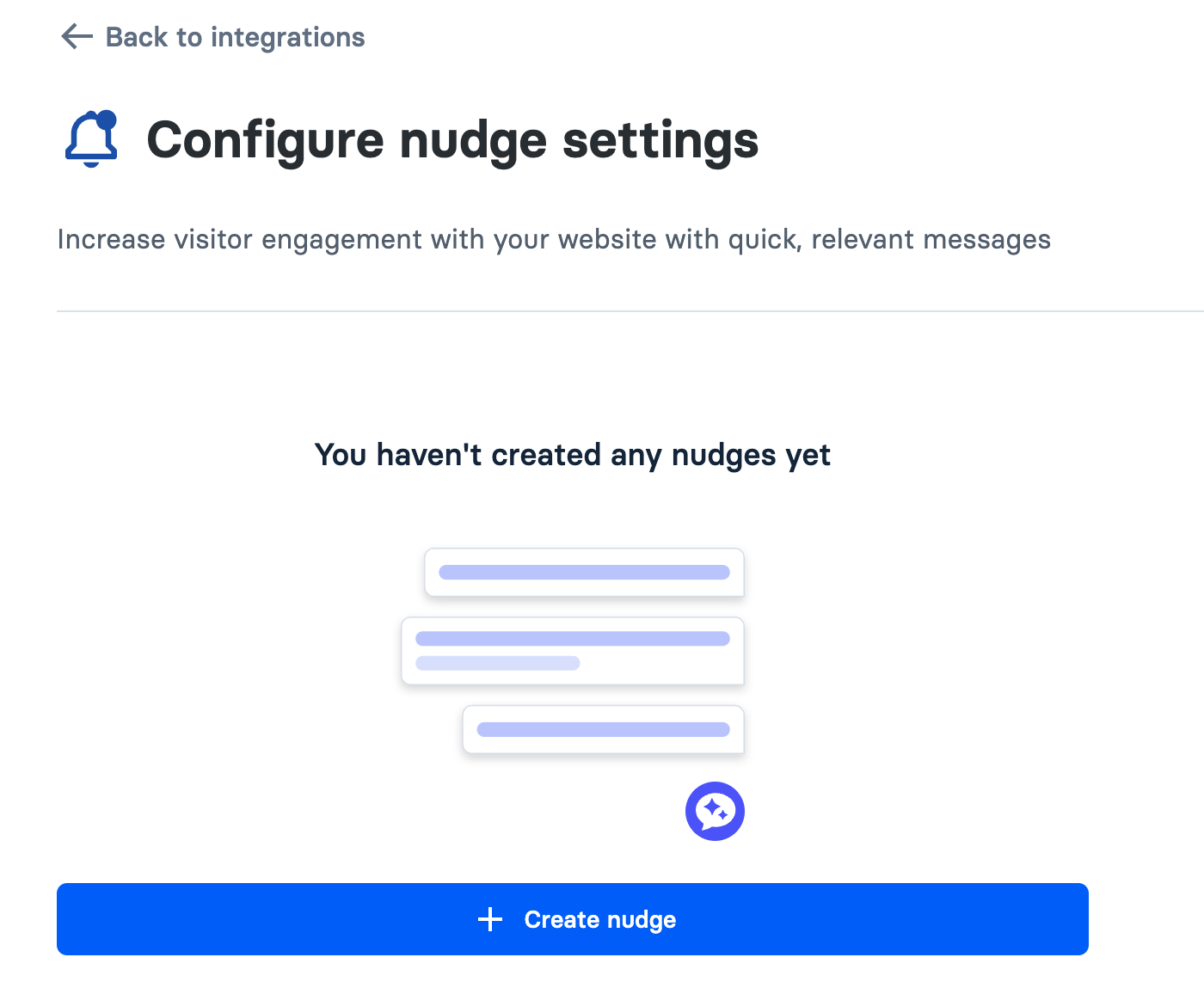
<figure><img src="/files/sMY5dukmTqDuaLzd8eJ9" alt=""><figcaption><p>[When nudge is not created yet - Create nudge button]</p></figcaption></figure>

<figure><img src="/files/9gsqlIMxaZRlk9J45xiY" alt=""><figcaption><p>[Create nudge configuration settings]</p></figcaption></figure>

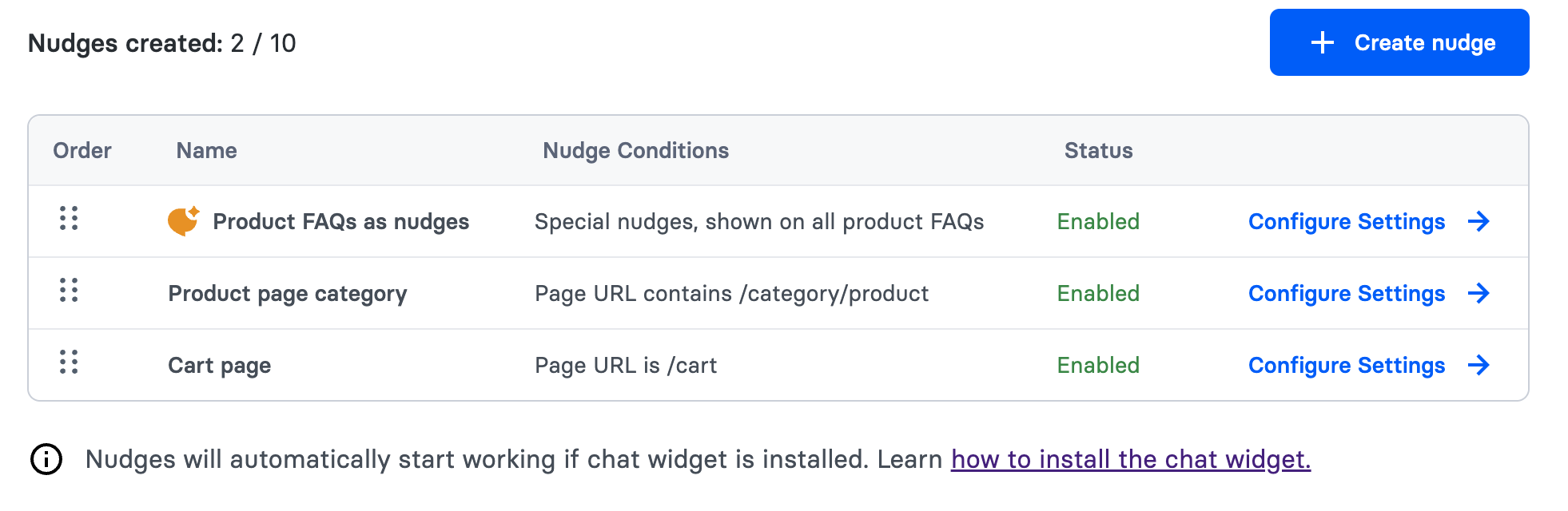
<figure><img src="/files/IEiceRrIYMWmwTm4zPGR" alt=""><figcaption><p>[If company have products - we show Product FAQs as nudges]</p></figcaption></figure>

<figure><img src="/files/KVlJjCLq7zwudZLsbalc" alt=""><figcaption><p>[Product FAQs as nudges settings]</p></figcaption></figure>

***

### Nudge Button 🆕

All nudges now include a **Nudge Button** inside the chat widget.

* ✅ Provides a **clear CTA** (e.g., *“Ask us”*).
* 🎯 Makes nudges instantly actionable for the visitor.
* 🛒 For **Product FAQs Nudges**, the button directly connects to product-related support.

<figure><img src="/files/Ad2IEIzfPguM18nHeAae" alt=""><figcaption><p>[Nudge button text]</p></figcaption></figure>

***

### Handling Multiple Nudges

* **First Match Order:** If multiple nudges match, only the first one (based on order) will display.
* **Reordering:** Drag & drop nudges in the dashboard to set priority.

<figure><img src="/files/SMfp9tLYIvD0PShBJnui" alt=""><figcaption><p>[Ordering of nudges]</p></figcaption></figure>

***

### Dismissal & Persistence

* **Persistent Dismissal:** Once dismissed, the same nudge won’t appear again unless cookies are cleared or session timed out.
* **Widget Interaction:** Nudges won’t appear if the user:
  * Already opened the chat widget.
  * Is in an ongoing conversation.
  * Clicked or dismissed the nudge.

***

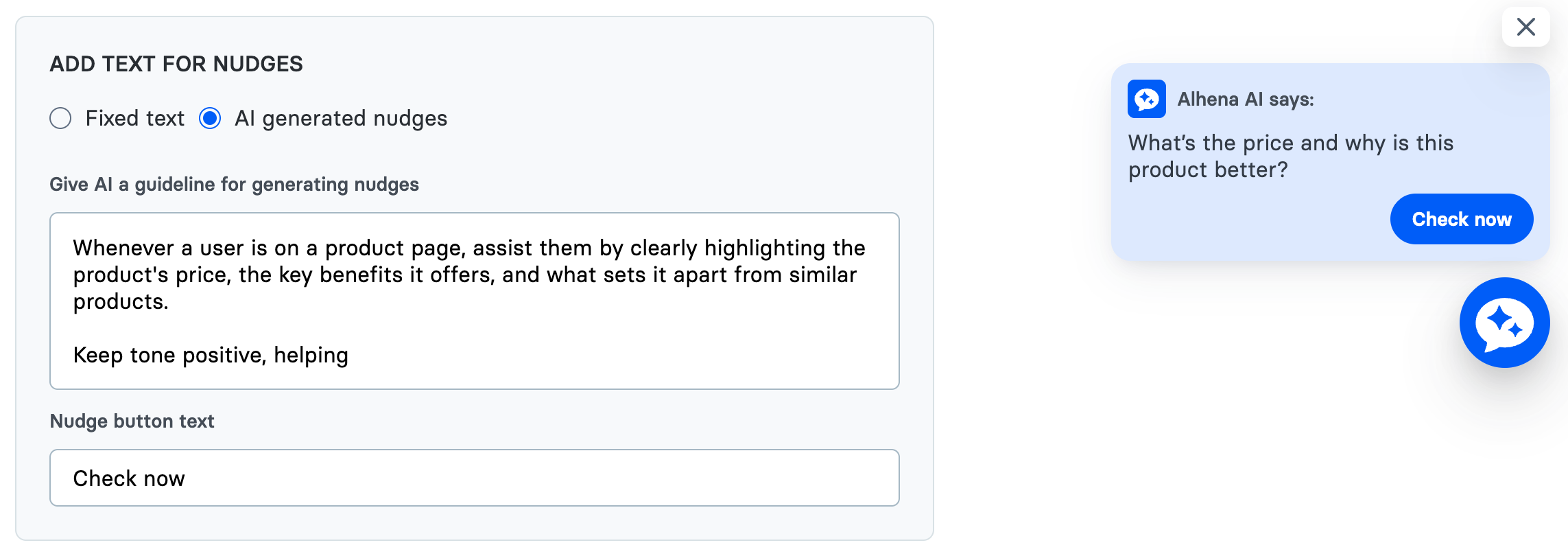
### AI-Generated Nudges 🪄

Instead of static text, enable **AI Nudges** to auto-generate prompts dynamically:

* Provide **guidelines** (tone, style, call-to-action).
* AI will generate unique nudge text based on the **page title and content**.
* You can preview generated nudges by selecting **sample product URLs**.

<figure><img src="/files/2P8KKF4S3UB84KSr7cLd" alt=""><figcaption><p>[AI generated nudges]</p></figcaption></figure>


---

# Agent Instructions: Querying This Documentation

If you need additional information that is not directly available in this page, you can query the documentation dynamically by asking a question.

Perform an HTTP GET request on the current page URL with the `ask` query parameter:

```
GET https://alhena.gitbook.io/docs/features/chat-widget/nudges.md?ask=<question>
```

The question should be specific, self-contained, and written in natural language.
The response will contain a direct answer to the question and relevant excerpts and sources from the documentation.

Use this mechanism when the answer is not explicitly present in the current page, you need clarification or additional context, or you want to retrieve related documentation sections.