> For the complete documentation index, see [llms.txt](https://alhena.gitbook.io/docs/llms.txt). Markdown versions of documentation pages are available by appending `.md` to page URLs; this page is available as [Markdown](https://alhena.gitbook.io/docs/features/chat-widget/icebreakers.md).
# Icebreakers
Make it easy for website visitors to start a conversation with your chat widget.Icebreakers are short, tappable questions that appear inside the chat window and lower the barrier to a first message.
***
### 1. Why use icebreakers?
| Benefit | How it helps |
| -------------------------- | ------------------------------------------------------------------------------------------- |
| **Reduce friction** | Visitors don’t have to think of the first question—one tap and the conversation starts. |
| **Drive relevant queries** | Product-specific icebreakers drive higher engagement and conversions than generic greetings |
***
### 2. Navigate to icebreakers
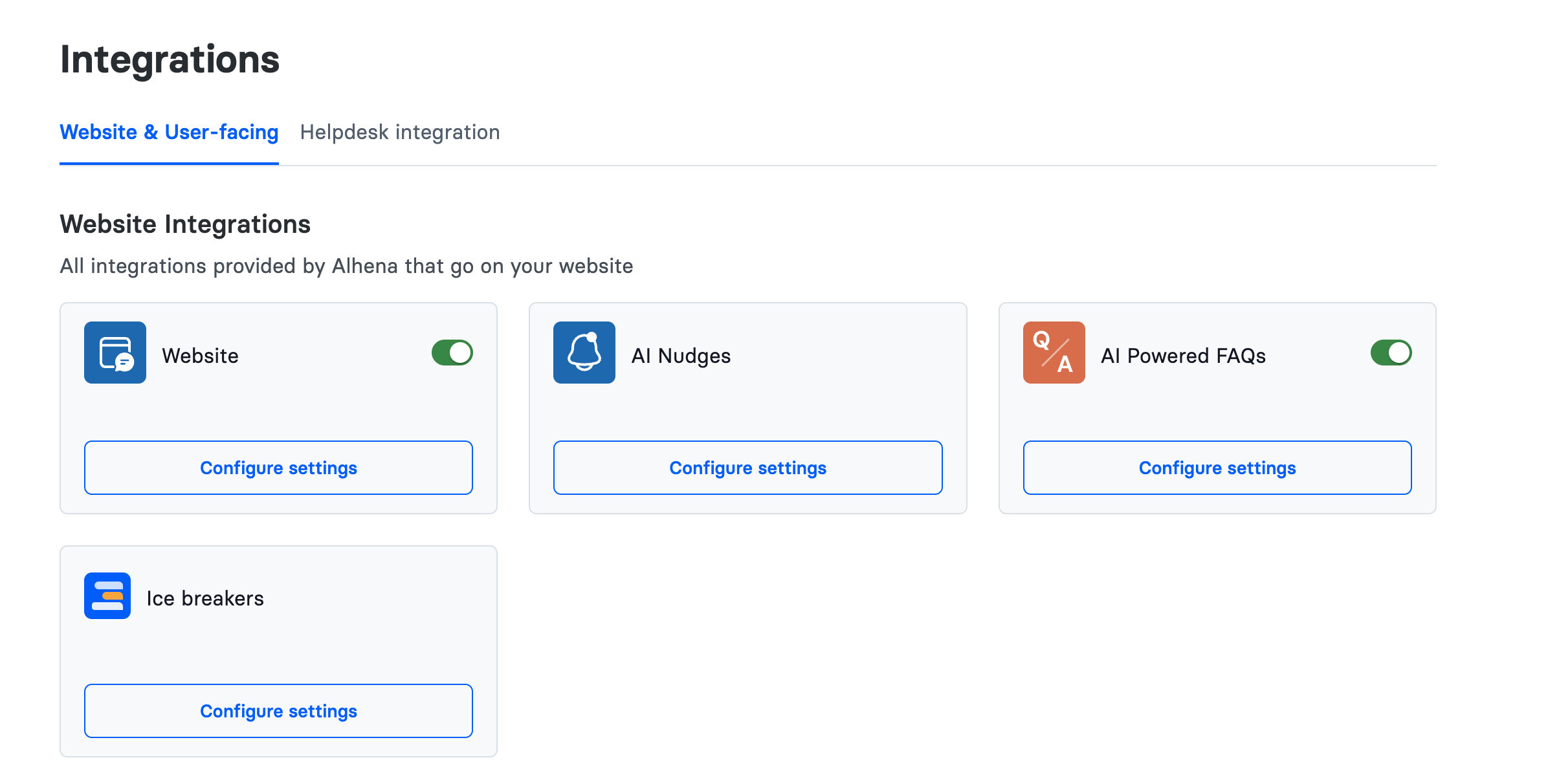
1. Log in to the **Alhena Dashboard**.
2. In the left sidebar choose **Integrations**.
3. Make sure the top tab is **Website & User-facing**.
4. Locate the **Icebreakers** card and click **Configure settings**.
***
### 3. Icebreaker types
| Type | Where it shows | How the text is populated |
| ---------------------------- | ----------------------------------------------------------------------------------------------------------------- | --------------------------------------------------------------------------- |
| **Product-page icebreakers** | Only on product detail pages | Automatically generated from your product data (title, description, specs). |
| **Fixed icebreakers** | Every page on your website. If product icebreaker are not enabled then it'll show fixed icebreaker on those page. | Manually entered by you (max 4 prompts). |
You can enable one or both types—they will never overlap on the same page.
***
### 4. Configure Product-page icebreakers
1. Select the **Product page icebreakers** tab.
2. Toggle **Show icebreakers inside widget on product pages** to **On**.
3. **Number of FAQs** – choose 1-4 prompts to display.
4. **Style your icebreakers**
* **Text color** – pick any color
* **Background color** – light tint recommended
5. **Preview by selecting a product page** – paste or choose any product URL from the dropdown to see live copy.
6. Click **Save Changes**.
> **How it works**\
> Alhena’s AI scans the selected product page and crafts concise, question-style prompts (e.g. “Is this snowboard suitable for beginners?”). Prompts refresh automatically as your catalog changes.
***
### 5. Configure Fixed icebreakers
1. Switch to the **Fixed icebreakers** tab.
2. Toggle **Show icebreakers inside widget on general pages** to **On**.
3. Under **Write text for fixed icebreakers** enter up to four prompts, one per line.
* Use natural-language questions (e.g. *“How can I track my order?”*).
* To delete a prompt, click the trash-can icon.
4. Adjust **Text color** and **Background color** if desired.
5. Click **Save Changes**.
The right-hand preview updates in real time so you can check contrast and spacing before publishing.
***
### 6. Styling guidelines
* **Keep it short:** 40 characters or fewer per prompt.
* **Brand alignment:** Use your primary brand color for text; a 5-10 % tint of the same hue works well for background.
* **Order matters:** Prompts are shown top-to-bottom; put the most common question first.
***
### 7. Saving & going live
Changes are saved instantly on click. Refresh your website in an incognito window to verify.
***
### 8. Troubleshooting
| Symptom | Cause | Fix |
| -------------------------------- | -------------------------------- | ------------------------------------------ |
| Icebreakers not visible anywhere | Integration toggle is Off | Check both product-page and fixed toggles. |
| Product-page prompts are generic | Product page lacks detailed copy | Add more description/specs |