> For the complete documentation index, see [llms.txt](https://alhena.gitbook.io/docs/llms.txt). Markdown versions of documentation pages are available by appending `.md` to page URLs; this page is available as [Markdown](https://alhena.gitbook.io/docs/features/ai-visibility/content-ai-visibility/content-recommendations/publish-faqs-to-shopify.md).
# Publishing FAQs to Shopify
Publish the FAQs Alhena generates straight to your Shopify product pages — no copying, no pasting, and they stay in sync as you edit or dismiss them.
When Alhena generates FAQs for a product on the [Recommendations](/docs/features/ai-visibility/content-ai-visibility/content-recommendations.md) tab, those answers only help you once they're actually on the product page. If your store is on Shopify, Alhena can put them there for you and keep them up to date — you generate an FAQ in the dashboard and it appears on the live product page a moment later.
Everything Alhena publishes also carries the structured data (FAQPage markup) that Google, ChatGPT, Perplexity and other AI engines read when they quote a source, so the answers are both visible to shoppers and readable by the engines you're trying to win.
{% hint style="info" %}
This is available on Shopify stores connected to Alhena. On any other platform — or if you'd rather paste the FAQs in yourself — use the copy-and-paste export described in [Recommendations](/docs/features/ai-visibility/content-ai-visibility/content-recommendations.md#getting-the-faqs-onto-your-page).
{% endhint %}
## Before you start
* Your Shopify store is connected to Alhena (see [Shopify](/docs/integrations/ecommerce/platforms/integrating-alhena-ai-with-shopify.md)).
* You've generated at least one FAQ for a product on its **Recommendations** tab.
## Step 1: Turn on publishing
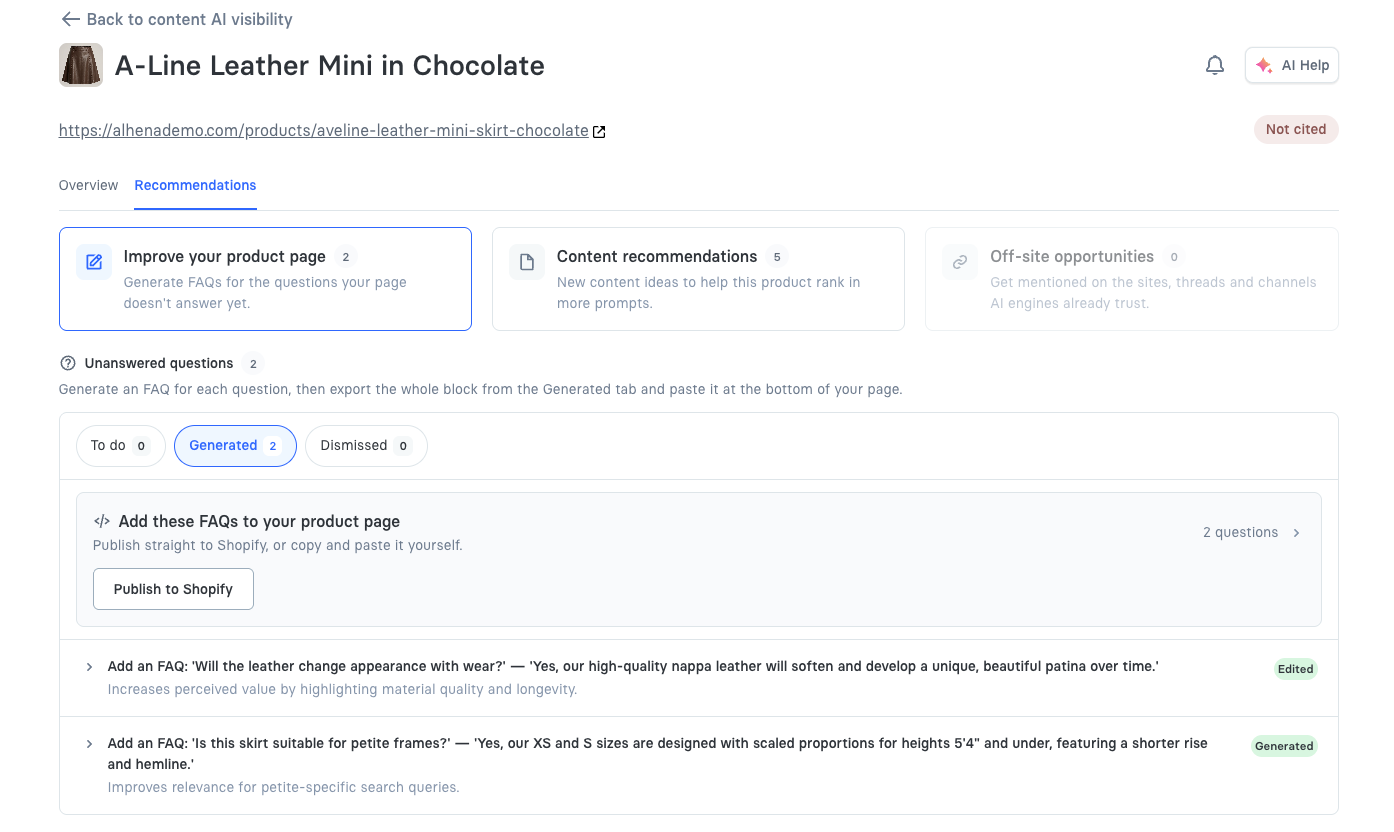
Open a product in **AI visibility → Content AI visibility**, go to the **Recommendations** tab, and switch the filter to **Generated**. Above the generated FAQs you'll see the card **Add these FAQs to your product page**.
The Generated filter, with the publish card above the FAQs.
1. Click **Publish to Shopify**.
2. Shopify asks you to approve one extra permission — permission for Alhena to update your products. Alhena doesn't request this when you install the app; it only asks now, when you've chosen to publish something. Click to approve.
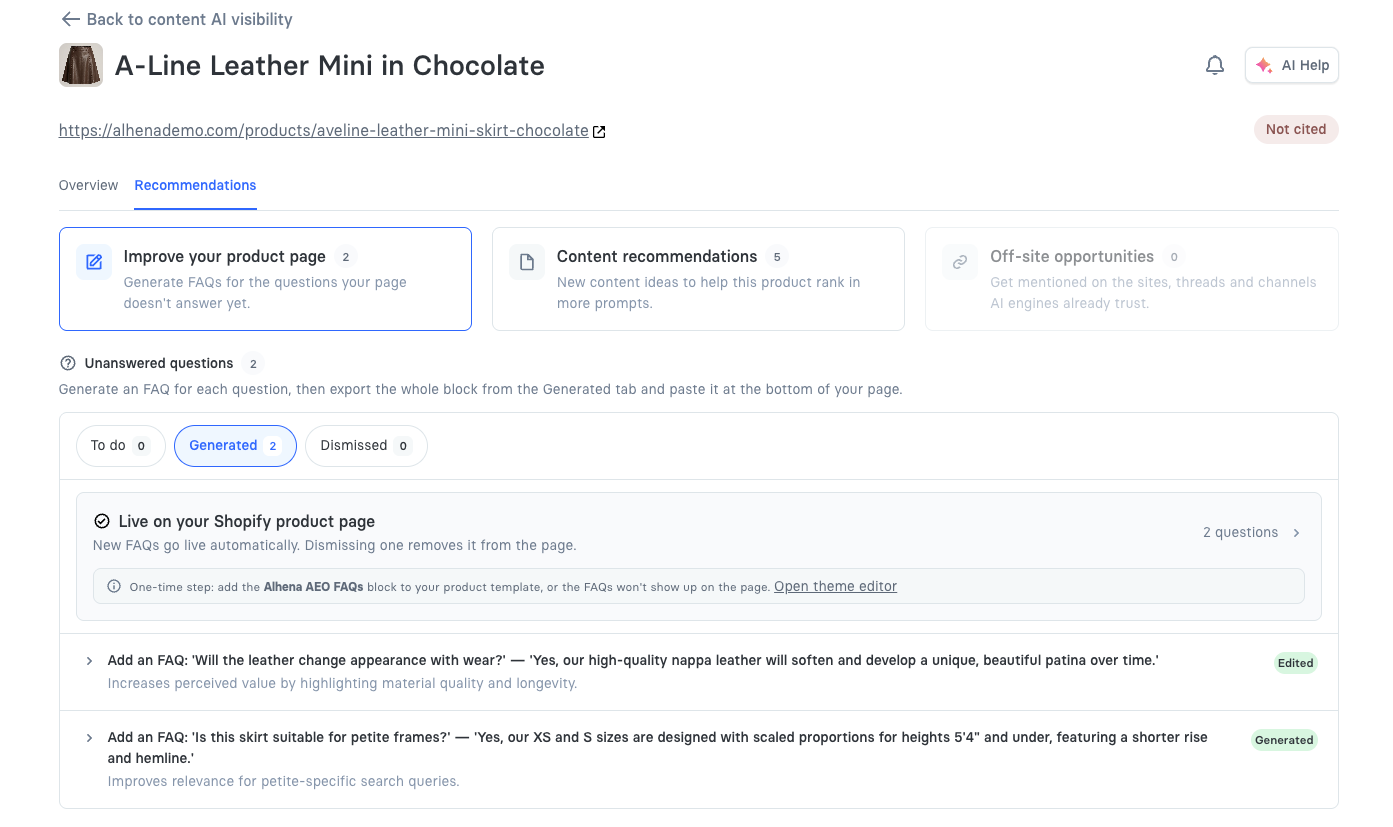
3. Shopify sends you back to the same product, and the card turns green: **Live on your Shopify product page**.
Publishing is on. New FAQs go live on their own from here.
You only do this once. From then on it's on for every product in the account — you don't repeat it product by product.
{% hint style="warning" %}
If you skip or decline the Shopify permission screen, publishing stays off and the dashboard tells you so. Click **Publish to Shopify** again to retry.
{% endhint %}
## Step 2: Add the FAQ block to your product template
Turning publishing on sends the FAQs to Shopify, but your theme decides where they appear on the page. Adding the block is a one-time step, and until you do it the FAQs won't show up on the storefront. The green card links straight to the right place with **Open theme editor**.
1. In your Shopify admin, go to **Online Store → Themes** and click **Customize** on your live theme.
2. Use the template picker at the top to open a **Products → Default product** template.
3. Pick the section where the FAQs should go — under the product description, or a new section near the bottom of the page — and click **Add block**.
4. Under **Apps**, choose **Alhena AI Visibility FAQs**.
5. Drag it into position and click **Save**.
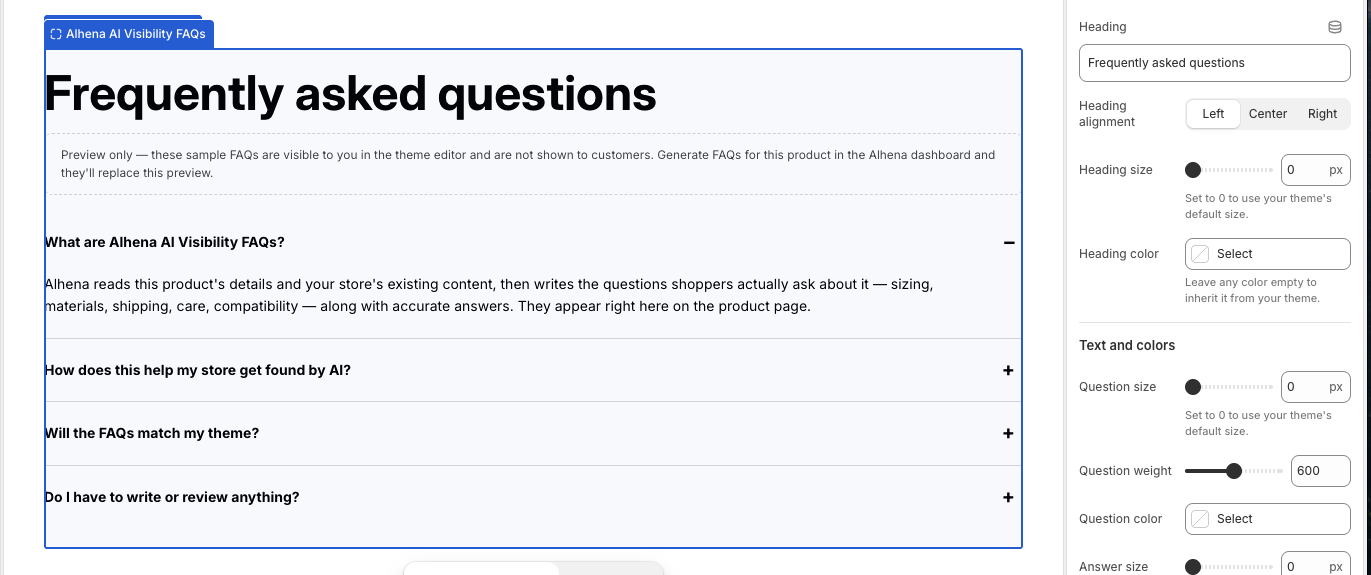
The block in the theme editor, with its styling settings on the right.
While you're in the theme editor you'll see four sample FAQs with a note above them. That's a preview so you can style the block — customers never see it, and it's replaced by the product's real FAQs as soon as they're published.
{% hint style="info" %}
The block only appears under **Apps** while you're editing a **product** template — not the homepage or a collection page.
Don't confuse it with **Alhena Product FAQs**, which is a separate feature ([Product FAQs](/docs/features/product-faqs.md)) with its own block. The one that shows AI Visibility's generated FAQs is **Alhena AI Visibility FAQs**.
{% endhint %}
## Step 3: Make it match your theme
The block inherits your theme's fonts and colors out of the box, so it usually looks right with no work. If you want to fine-tune it, select the block in the theme editor and use the settings on the right:
* **Heading** — show or hide the heading, change its wording ("Frequently asked questions" by default), and set its alignment, size and colour.
* **Text and colors** — size, weight and colour for questions and answers, the expand icon colour, and a background for the whole block.
* **Dividers** — the lines between FAQs: on or off, solid/dashed/dotted, thickness and colour.
* **FAQ cards** — give each FAQ its own border, background, corner radius and padding to make them read as cards instead of a plain list.
* **Layout** — spacing inside each FAQ, the gap between them, a maximum width, and a border and corner radius around the whole block.
There's also **Expand the first FAQ by default** (on by default), and a custom CSS field if your designer wants finer control.
Any size or colour left at its default — `0` for sizes, empty for colours — simply inherits from your theme, so you only need to set the handful of things you actually want to change.
## What gets published, and when
Everything that's in the **Generated** list and not dismissed is what's on the page. There's no separate approve step — the product page mirrors that list:
| What you do in Alhena | What happens on the product page |
| ----------------------- | ------------------------------------------------------------------- |
| Generate an FAQ | It's added to the page. |
| Edit an FAQ's wording | The page updates to your wording — your edit is what customers see. |
| Dismiss an FAQ | It's removed from the page. |
| Restore a dismissed FAQ | It goes back on the page. |
| Dismiss every FAQ | The FAQ block disappears from the page entirely. |
Changes take about a minute to appear. If you make several changes in a row — generating three FAQs, or dismissing a couple — Alhena batches them into a single update rather than republishing after each click.
## If publishing fails
When an update doesn't reach Shopify, the card turns red and explains why, with a **Retry publish** button. Click it and give it a minute. The usual causes:
* **The page isn't a Shopify product.** Only products imported from your Shopify store can be published to; a blog post or help article tracked in AI Visibility has no product page to publish to. Use the copy-and-paste export for those.
* **The permission was never granted.** If Shopify didn't grant permission to update products — or the app was reinstalled with fewer permissions — run Step 1 again.
* **A temporary Shopify problem.** Retry; if it keeps failing, contact support.
## The FAQs aren't on my page
Work through these in order:
1. **Is the card green?** If it still says *Add these FAQs to your product page*, publishing isn't on yet — do Step 1.
2. **Is the block in your theme?** This is the most common one. The FAQs are sent to Shopify whether or not the block is there, so publishing can be on and working while nothing renders. Do Step 2, on your **live** theme.
3. **Are you looking at the right product?** FAQs are per product — a product with none generated shows nothing.
4. **Did you save the theme?** Adding a block only takes effect once you click **Save** in the theme editor.
## Prefer to do it by hand?
Publishing to Shopify doesn't take the manual route away. Expand the card and you still get the whole FAQ block as **plain text**, **HTML** or **JSON-LD** to copy — useful if you also run the product on another storefront, or want the FAQs somewhere your Shopify theme doesn't reach.