# Trending Topics

<figure><img src="/files/Og0IDG9UInnBPjCh2CvP" alt=""><figcaption><p>Trending Topics</p></figcaption></figure>

#### 1. Where to find it

1. **Open the Alhena Dashboard.**
2. In the **left-hand navigation**, click **Analytics**.
3. Across the top of the Analytics workspace, choose the **"Trending Topics"** tab

***

#### 2. What you see at a glance

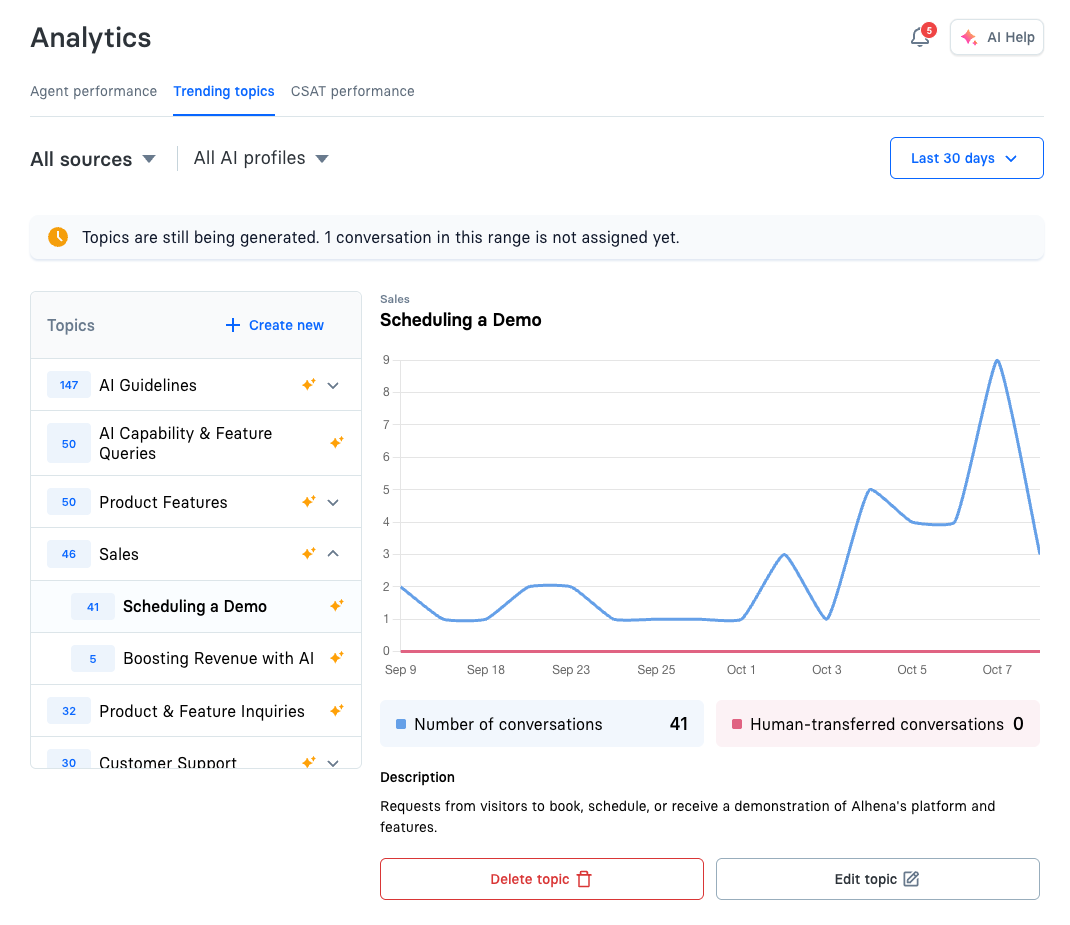
The Trending Topics view is split into two panels:

**Left panel - Topics list**

| Element                | What it shows                                              |
| ---------------------- | ---------------------------------------------------------- |
| **Topic name**         | The name of each conversation topic                        |
| **Conversation count** | Badge showing total conversations tagged with this topic   |
| **AI-generated icon**  | Indicates topics that were automatically created by the AI |
| **Create a topic**     | Button to add a new custom topic                           |

Topics are sorted by conversation volume (highest first).

**Right panel - Topic details**

| Element                        | What it shows                                                 |
| ------------------------------ | ------------------------------------------------------------- |
| **Topic name and description** | Details about the selected topic                              |
| **Line chart**                 | Visualization of conversations over time with two metrics     |
| **No. of conversations**       | Total conversations tagged with this topic (blue line)        |
| **Human transferred**          | Conversations that were escalated to human agents (pink line) |

***

#### 3. Global filters

| Control                                             | Why it matters                                                                         |
| --------------------------------------------------- | -------------------------------------------------------------------------------------- |
| **Integration source** (default **All sources**)    | Filter by channel (Website, Email, Slack, Discord, etc.) to see topics by integration. |
| **AI Profile filter** (default **All AI profiles**) | View topics across all profiles or focus on a specific one.                            |
| **Date range** (default **Last 30 days**)           | Adjust the time period to analyze topic trends.                                        |

***

#### 4. Managing topics

| Action                 | How to do it                                                                                   |
| ---------------------- | ---------------------------------------------------------------------------------------------- |
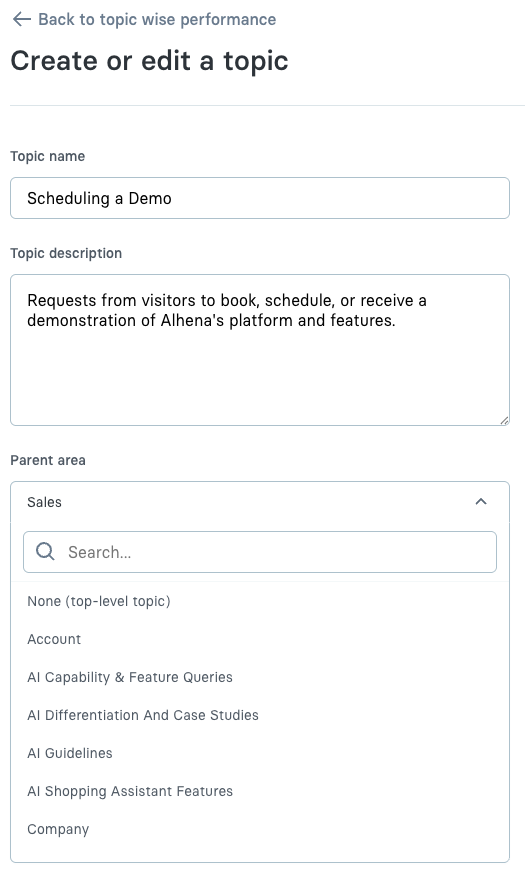
| **Create a topic**     | Click "Create a topic" and enter a name and description.                                       |
| **Edit a topic**       | Select a topic and click "Edit topic" to update the name or description.                       |
| **Delete a topic**     | Select a topic and click "Delete" to remove it (historical data is preserved).                 |
| **View conversations** | Click "View conversations" to drill down into the actual conversations tagged with this topic. |

***

#### 5. Practical use-cases

| Goal                                   | How to use Trending Topics                                                                      |
| -------------------------------------- | ----------------------------------------------------------------------------------------------- |
| **Identify common customer inquiries** | Sort topics by conversation count to see what customers ask about most frequently.              |
| **Spot gaps in AI training**           | Topics with high human transfer rates may indicate areas where the AI needs more training data. |
| **Track seasonal trends**              | Compare topic volumes across different date ranges to identify seasonal patterns.               |
| **Measure impact of product changes**  | Monitor if specific topics spike after product updates or releases.                             |
| **Organize conversations**             | Create custom topics to categorize conversations in ways that match your business needs.        |

***

#### 6. FAQs

**What are AI-generated topics?**\
Topics automatically created by the AI based on conversation content patterns.

**Can I rename an AI-generated topic?**\
Yes, you can edit any topic including AI-generated ones.

**What happens when I delete a topic?**\
The topic is removed from the list but historical data is preserved.

**Why can't I click "View conversations"?**\
This option requires selecting a specific AI profile (not "All AI profiles").

***

**Trending Topics helps you understand what customers are asking about—enabling you to improve AI training, identify knowledge gaps, and track how conversation patterns change over time.**

***

#### See also

* [Agent Performance](/docs/dashboard/analytics/agent-performance.md) - Track conversation volume, AI vs. human handled interactions, and credit usage
* [Revenue Impact](/docs/dashboard/analytics/revenue-impact.md) - Measure the revenue contribution of your AI agent with cart and GMV analytics
* [CSAT Collection](/docs/dashboard/analytics/csat-collection.md) - Set up customer satisfaction feedback collection after AI interactions


---

# Agent Instructions: Querying This Documentation

If you need additional information that is not directly available in this page, you can query the documentation dynamically by asking a question.

Perform an HTTP GET request on the current page URL with the `ask` query parameter:

```
GET https://alhena.gitbook.io/docs/dashboard/analytics/trending-topics.md?ask=<question>
```

The question should be specific, self-contained, and written in natural language.
The response will contain a direct answer to the question and relevant excerpts and sources from the documentation.

Use this mechanism when the answer is not explicitly present in the current page, you need clarification or additional context, or you want to retrieve related documentation sections.