# Boosting Products

The Boost Products feature allows you to strategically prioritize specific products within our AI-driven recommendations. This gives you control to highlight certain items, helping you optimize your sales and promotional strategies.

### Accessing Boost Products

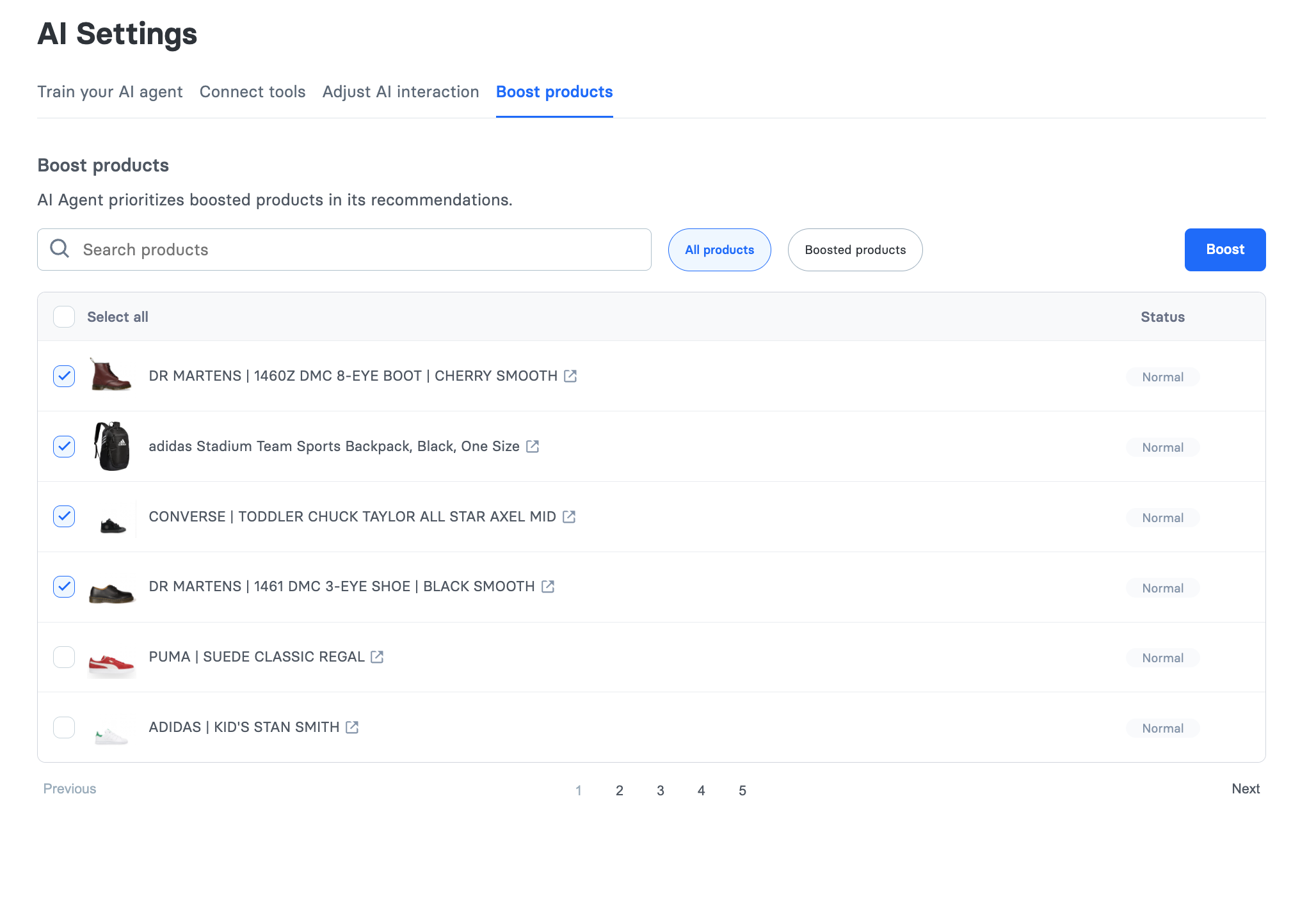
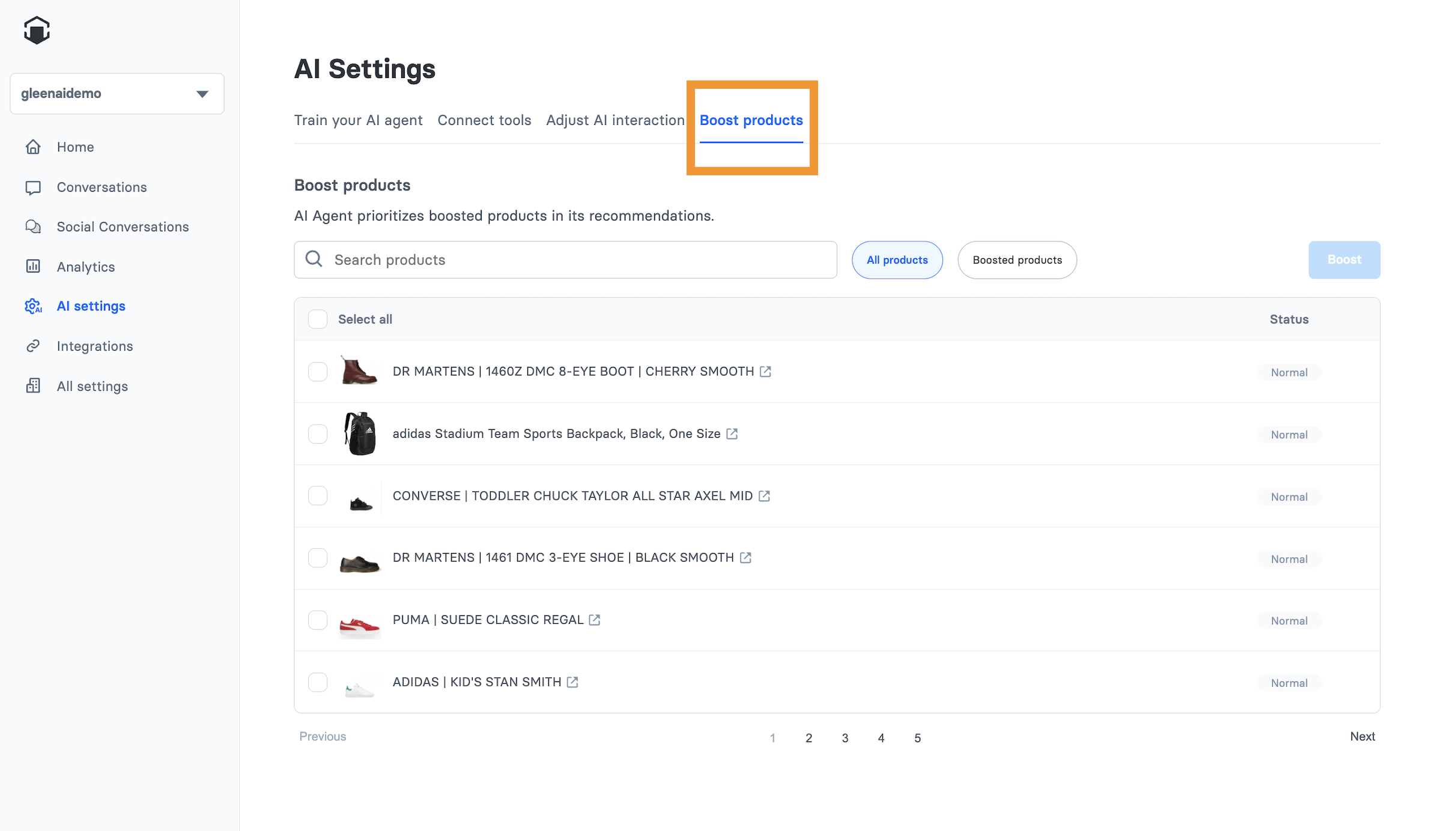
To manage product boosting, you first need to navigate to the Boost Product screen:

1. Go to **AI Settings** in your dashboard.
2. Select the **Boost Product** tab.

You will then see a list of all products that have been ingested and are available for your AI Agent profile.

<figure><img src="/files/G9v0FCTvZvj5rSYxZtkb" alt="Navigating to AI Settings and then Boost Product screen"><figcaption><p>Navigating to AI Settings and then Boost Product screen</p></figcaption></figure>

### Boosting Products

You can boost products in a couple of ways:

#### 1. Selecting Products Directly

* Scroll through the list of products.
* Check the box next to each product you wish to boost.

<figure><img src="/files/dSo1FqK56Rz2qhIAUsgs" alt="Checkboxes selected next to products for boosting"><figcaption><p>Checkboxes selected next to products for boosting</p></figcaption></figure>

#### 2. Searching for Products

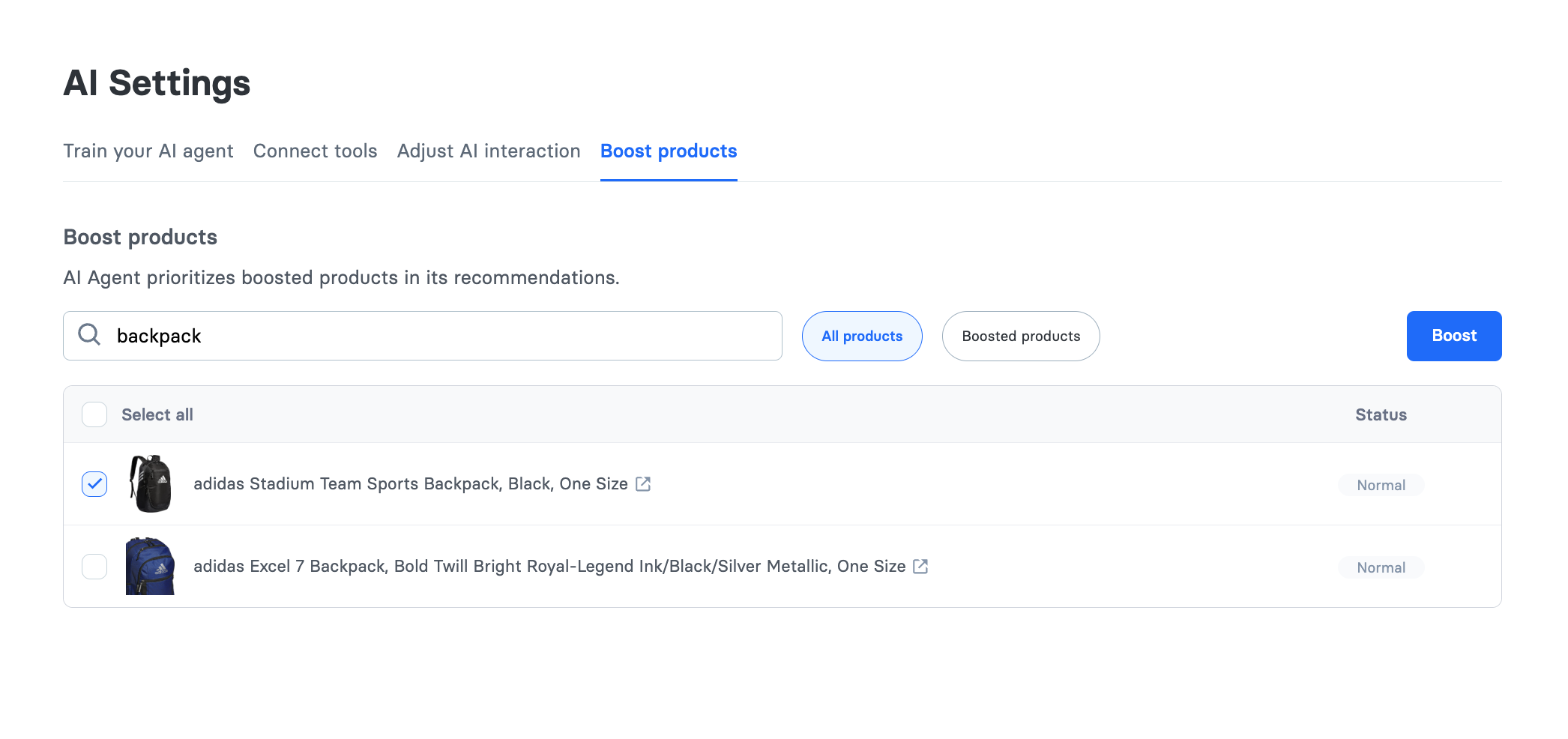
* If you have a large catalog, use the search bar to find specific products.
* For example, type "backpack" to filter the list and display only backpacks.
* Select the desired product(s) from the search results.

<figure><img src="/files/PqiO96210ksG4qXkY1Xh" alt="Search bar with &#x27;backpack&#x27; typed in, showing filtered results with one selected"><figcaption><p>Search bar with 'backpack' typed in, showing filtered results with one selected</p></figcaption></figure>

#### Applying the Boost

* Once you have selected all the products you want to prioritize, click the **Boost** button.
* These products will now be marked as boosted and will be given higher priority in AI recommendations.

### Viewing Boosted Products

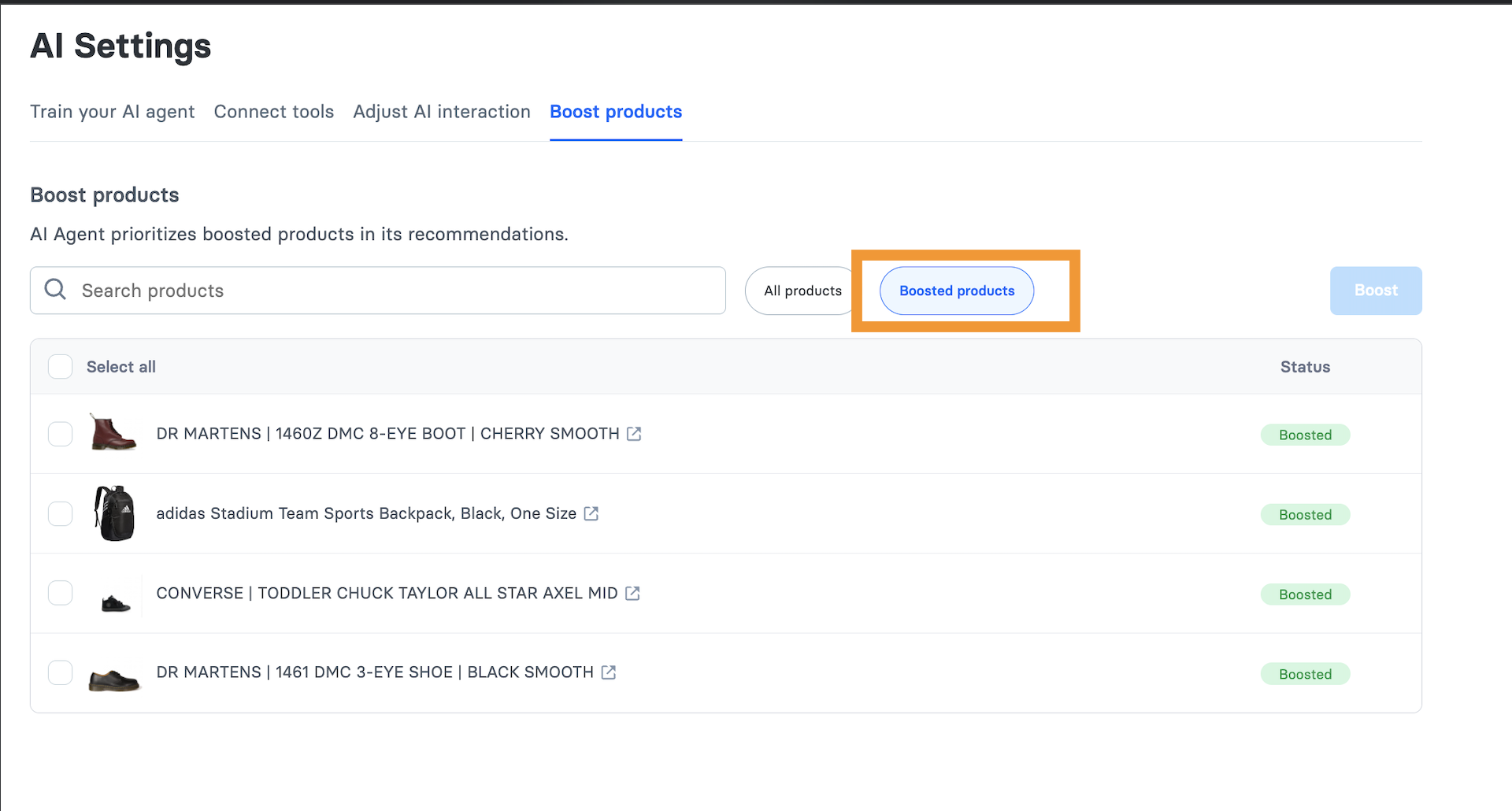
To see a list of only the products that are currently boosted:

1. Clear any active search terms from the search bar (if any).
2. Click on the filter or tab labeled "Boosted Products".

<figure><img src="/files/tDIVl8BEwUF4OVzIuntb" alt="Screen showing only the products that have been boosted"><figcaption><p>Seeing only the products that have been boosted</p></figcaption></figure>

### Removing Boosted Products

If you no longer wish to prioritize certain products:

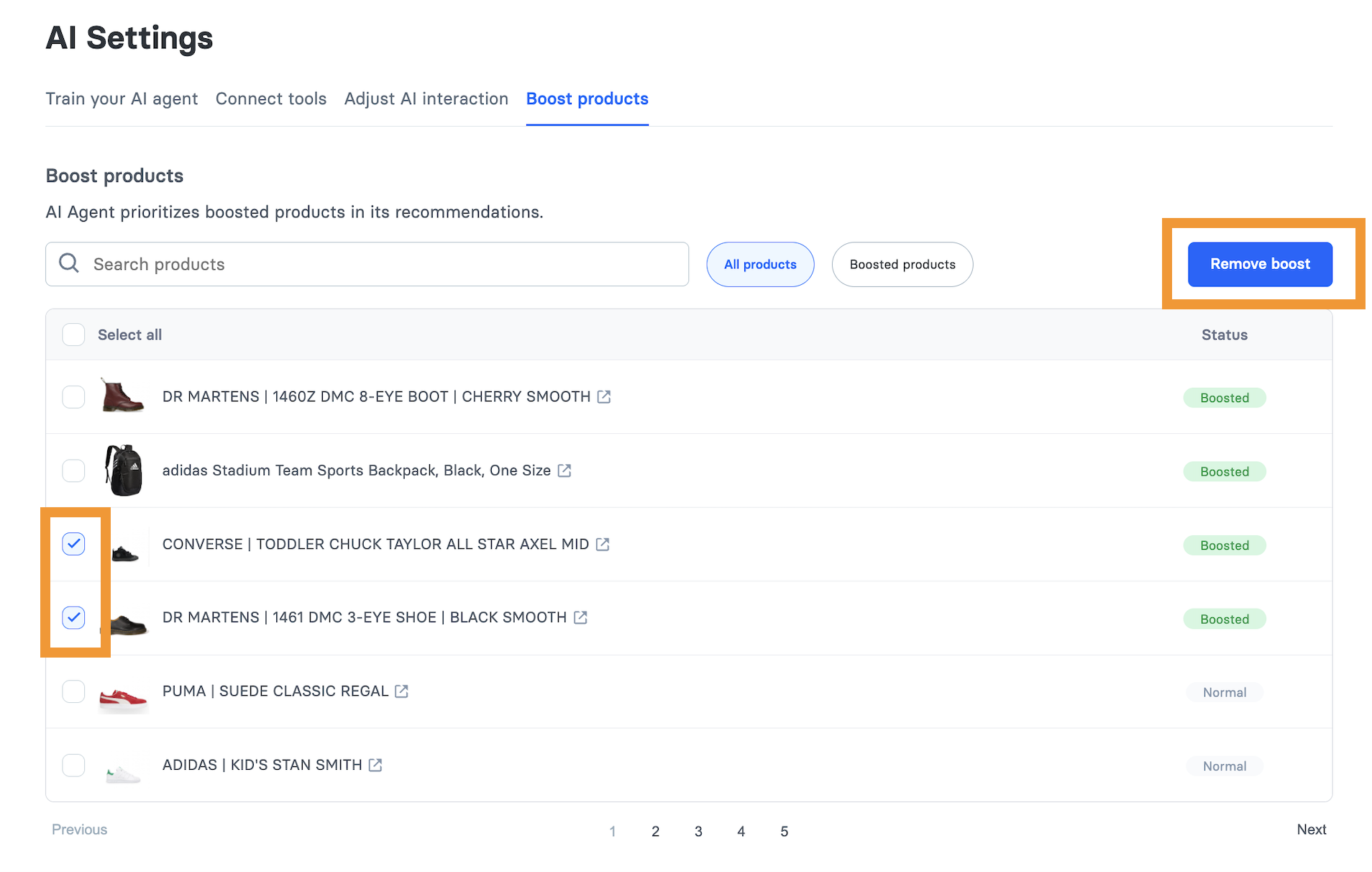
1. All the products that have been boosted have the **Status** as **Boosted.**
2. Select the product(s) you wish to remove the boost from by checking their respective boxes.
3. Click the **Remove Boost** button.

The selected products will be removed from the boosted list and will no longer have special prioritization. Their **Status** will **change** to **Normal.**

<figure><img src="/files/usz3vWC5nPFKQTdoOOKx" alt="Boosted products selected with a &#x27;Remove Boost&#x27; action visible"><figcaption><p>Boosted products selected with a 'Remove Boost' action visible</p></figcaption></figure>

And that’s how easy it is to use the Product Boosting feature! Here's a video explaining all of this in detail:

{% embed url="<https://www.loom.com/share/0674c272cdd949c2850dc1015f16b02e>" %}
Video explaining the "Boost Products" feature
{% endembed %}

If you have any more questions or need assistance with the Boost Products feature, please [contact support](/docs/troubleshooting/troubleshooting.md#contact-support).


---

# Agent Instructions: Querying This Documentation

If you need additional information that is not directly available in this page, you can query the documentation dynamically by asking a question.

Perform an HTTP GET request on the current page URL with the `ask` query parameter:

```
GET https://alhena.gitbook.io/docs/ai-configuration/tuning/boosting-products.md?ask=<question>
```

The question should be specific, self-contained, and written in natural language.
The response will contain a direct answer to the question and relevant excerpts and sources from the documentation.

Use this mechanism when the answer is not explicitly present in the current page, you need clarification or additional context, or you want to retrieve related documentation sections.